Viewing Suspense Transactions
Summary
In this article, you will learn the steps to run a query to view suspense transactions in OneUSG Connect.
Body
Overview
You can run a query in OneUSG Connect to view positions funded by suspense accounts. The query Positions Funded by Suspense (180_CA_SUSPENSE_FUNDED) can be accessed from the System Manager Reporting page under Queries > Commitment Accounting.
In this article, you will learn the steps to run a query to view suspense transactions in OneUSG Connect.
 |
First, log into OneUSG Connect
On the Manager Self Service page, click the System Manager Reporting tile.
|
|
 |
The System Manager Reporting page is displayed.
In the Queries menu on the left side of your screen, follow the navigation:
Commitment Accounting > Actual and Encumber query group
Click the Positions Funded by Suspense link.
|
|
 |
The 180_CA_SUSPENSE_FUNDED - Positions Funded by Suspense query search page is displayed on the right of the page.
You can use the search fields to limit your results by Combo Code and/or Project ID. To return all results in a field, leave the % sign in the field.
Adjust the Beginning Date and Ending Date as needed.
Click the View Results button.
|
|
 |
The results are displayed.
You can download the results section in three formats (i.e., Excel SpreadSheet, CSV Text File, and XML File).
Example shown here: Excel SpreadSheet.
|
|
 |
Click to open the file when prompted.
Click the Open button.
|
|
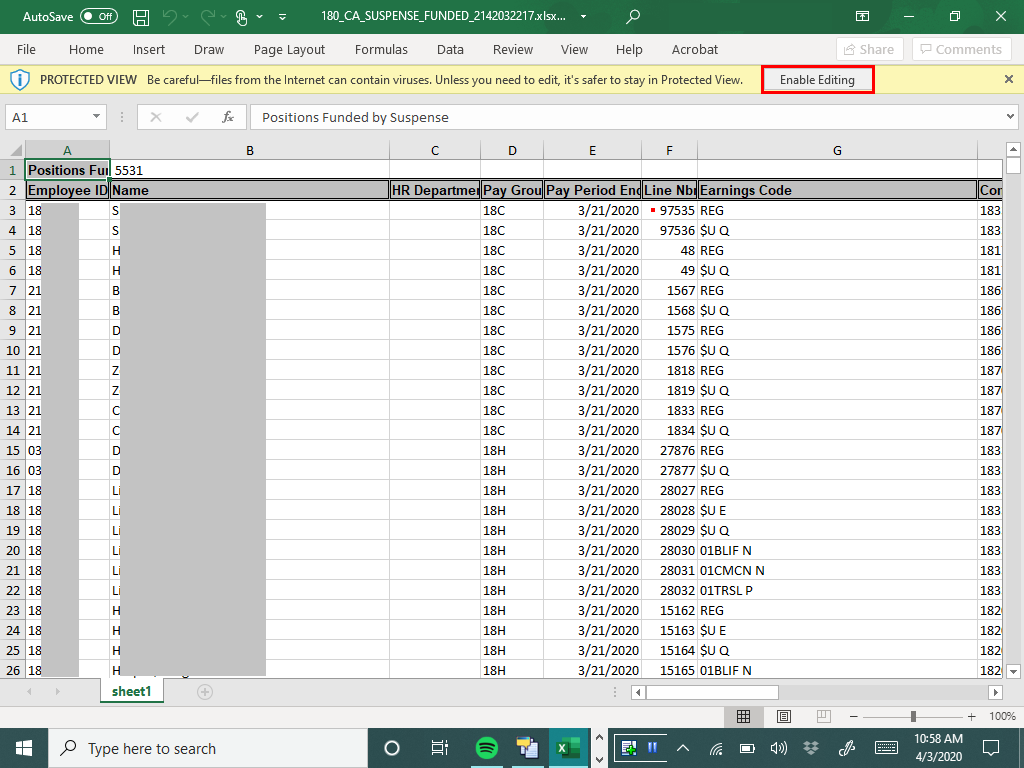 |
The file opens in Protected View.
Click Enable Editing to be able to edit the document.
|
|
 |
|
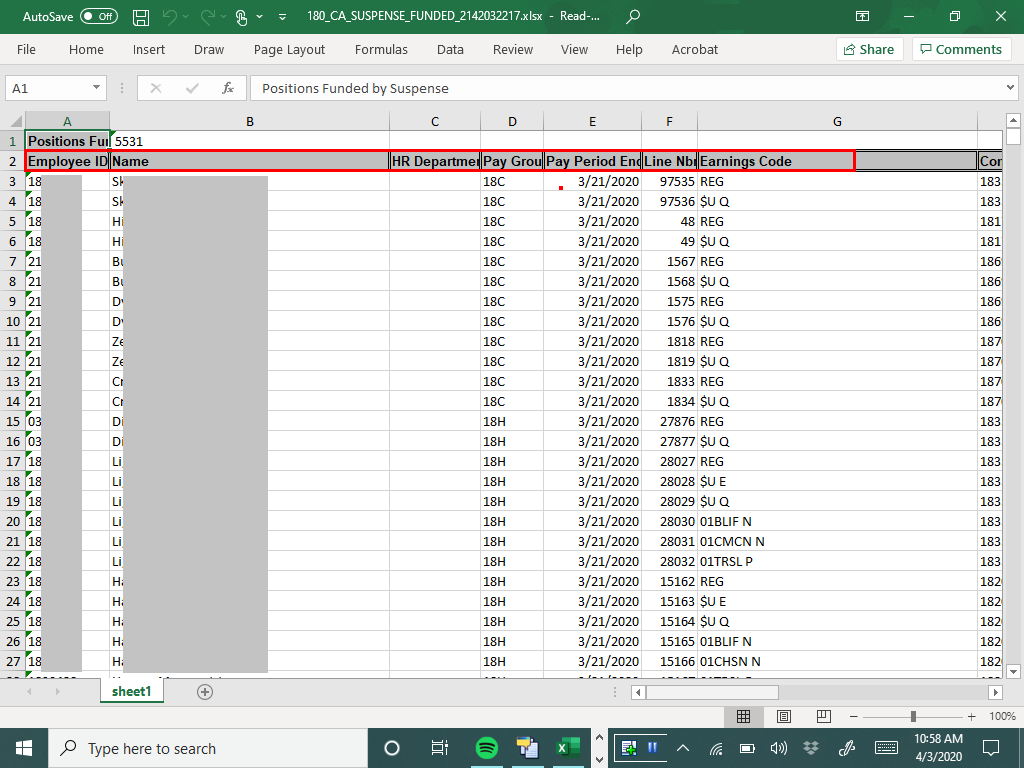
You can filter and sort the data in each column to view the information you need.
Columns show Employee ID, Name, HR Department ID, Pay Group, Pay Period End, Line Number, and Earnings Code
|
|
 |
|
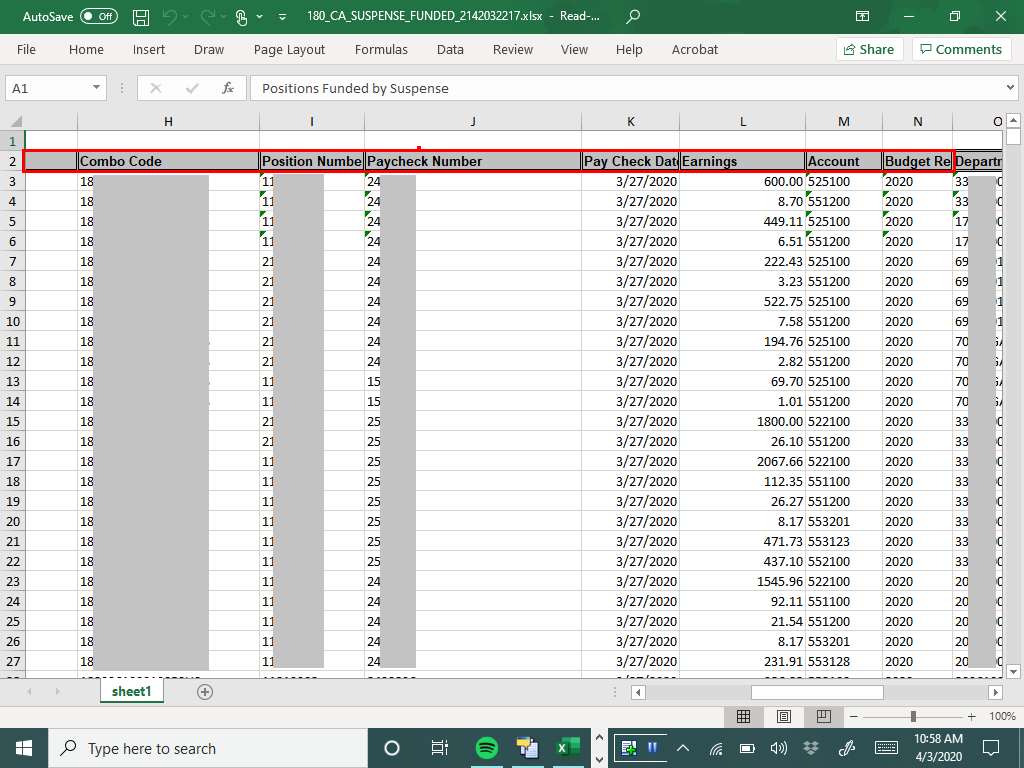
Scroll to the righ t to view additional columns, including Combo Code, Position Number, Paycheck Number, Pay Check Date, Earnings, and the chartstring information.
|
|
Details
Details
Article ID:
151478
Created
Sun 9/25/22 10:08 AM
Modified
Fri 8/21/26 3:38 PM