Overview
Use the UGA_TE_TA_WORKFLOW_PENDING query link in the Business Management Workcenter to review the travel authorizations that are in, but have not completed, the workflow process.
You can also access this query using Query Viewer, accessed from the tile on the UGA Financials homepage.
Click the Excel Spreadsheet link to download and follow the prompts to save and open.
In this article, you will learn the steps to run the query UGA_TE_TA_WORKFLOW_PENDING to view the status of Travel Authorizations from the Business Manager Workcenter menu.
 |
|
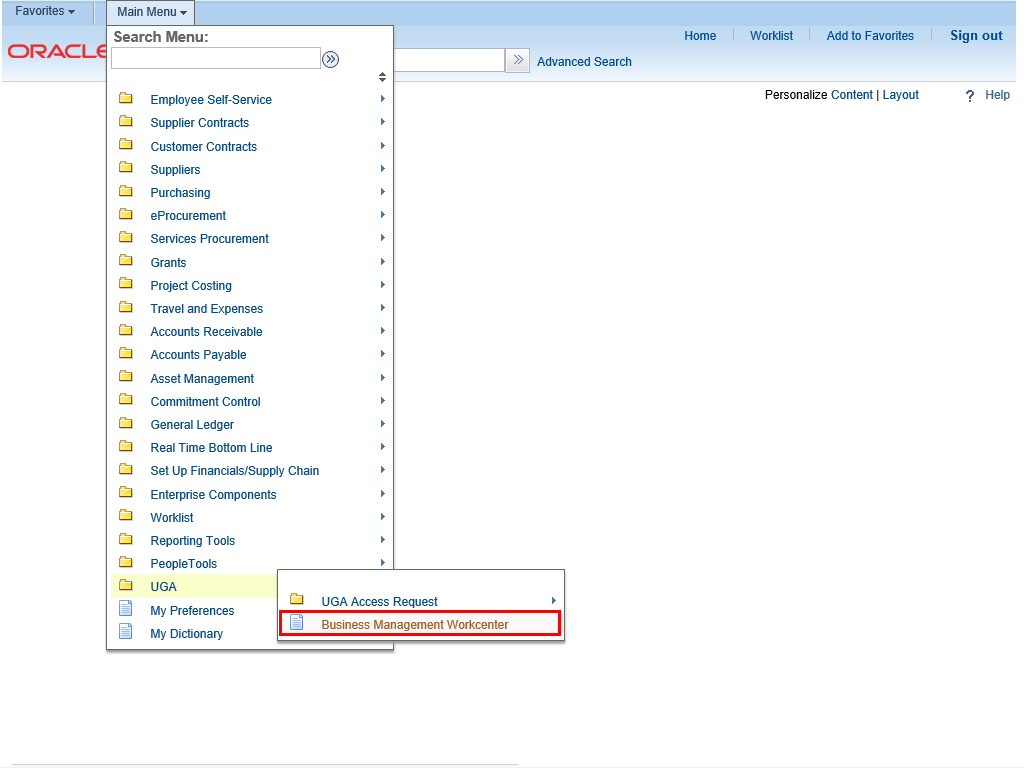
To navigate to the Business Management Workcenter , select:
Main Menu > UGA > Business Management Workcenter
|
|
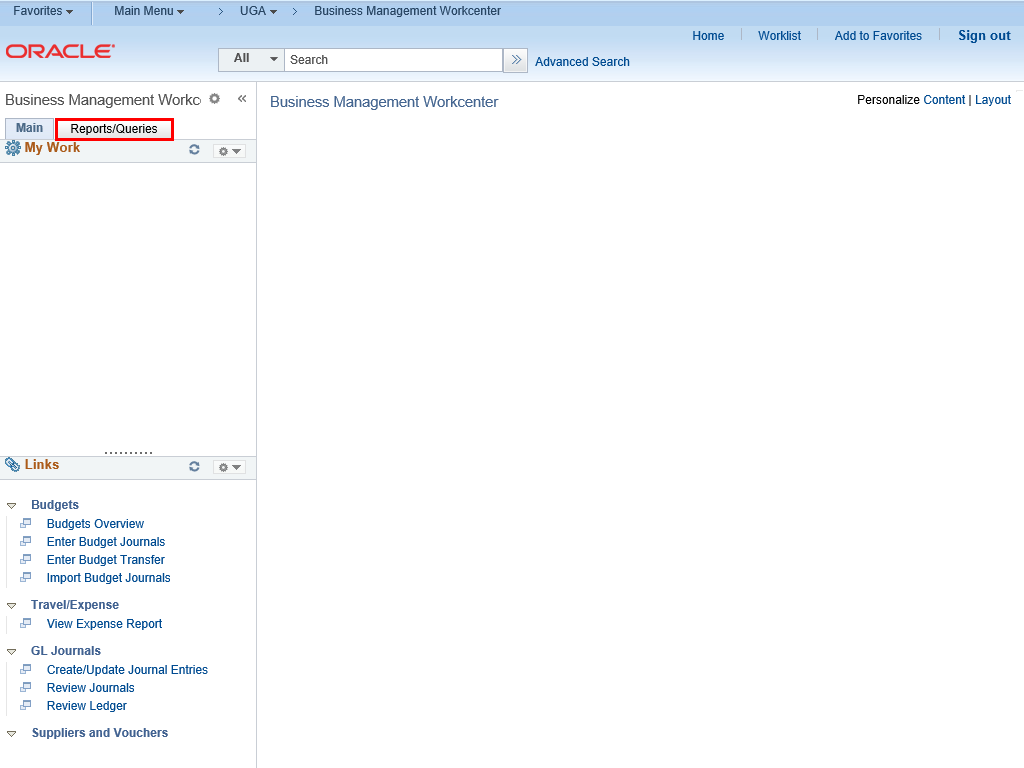 |
Click the Reports/Queries tab.
|
|
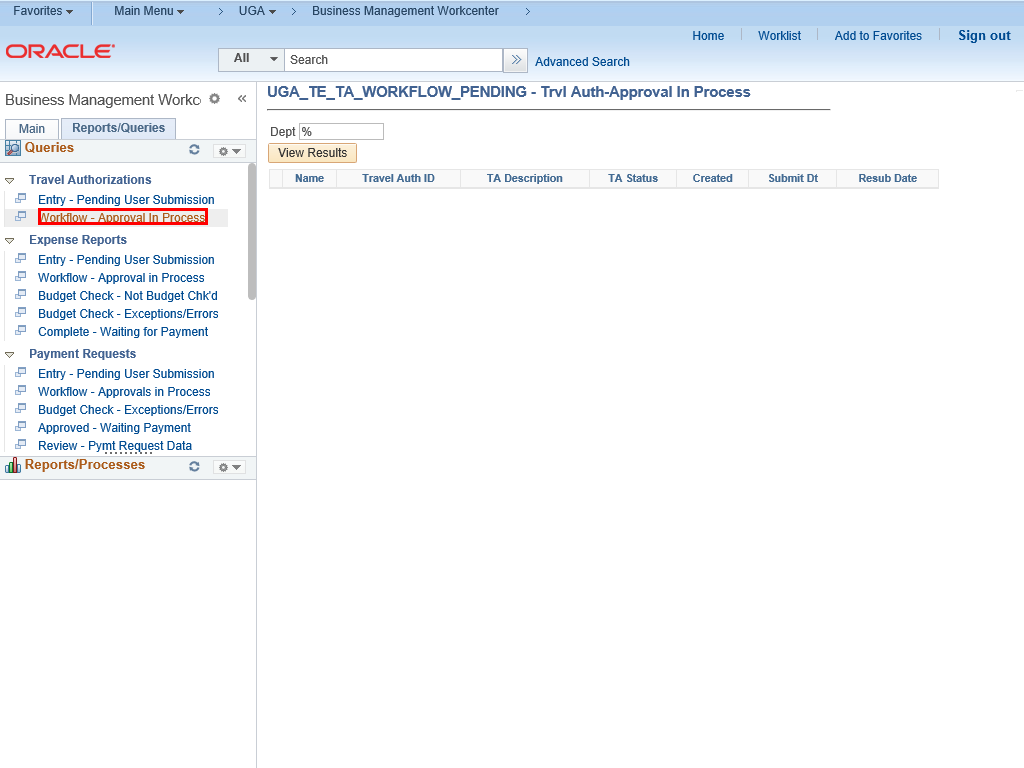 |
The Reports/Queries tab is displayed.
Click the Workflow - Approval In Process link.
|
|
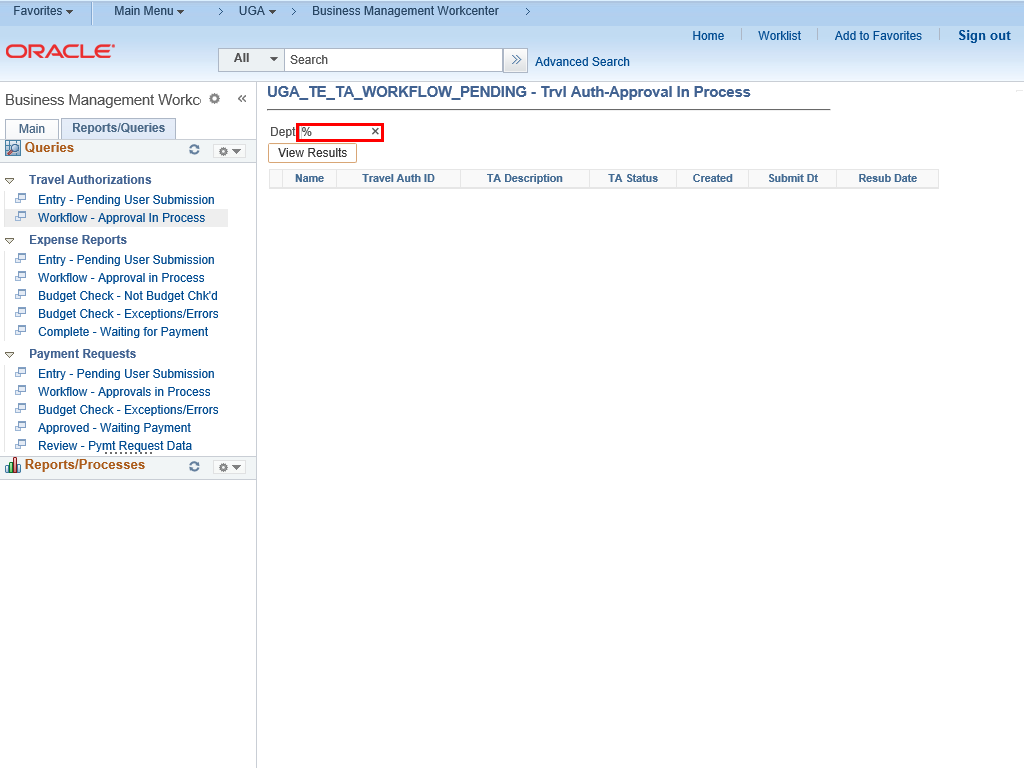 |
The parameters for the UGA_TE_TA_WORKFLOW_PENDING query are displayed.
This search uses Department ID. You can search using an entire ID number, or you can search for departments using a partial ID number by inserting a % sign as a wildcard. For example, 17% would return all departments starting with 17.
Leave only the % sign in the field if you want to view all departments.
Example shown here: " 34 " in front of the wildcard (%).
|
|
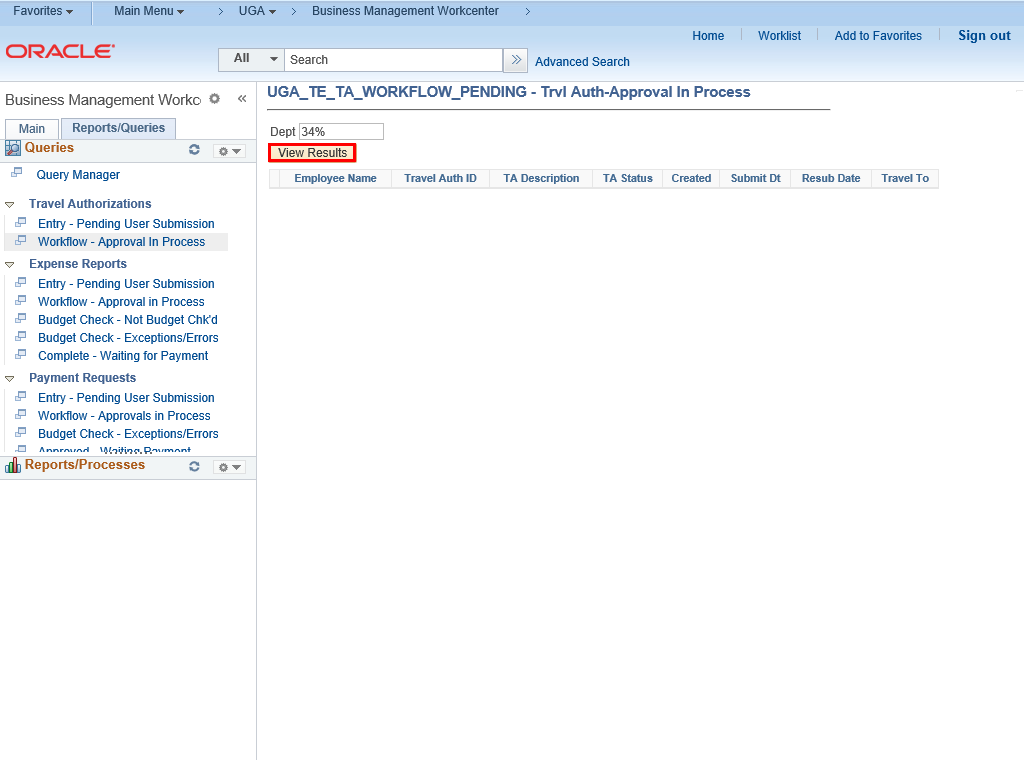 |
Click the View Results button to run the query.
|
|
 |
|
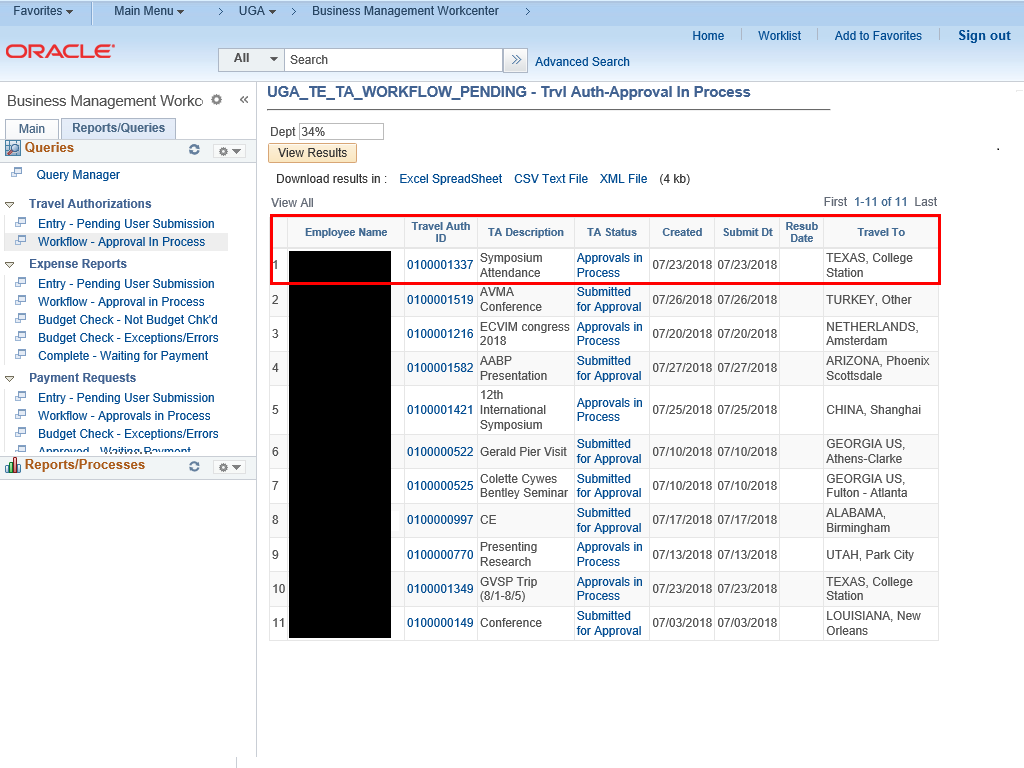
The report lists the TAs that are in the approval process.
Note : Data has been masked to protect employee privacy.
The results show the name of the employee who will travel; the ID and the description of the TA; the current status of the TA; the date the TA was created, submitted and resubmitted; and the travel destination.
|
|
 |
|
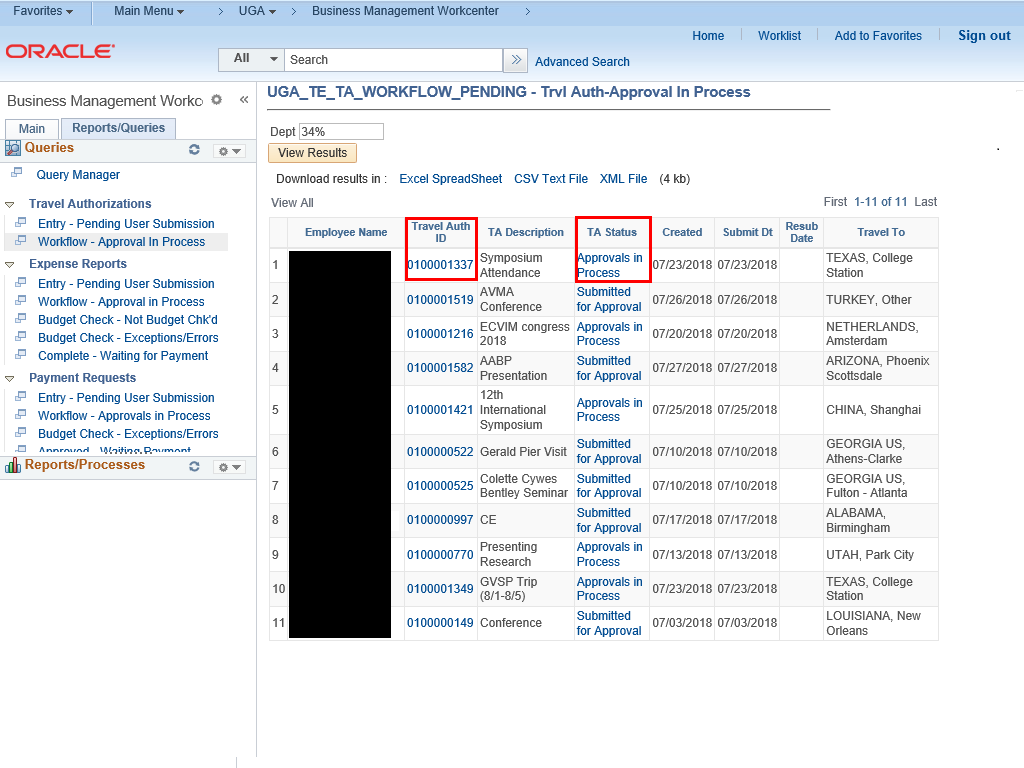
Hyperlinks in the query results can link you to the original travel authorization document or the approval steps for review.
|
|
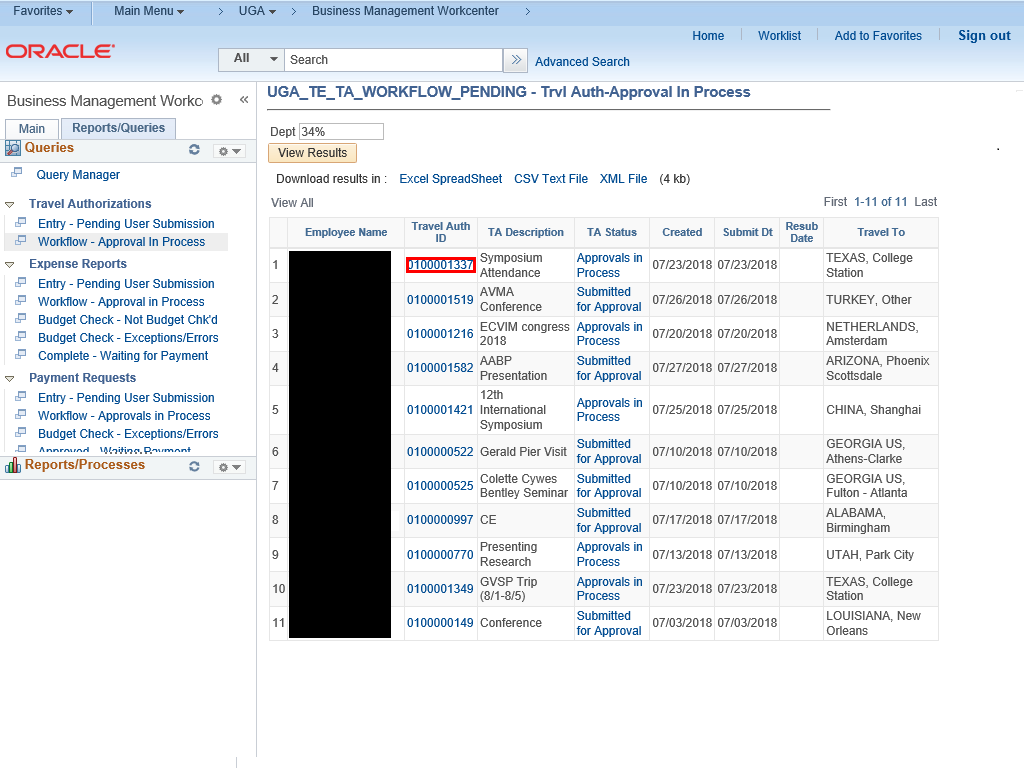 |
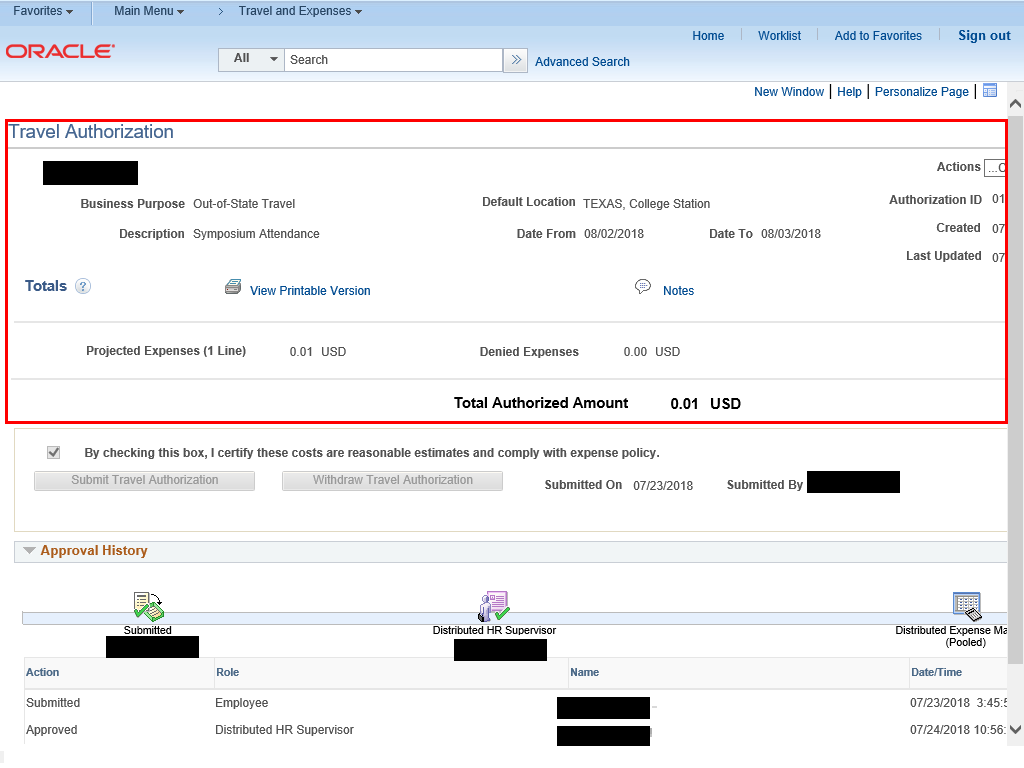
Click on the hyperlinked travel authorization ID number to display the original transaction in view only mode.
Examplwe shown here: 0100001337 link to display the original transaction in view only mode.
|
|
 |
|
A new tab opens with a view-only copy of the selected Travel Authorization.
You can review details about the travel and estimated expenses.
|
|
 |
|
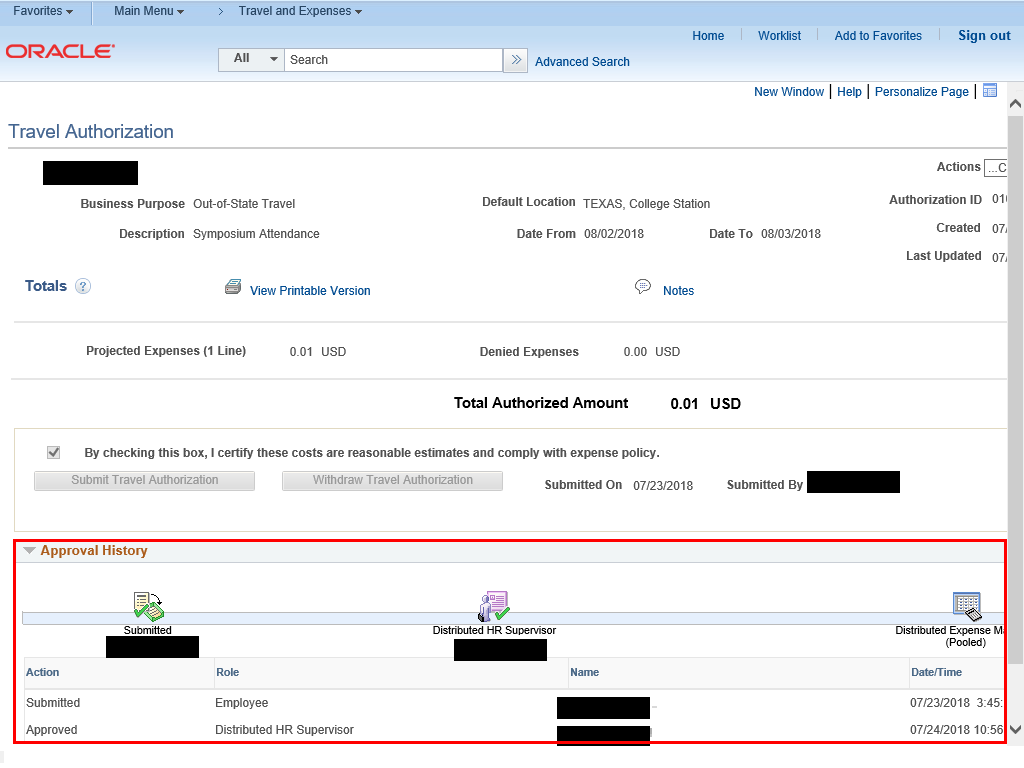
The Approval History shows the approval chain and status of the approvals.
|
|
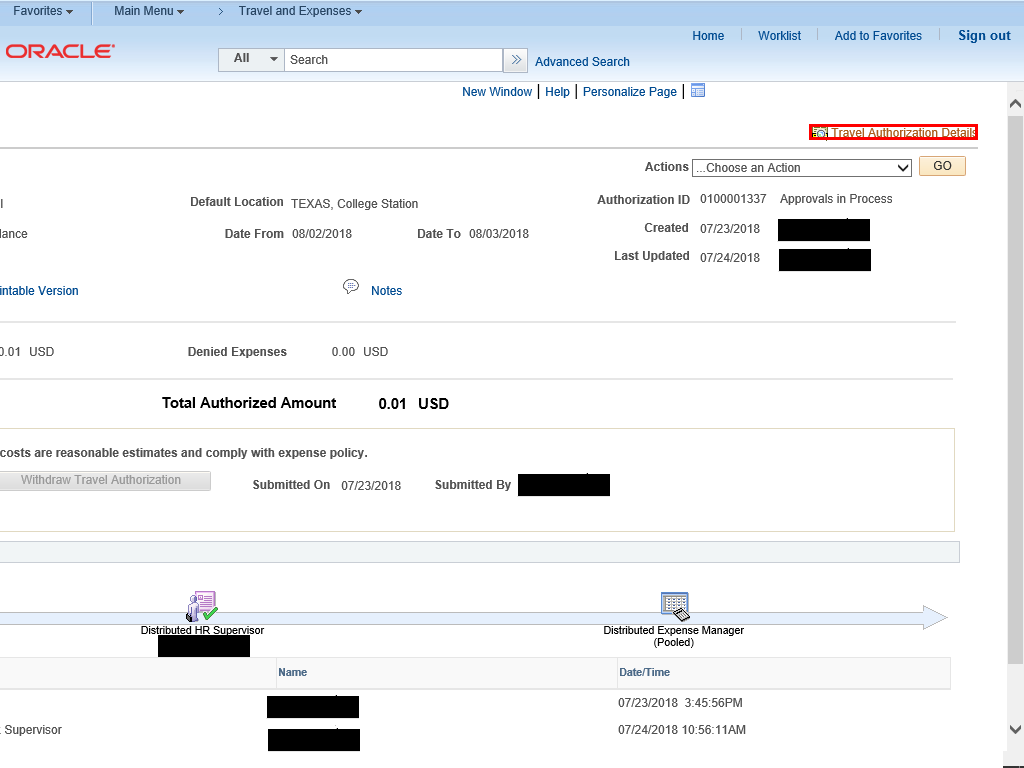 |
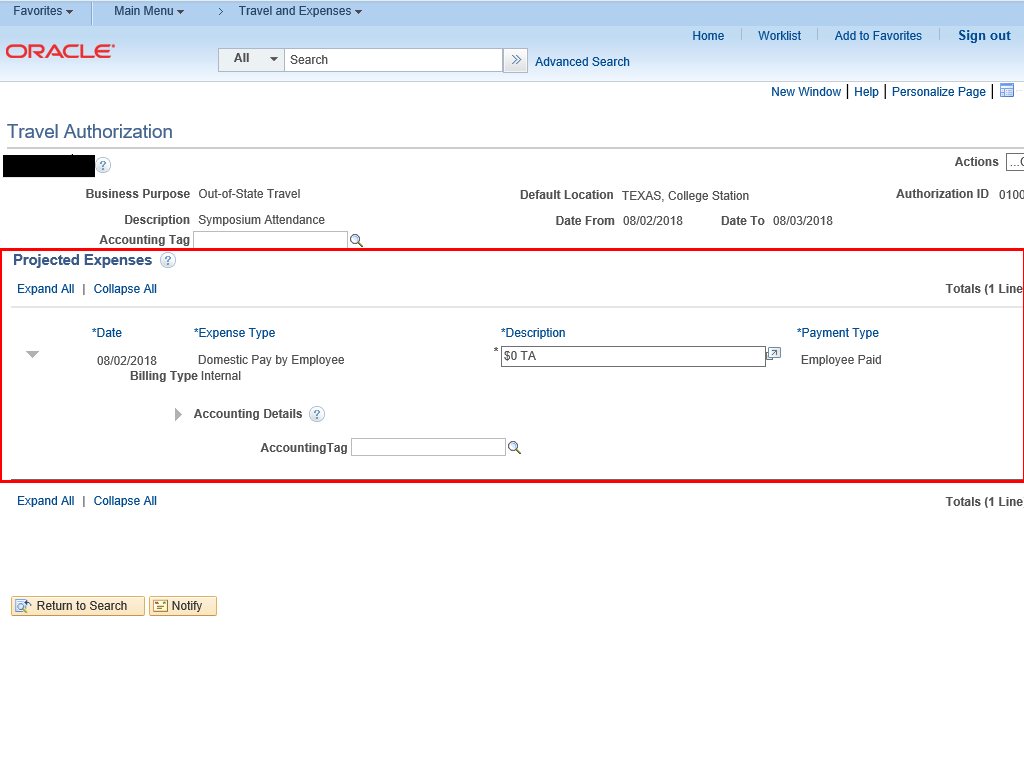
To see more details of the original TA request, click the Travel Authorization Details link on the right side of the page.
|
|
 |
|
The Projected Expenses section lists the items submitted for this TA and any accounting information.
|
|
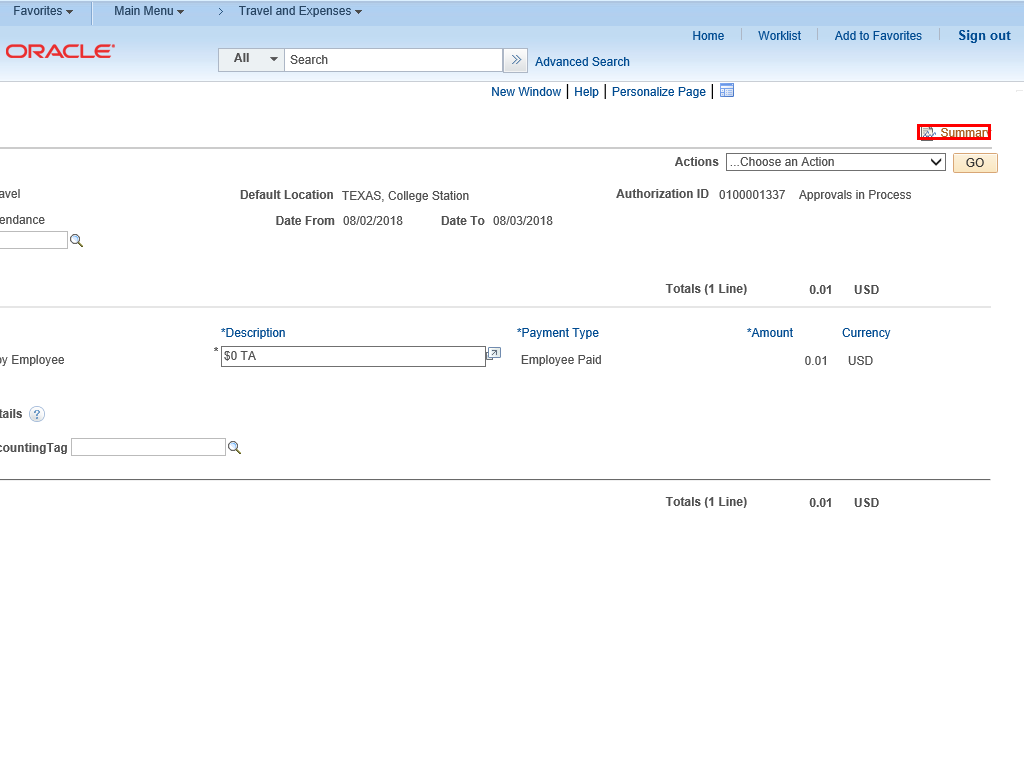 |
After review, you can return to the summary version of the report.
Click the Summary link on the right side of the page.
|
|
![Travel Authorization page displayed with the Close [x] button highlighted](https://uga.teamdynamix.com/TDClient/3109/FandA/Shared/FileOpen?AttachmentID=d9c0ba5d-8ee3-4a76-8cd6-656e4601c3f3&ItemID=150795&ItemComponent=26&IsInline=0) |
Once you have finished reviewing the information, click the Close Tab button to close the page.
|
|
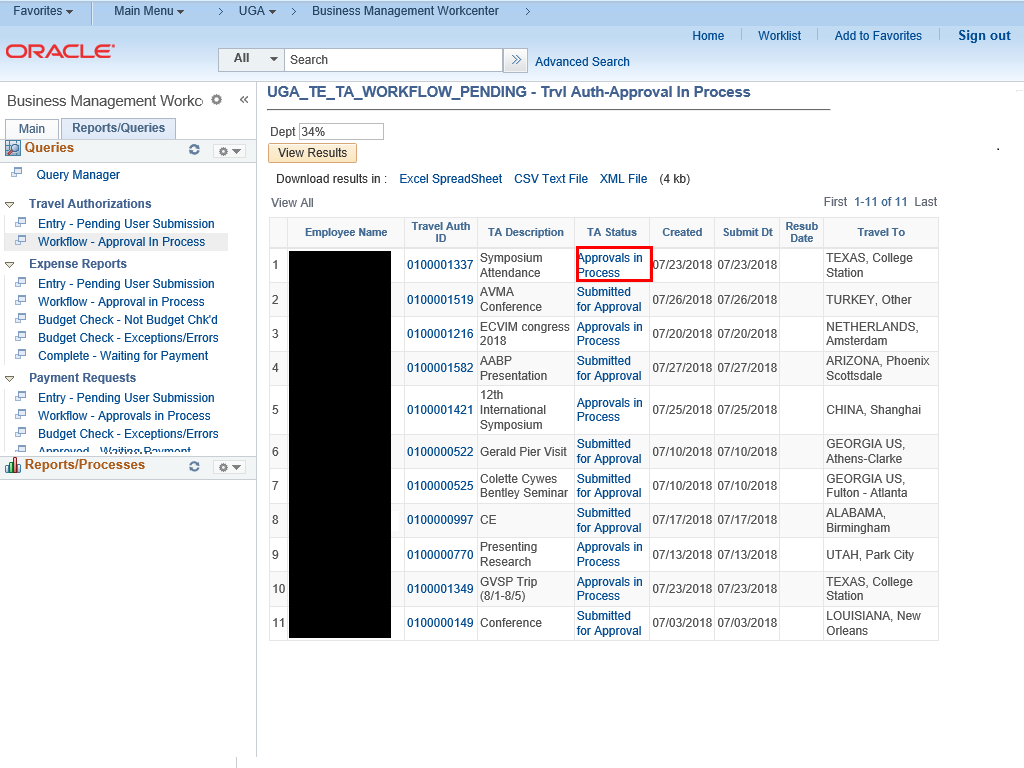 |
The TA Status hyperlink opens the results of a second query that shows the approval path and status for the selected TA.
Click the Approvals in Process link for a TA.
|
|
 |
|
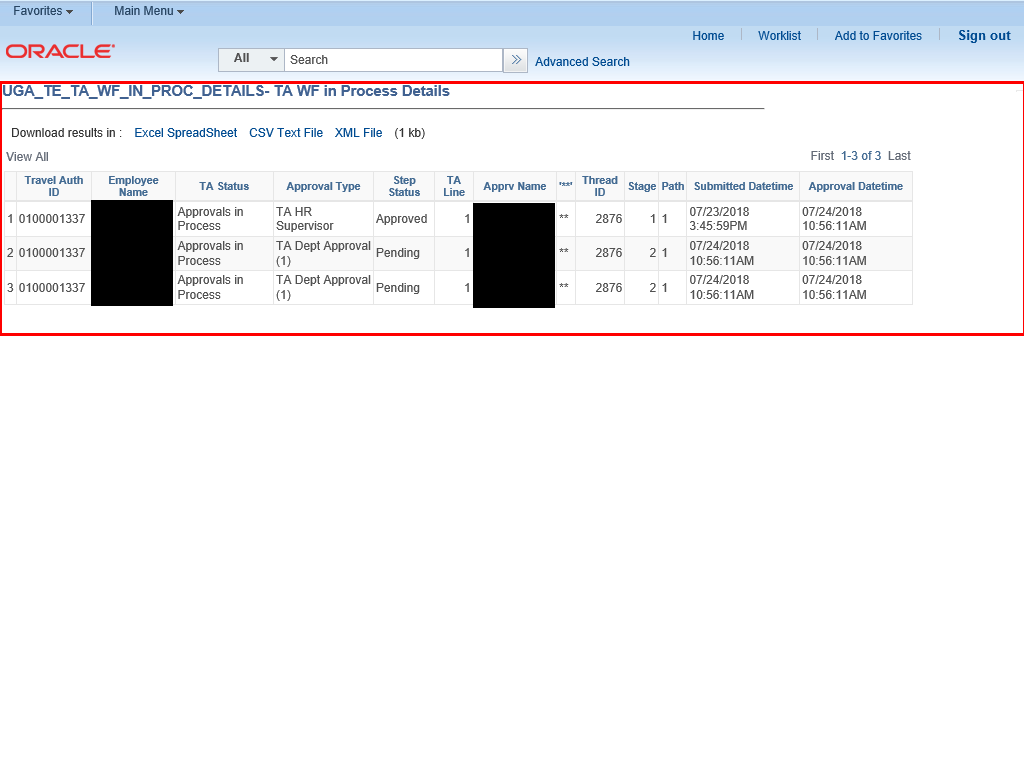
The results of the TA WF in Process Details query are displayed.
It shows each step in the approval process in the TA Status column. You can also see the role that approves each step of the process.
|
|
![TA WF in Process Details query displayed with the Close [x] tab highlighted](https://uga.teamdynamix.com/TDClient/3109/FandA/Shared/FileOpen?AttachmentID=6e5a8ff8-a366-4861-a36a-7652fe3a468e&ItemID=150795&ItemComponent=26&IsInline=0) |
When you have finished reviewing, click the Close Tab button to close the page.
|
|
 |
|
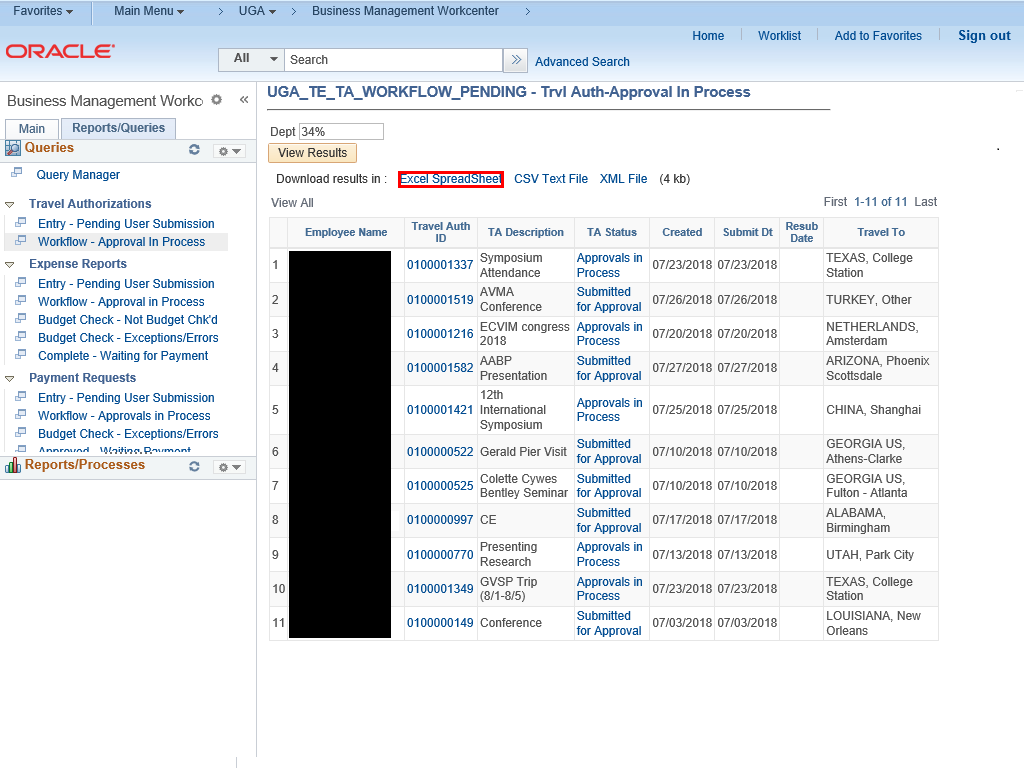
As with any query, you can download the results to Excel for further analysis, if needed.
Click the Excel Spreadsheet link to download and follow the prompts to save and open.
|
|