Locating Your Employee ID in OneUSG Connect
Summary
In this article, you will learn the steps to locate your Employee ID in OneUSG Connect.
Body
Overview
All University System of Georgia employees are assigned a unique Employee ID number (Empl ID) that you will see referenced in the OneUSG Connect system. This number is different than your Social Security Number, your Badge ID, and your UGA ID (810 or 811) number.
The Empl ID is used in PeopleSoft software to identify all individuals whose information is entered into the database. Knowing your Empl ID can help prevent confusion about employee identity and expedite the resolution of tickets and issues submitted to OneUSG Support. In addition, some Manager Self Service and Commitment Accounting forms may require an Empl ID in order to complete the form.
There are multiple ways to locate your Empl ID in OneUSG Connect.
In this article, you will learn the steps to locate your Employee ID in OneUSG Connect.
 |
First, log into OneUSG Connect.
You can locate your Employee ID (Empl ID) in multiple ways in OneUSG Connect. This article will demonstrate two ways to view it.
From the Employee Self Service page, click the Time and Absence tile.
|
|
 |
The Time page is displayed.
Click the Weekly Timesheet link.
|
|
 |
The Timesheet is displayed. Your Employee ID is located at the top of the timesheet, below your name and title.
Note: Depending on whether and how you report your time, your timesheet may look different than this example.
|
|
 |
You can also locate your Employee ID by viewing your Pay Stub.
From the Employee Self Service page, click the Pay tile.
|
|
 |
The Pay page is displayed with a list of your paychecks.
Click any of the Paycheck links.
|
|
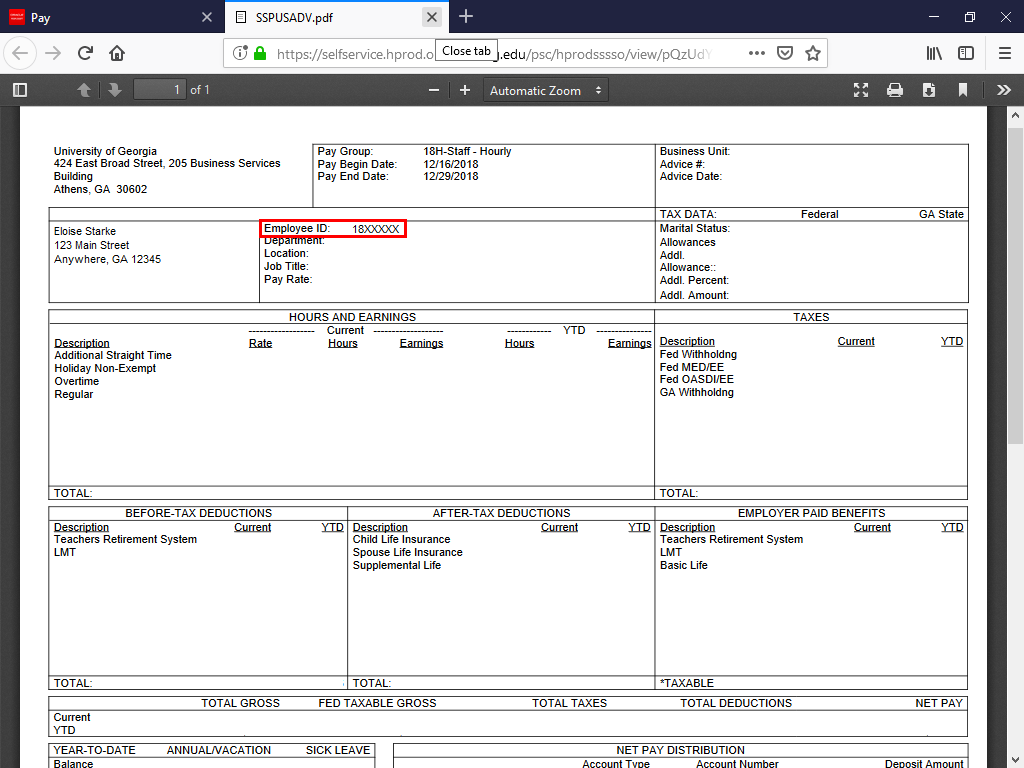 |
The Pay Stub opens in a new browser window.
Your Employee ID is located next to your name and address.
|
|
Details
Details
Article ID:
151380
Created
Sun 9/25/22 10:04 AM
Modified
Wed 3/18/26 12:48 PM