Requesting a ChartField Approver Role
Summary
In this article, you will learn the steps to request a ChartField Approver role (UGA GL CF Reqst Approve) for an employee using the Access Request Form in the UGA Financial Management System.
Body
Overview
The default roles an employee will receive are outlined HERE.
Any additional roles required in the system will need to be assigned using the Access Request From by an employee's HR supervisor. This course outlines how a supervisor can assign the ChartField Approver Role.
In this article, you will learn the steps to request a ChartField Approver role (UGA GL CF Reqst Approve) for an employee using the Access Request Form in the UGA Financial Management System.
This form should be completed by the employee's HR Supervisor.
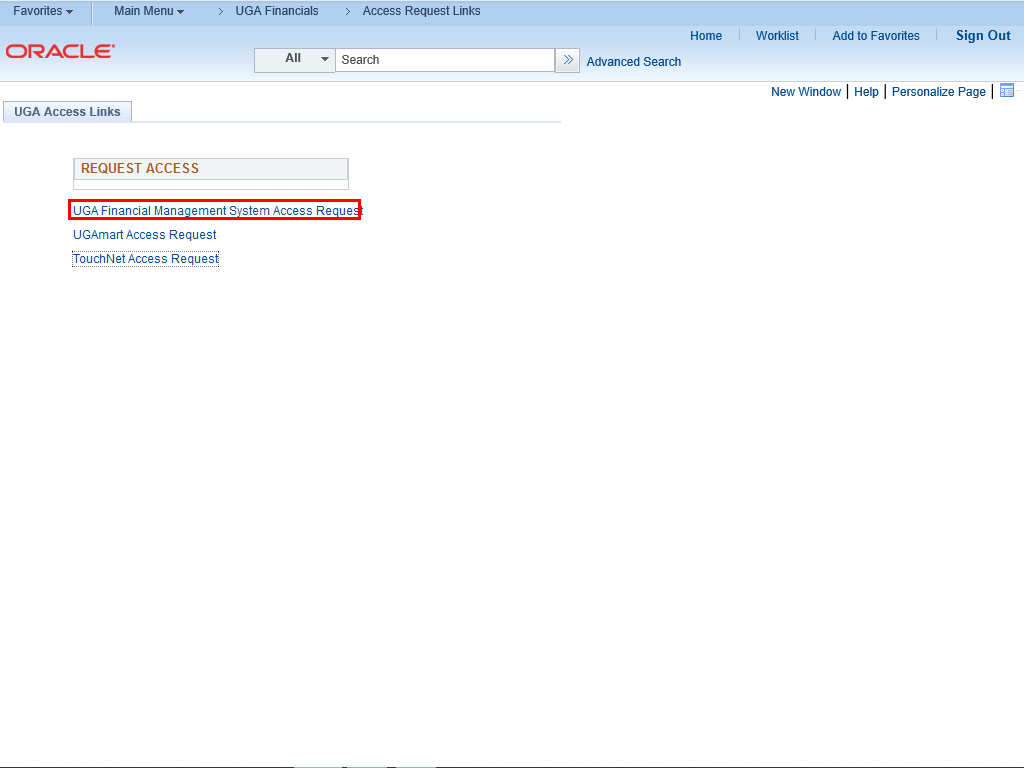 |
The UGA Access Links page is displayed.
To request a ChartField Approver Role, click the UGA Financial Management System Access Request link.
|
|
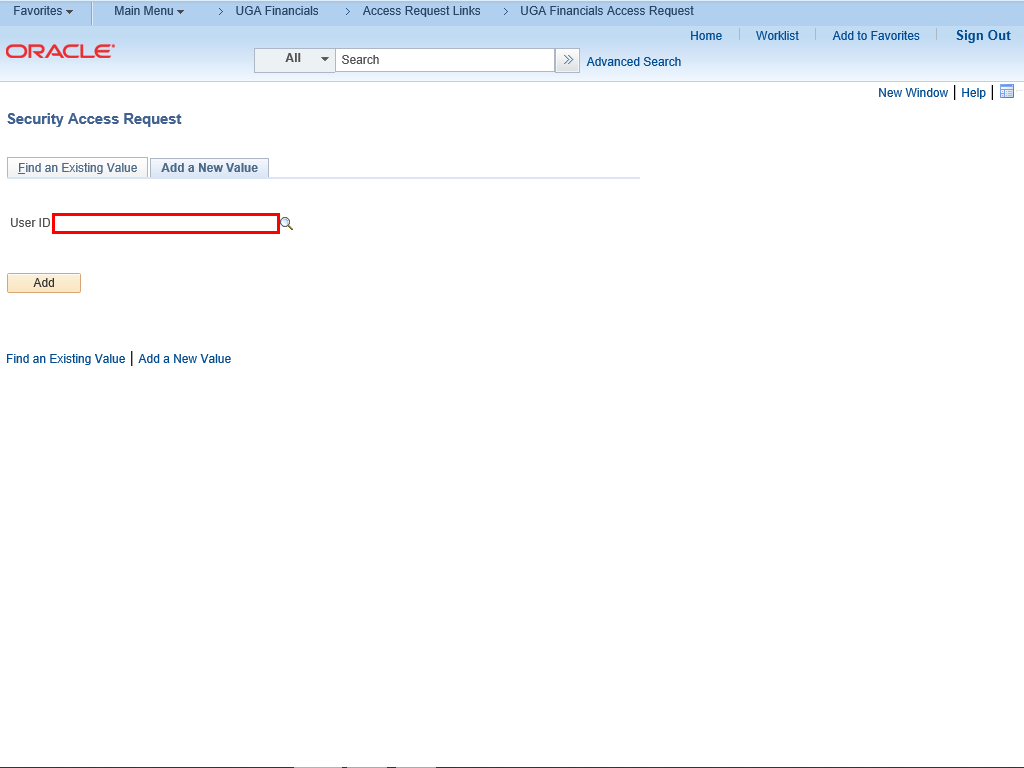 |
The Security Access Request page is displayed.
Under the Add a New Value tab, enter the MyID for the employee for whom you wish to assign a ChartField Approver role in the User ID field.
Note: You can use the lookup magnifying glass to search an employee. The Description search prompt will be a last name search.
For this Example shown here: " uga12345 ".
|
|
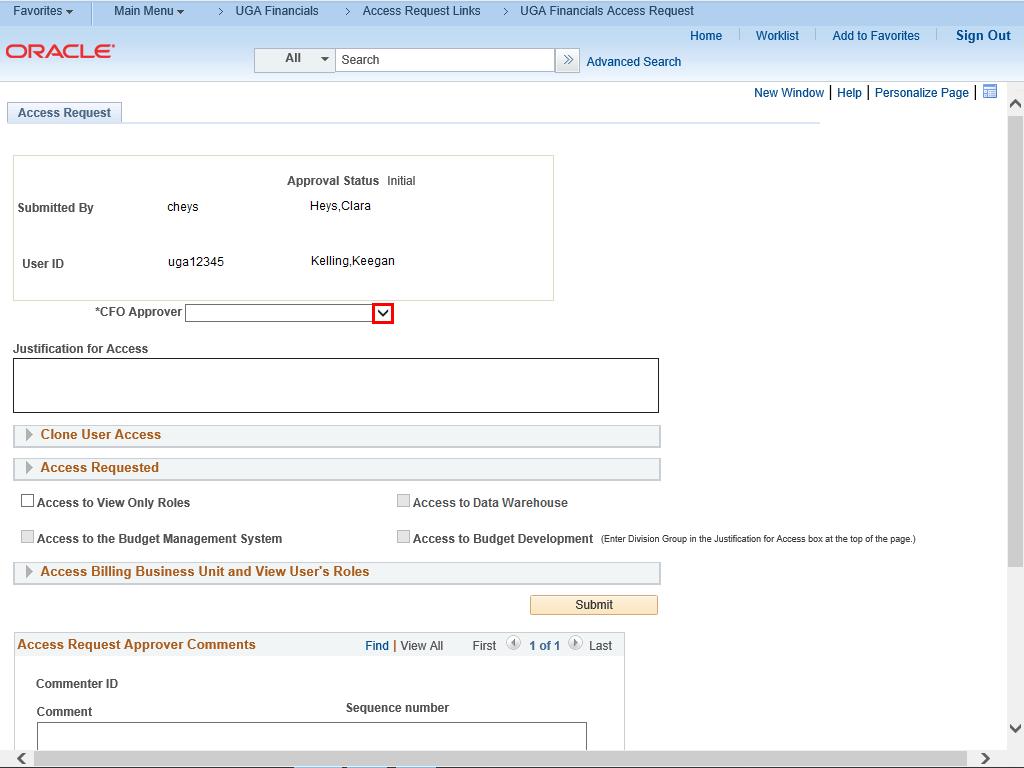 |
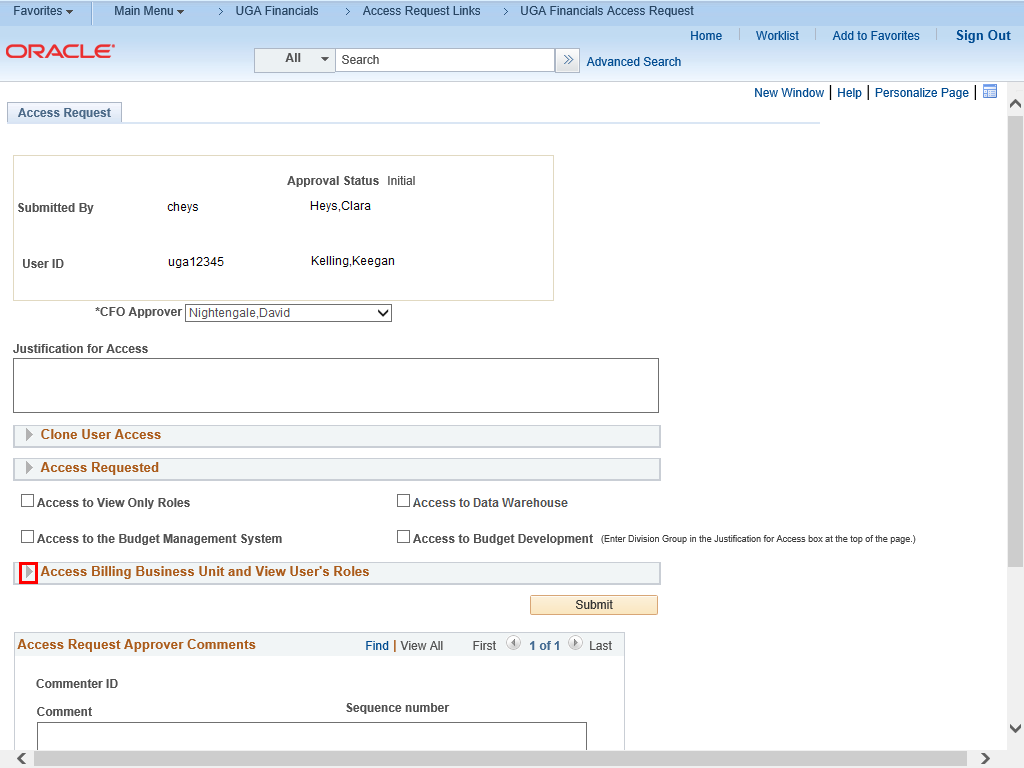
The Access Request page is displayed. Your name and User ID are recorded as part of the Access Request form.
Your Chief Financial Officer (CFO) is responsible for approving the access request.
To select the CFO Approver, click the CFO Approver drop-down menu.
|
|
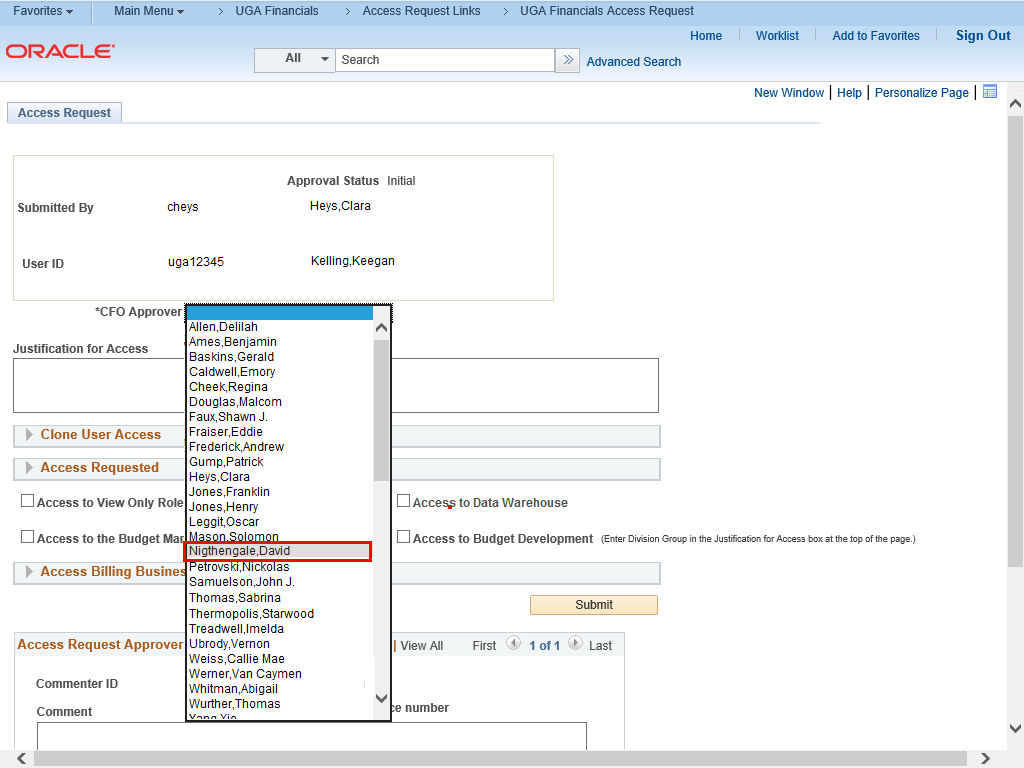 |
Click the appropriate CFO Approver from the list.
Example shown here: Nightengale,David .
|
|
 |
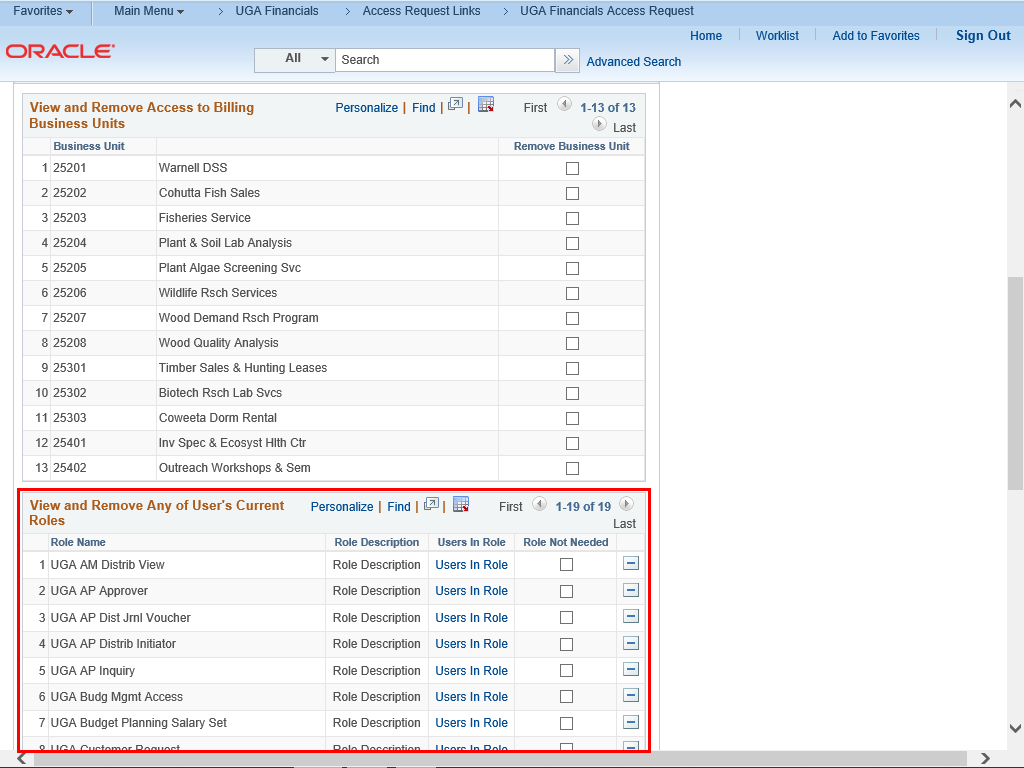
You can confirm whether an employee already has a ChartField Approver (UGA GL CF Reqst Approve) role.
To view the selected employee's current access, click the arrow to the left of the Access Billing Business Unit and View User's Roles section.
|
|
 |
|
In the View and Remove Any of User's Current Roles section, you can view what access the employee currently has before you request an additional role for the employee.
For this example, the selected employee does not have a ChartField Approver role.
|
|
 |
|
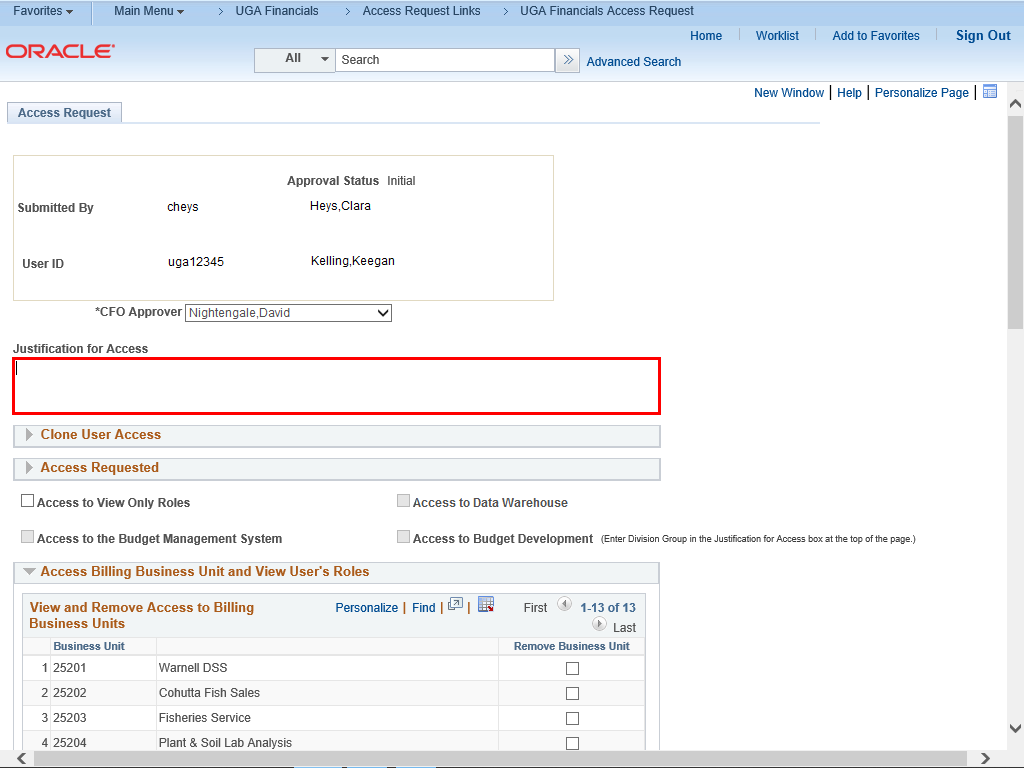
You can enter a reason why you are requesting a ChartField Approver role for the selected employee in the Justification for Access field.
|
|
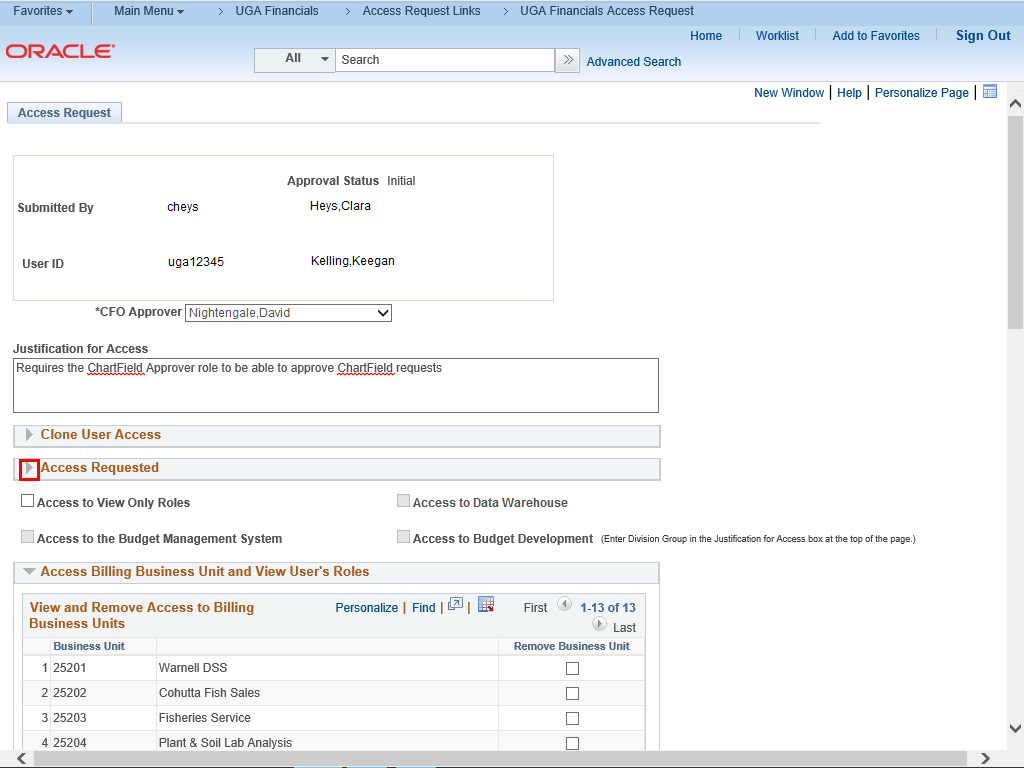 |
Click the arrow to the left of the Access Requested section to expand it.
|
|
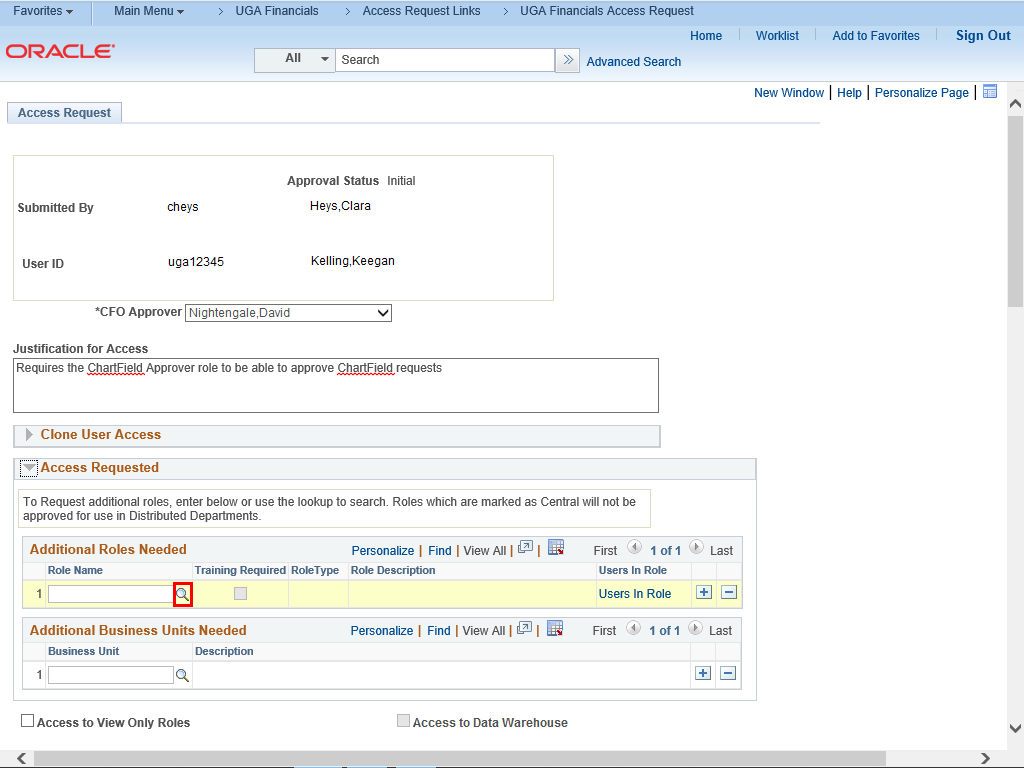 |
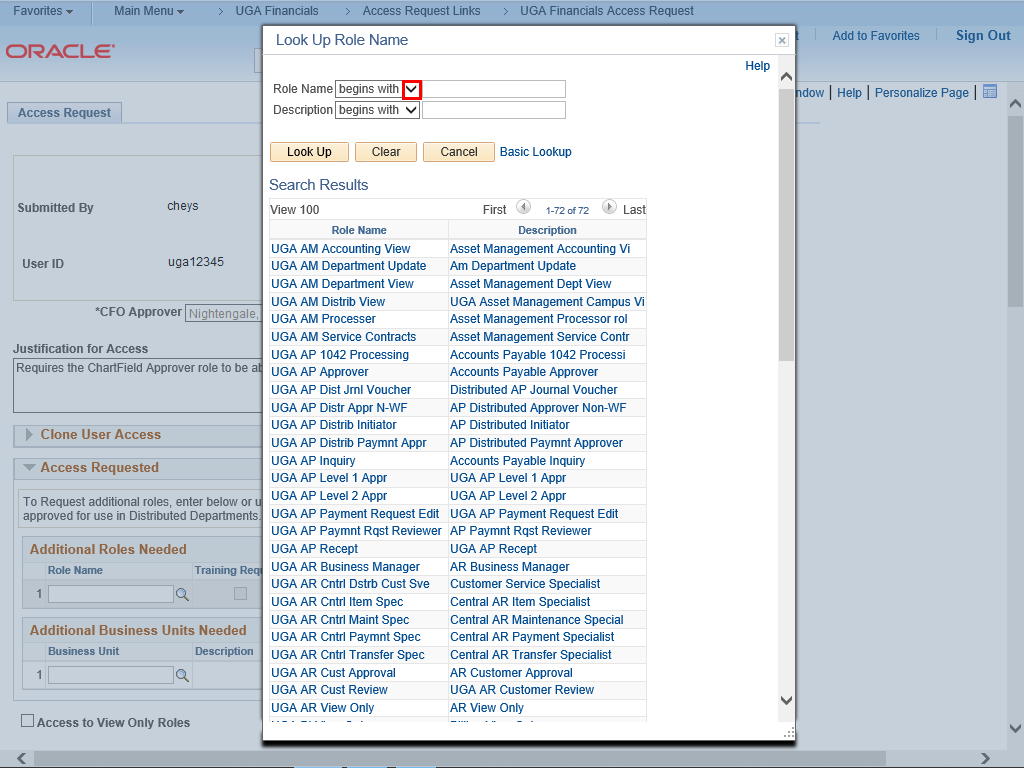
To add an additional role for the employee, you can enter the appropriate name of the role or search for the role by clicking the lookup magnifying glass.
Example shown here: the lookup magnifying glass.
|
|
 |
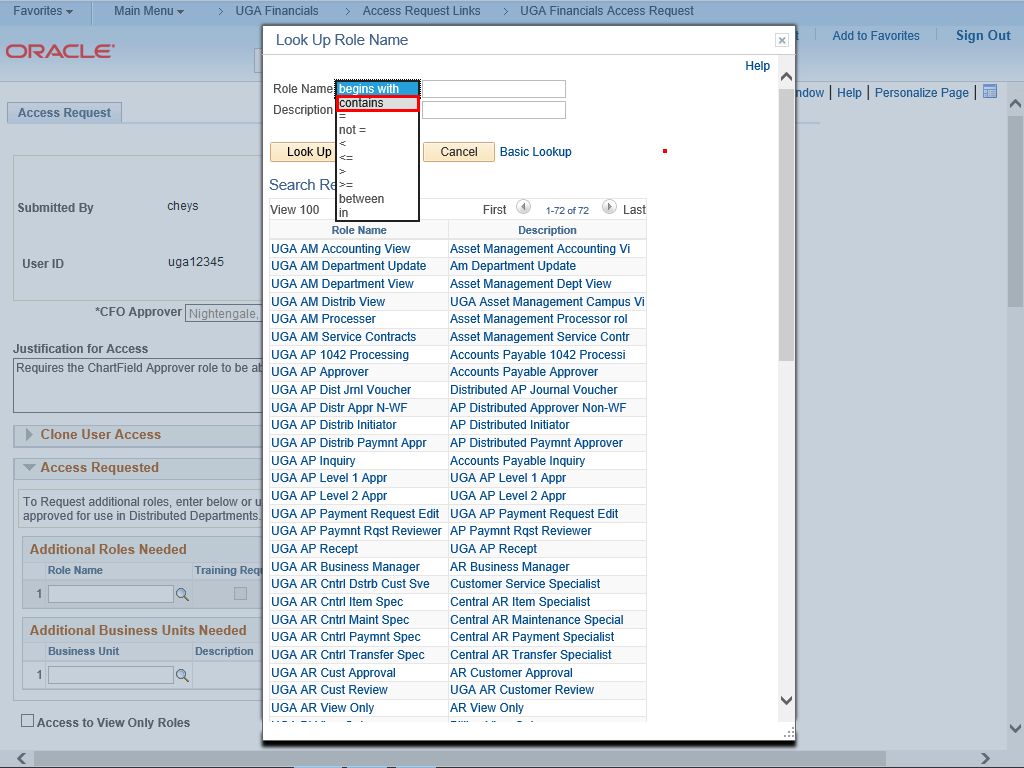
The Look Up Role Name pop-up window is displayed.
Scroll down to find the appropriate Role Name or use the search functions by entering a keyword into the Role Name or Description fields.
Example shown here: Role Name drop-down menu.
|
|
 |
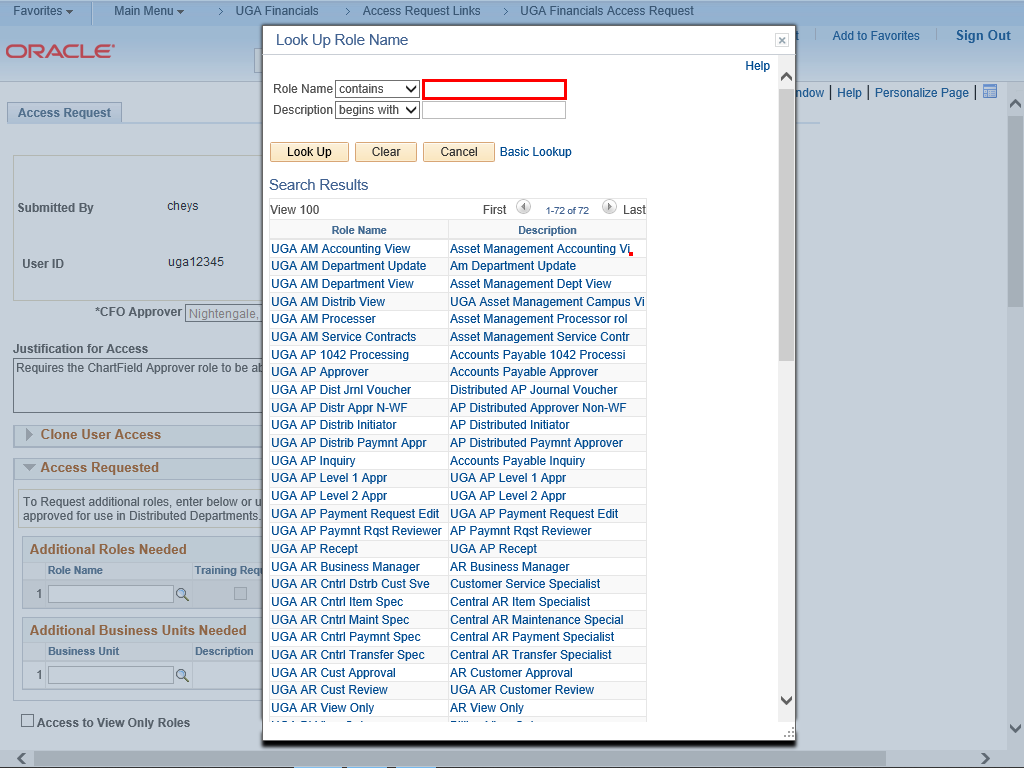
You can select an appropriate search filter.
Click the contains option.
|
|
 |
In the Role Name field, enter " CF ".
|
|
 |
Click the Look Up button.
|
|
 |
Click the UGA GL CF Reqst Approve link.
|
|
 |
|
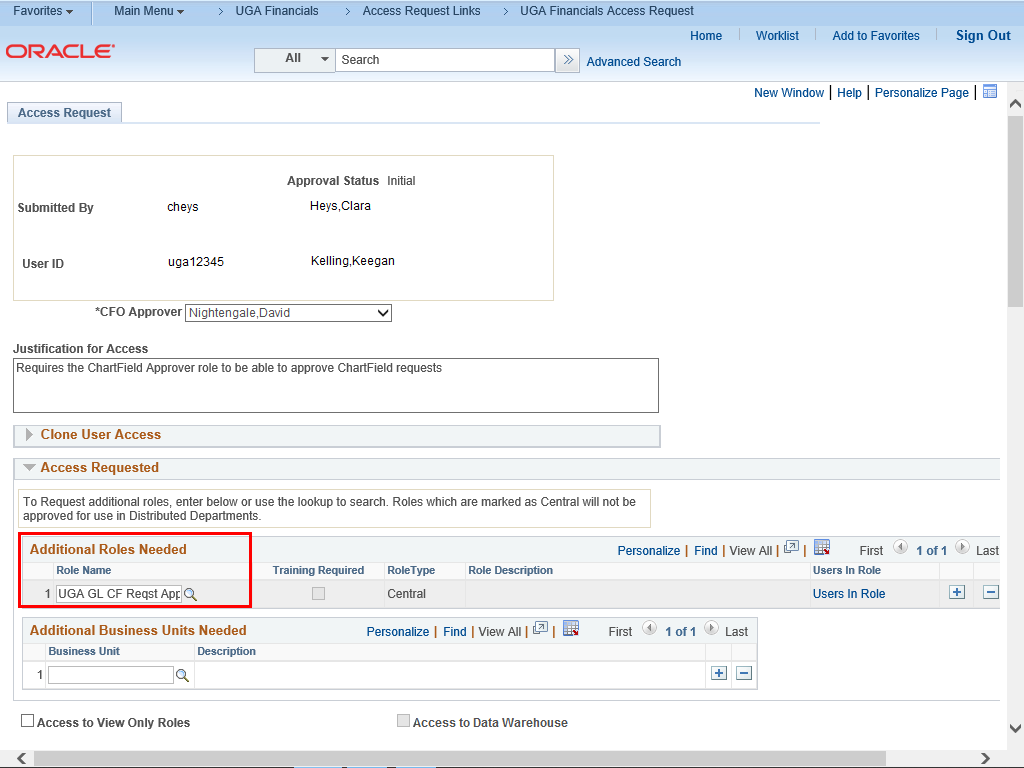
The selected Role Name now appears in the Additional Roles Needed section.
|
|
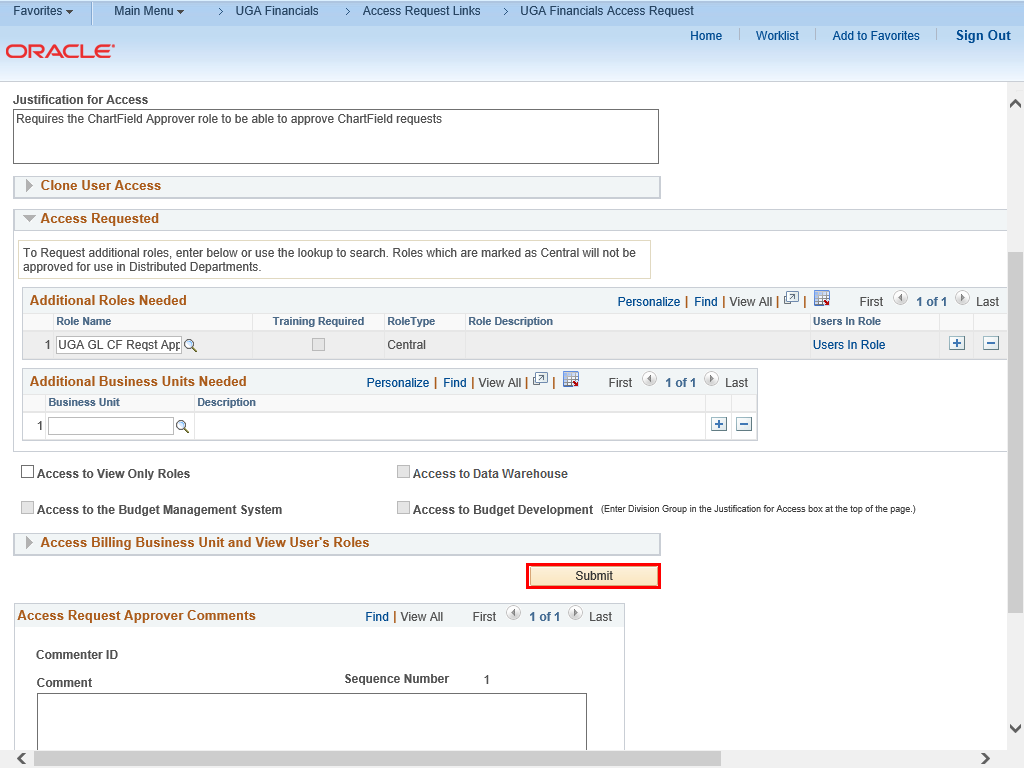 |
When you are ready, click the Submit button.
|
|
 |
|
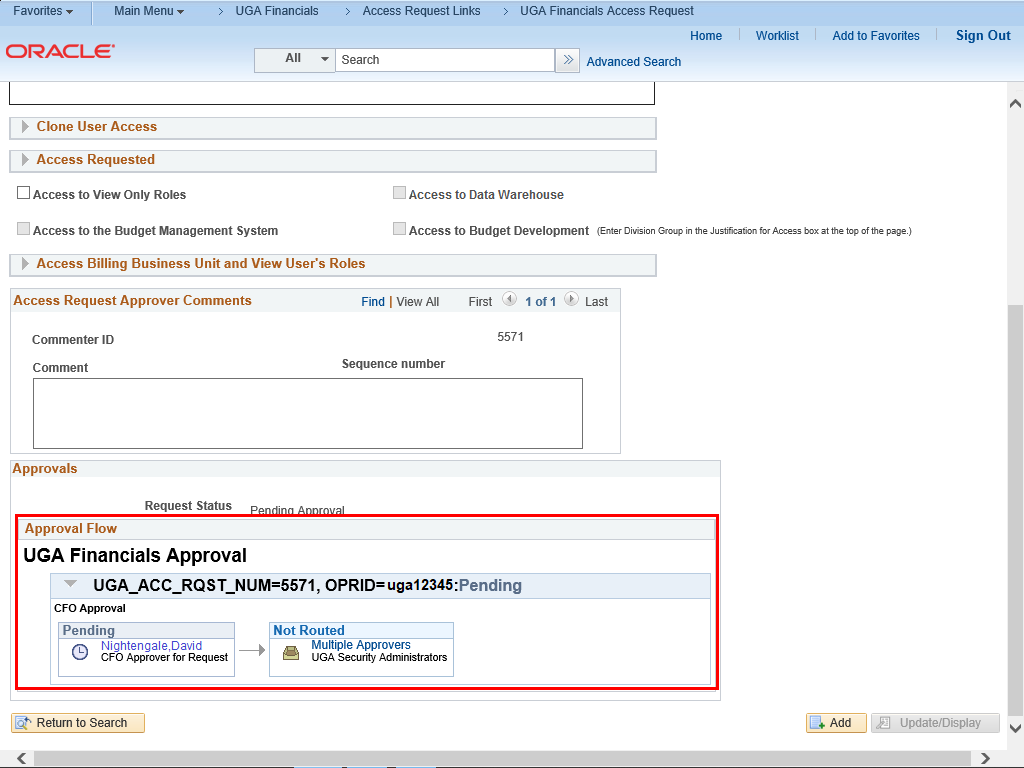
The request is submitted to the CFO for approval. You can view the approval workflow at the bottom of the page.
|
|
Additional Information:
ChartField Approver Role:
- Role Title: UGA GL CF Reqst Approve
Suggested material to review when receiving this role:
- Department ID request approvals:
- When approving Department ID requests, the approver (as well as the initiator) should be aware of how their college's department tree structure is set up. The following reference document can be used to review a college's tree structure: Financial Departments Tree Structure Excel and Guide
- Department approvers should also be aware of the possible downstream impacts that come with adding, changing, inactivating, or transferring a Department ID: Finance Department Maintenance Checklists
- Approving a ChartField Request
Details
Details
Article ID:
151223
Created
Sun 9/25/22 9:46 AM
Modified
Mon 6/10/24 11:17 AM