Viewing Direct and Indirect Costs
Summary
In this article, you will learn the steps to run a query to locate direct project expenditures and indirect cost funds.
Body
Overview
You can use a query to view direct project expenditures and indirect costs by project and department using the query name "UGA_GM_OP_SUM_DIR_IDC_ENC_PD."
In this article, you will learn the steps to run a query to locate direct project expenditures and indirect cost funds.
 |
The Query Viewer page is displayed.
Enter the query name " UGA_GM_OP_SUM_DIR_IDC_ENC_PD " into the begins with field.
|
|
 |
The Query Viewer will display the search results.
To run the report to an HTML page, click the HTML link.
|
|
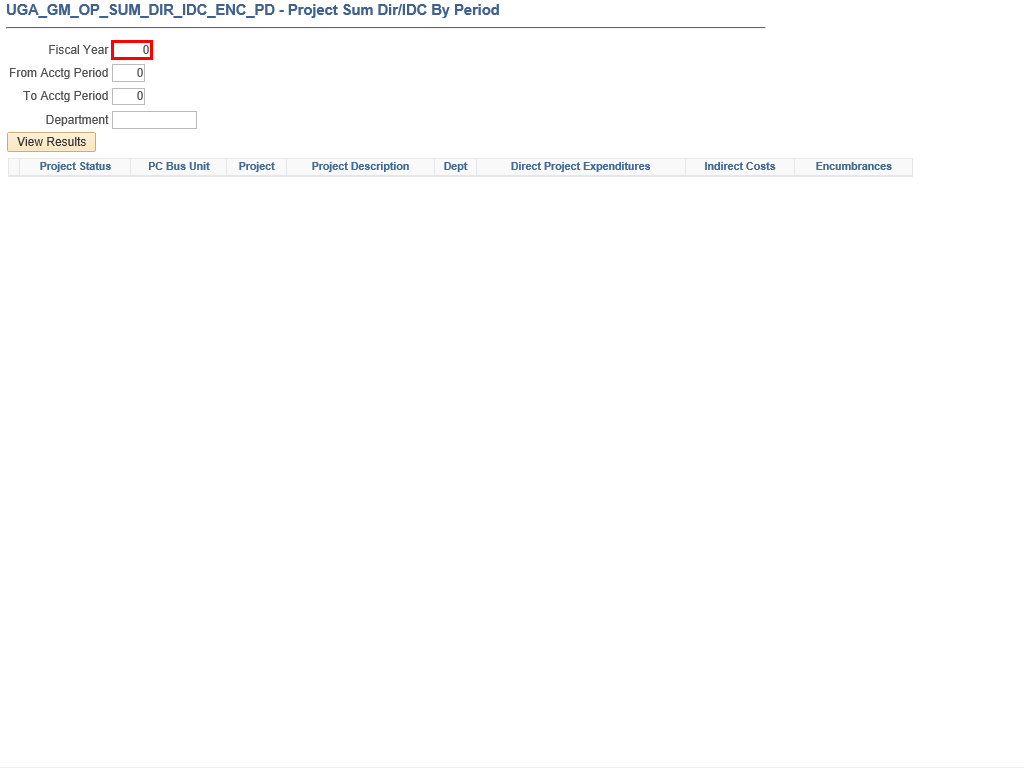 |
The search criteria for the query is displayed. You can enter availble information into the search fields to refine your results.
Enter the appropriate information into the Fiscal Year field.
Example shown here: " 2019 ".
|
|
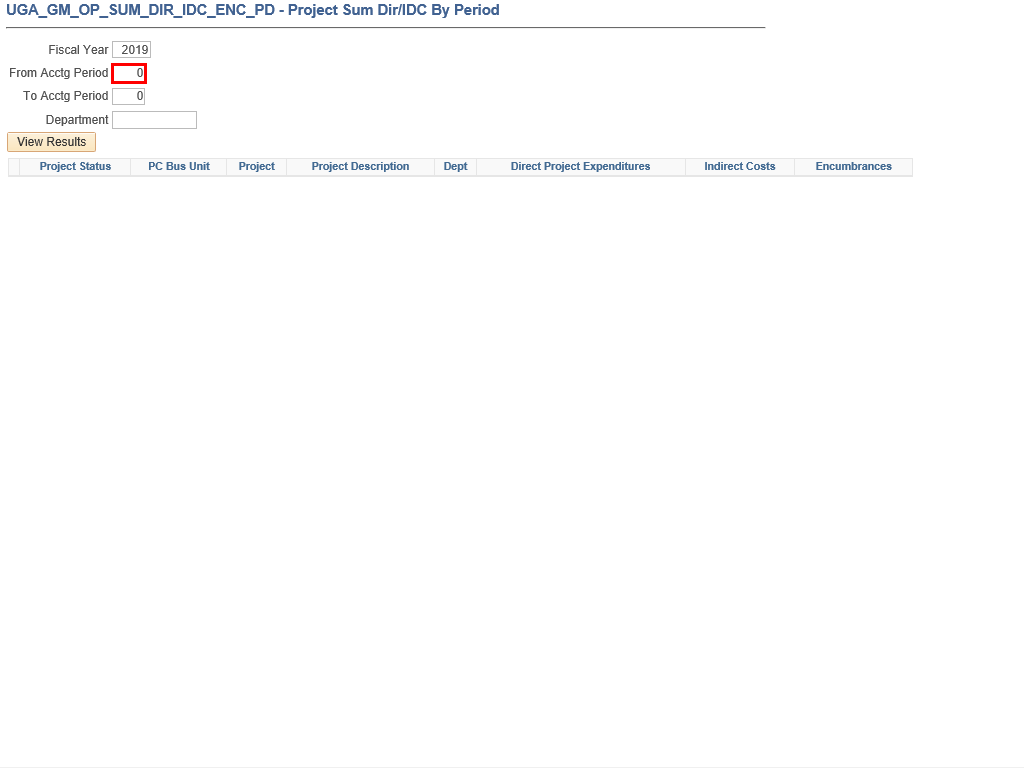 |
Enter the appropriate information into the From Acctg Period field. The Accounting Period in Financials is based on the Fiscal Year, not the Calendar Year (e.g., 1 = July, 6 = December).
Example shown here: " 1 " (for July) in the From Acctg Period field.
|
|
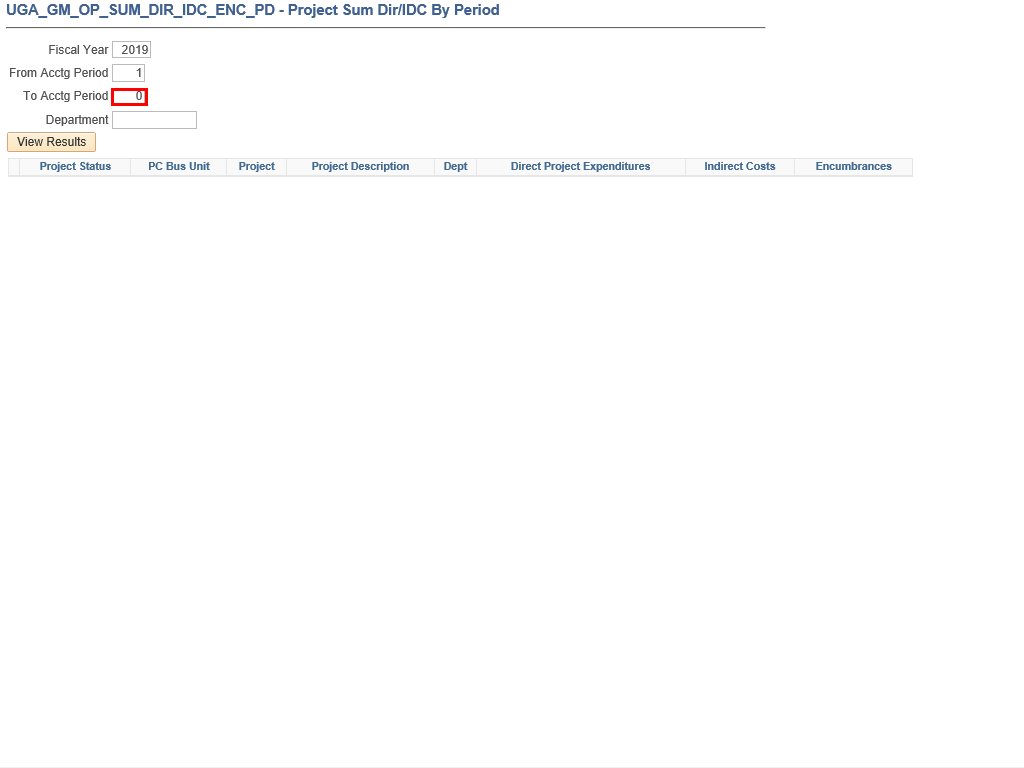 |
Enter the appropriate information into the To Acctg Period.
Example shown here: 3 (for September) in the To Acctg Period field.
|
|
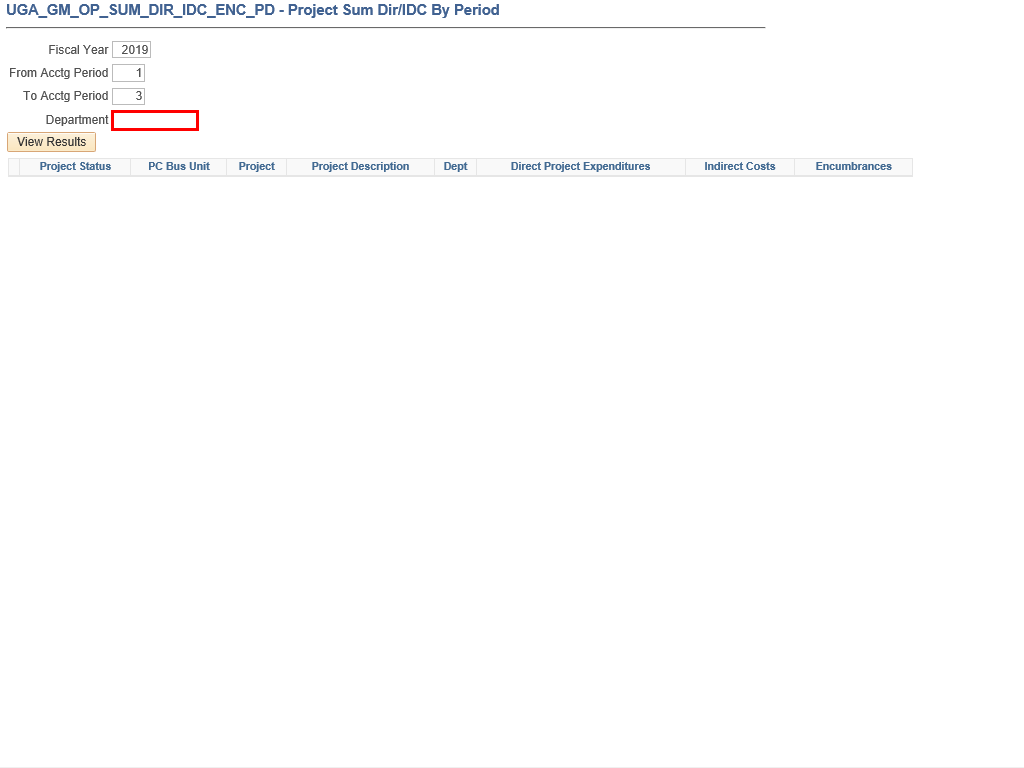 |
Enter the appropriate information into the Department field. You can do a full or partial search for the department number using the % wildcard.
Example shown here: " % " in the Department field to return all results.
|
|
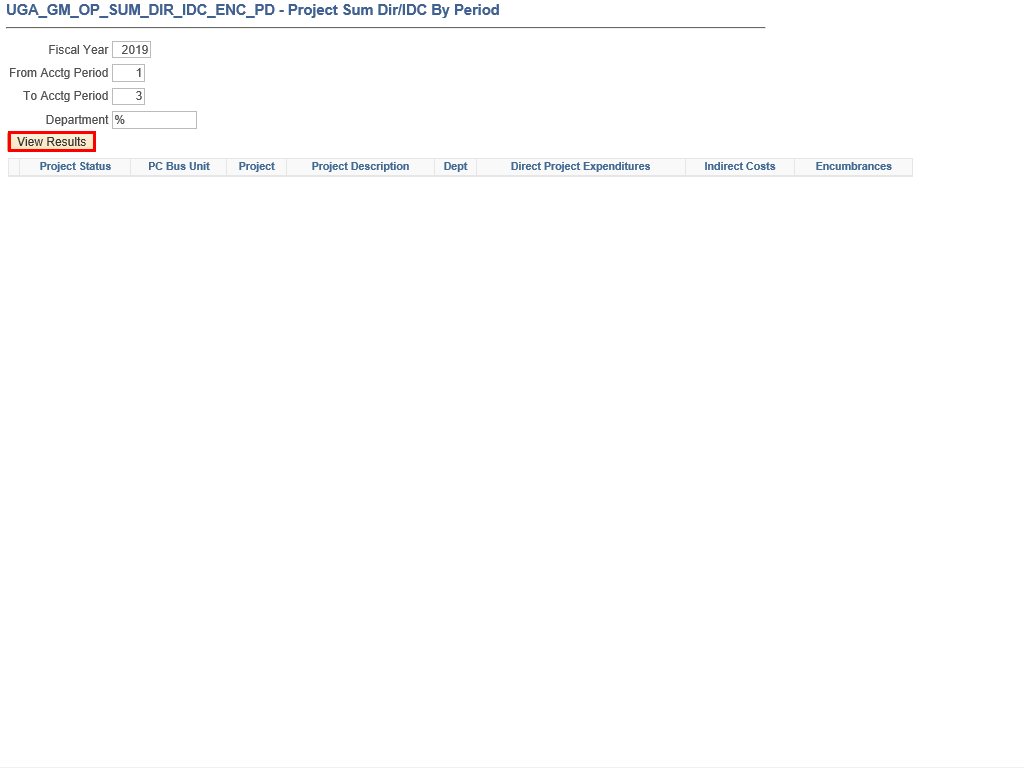 |
Click the View Results button.
|
|
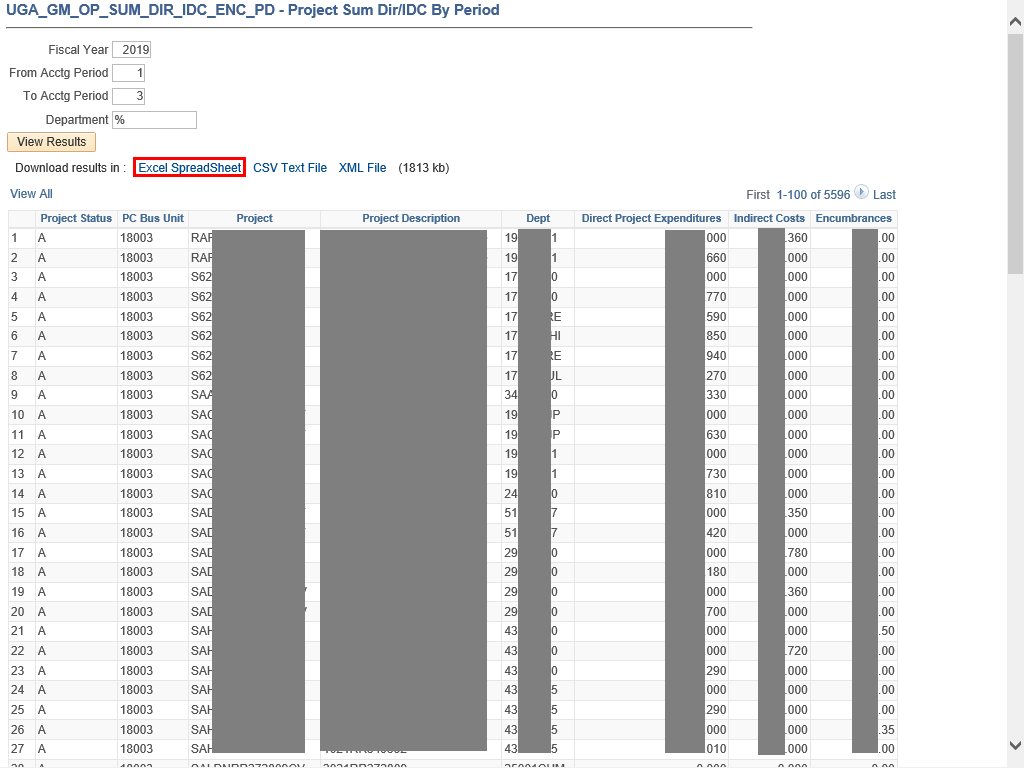 |
The result for the specified search criteria is displayed.
Click the Excel SpreadSheet link to download the data into an Excel file.
|
|
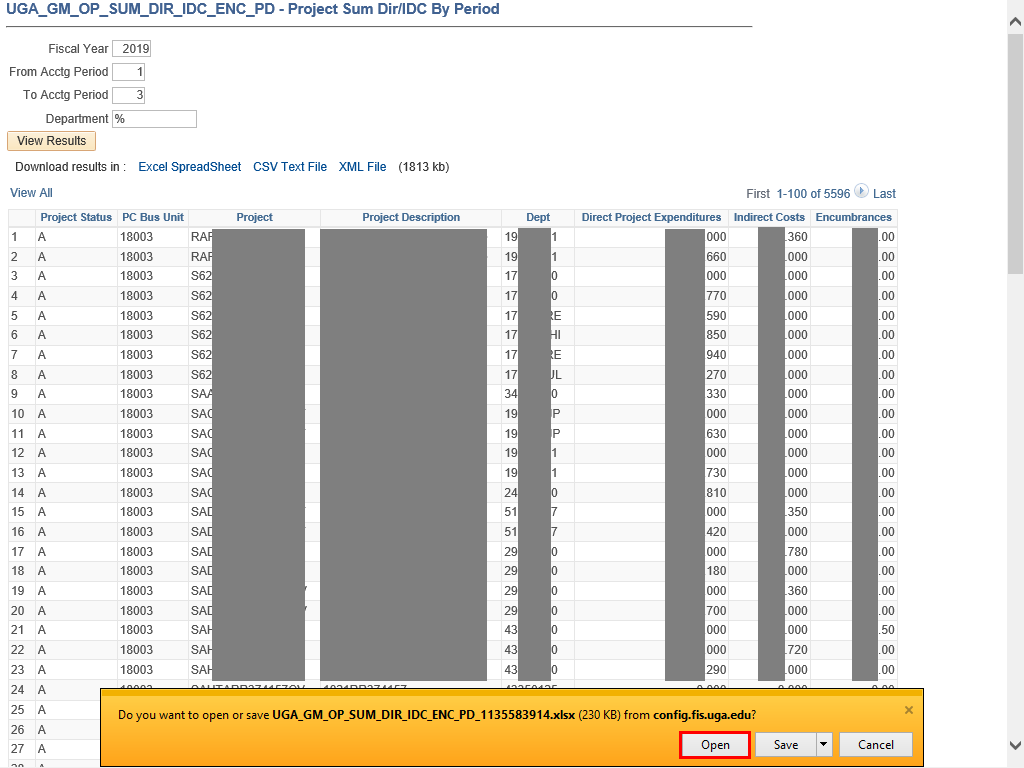 |
Click the Open button when prompted.
|
|
 |
|
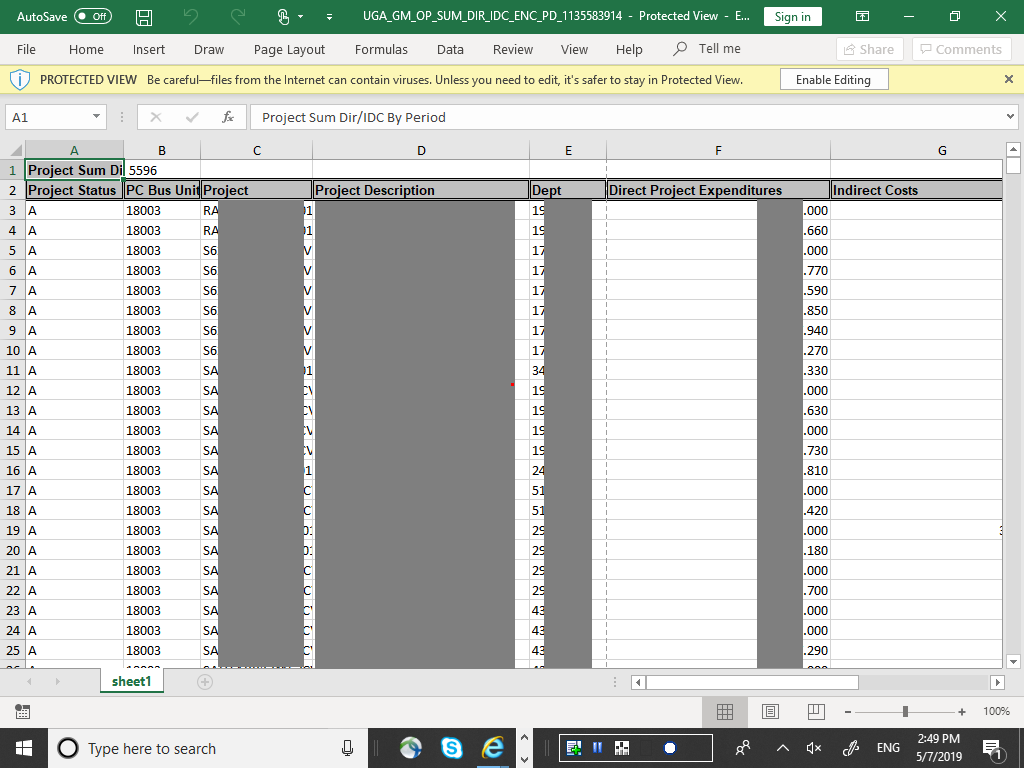
The Excel file is displayed. You can filter and sort the columns to view the information you need by project and department.
|
|
Details
Details
Article ID:
151178
Created
Sun 9/25/22 9:40 AM
Modified
Wed 3/25/26 3:34 PM