Viewing Number of Budget Only Department Approvers
Summary
In this article, you will learn the steps to run a query to view the number of approvers in Budget Only Departments to assist in locating gaps in GL journal and budget amendment workflow.
Body
Overview
You can run a query to view the number of approvers assigned to budget-only departments using the query name UGA_USERS_ROLE_BUDG_DEPT. This query can assist in locating gaps in workflow. Accounts Payable and Travel and Expense transactions, including payment requests, AP JVs, travel authorizations, and expense reports do not need approvers in budget-only departments; however, GL journals and budget amendments do need approvers in these types of departments.
There is a separate query to find the number of approvers assigned in transaction departments. For more on this, please see the tutorial titled Viewing Number of Transaction Department Approvers.
In this article, you will learn the steps to run a query to view the number of approvers in Budget Only Departments to assist in locating gaps in GL journal and budget amendment workflow. The query name used is UGA_USERS_ROLE_BUDG_DEPT..
 |
Click the UGA Financials link.
|
|
 |
Click the Query Viewer tile.
|
|
 |
The Query Viewer page is displayed.
Enter " UGA_USERS_ROLE_DEP T " into the begins with field.
|
|
 |
The search results are displayed.
Click the HTML link to open the query as a webpage.
|
|
 |
|
You can search for specific information using the search fields.
Note: You can limit the search results by entering the appropriate information into the Department(s) and/or Role Name fields. To find departments with gaps in workflow, you can enter a 2 or 1 into the Approvers Less Than field.
Example shown here: You will search for all departments and roles that have less than 2 approvers, so you will not change the default information.
|
|
 |
Click the View Results button to display results based on your search criteria.
|
|
 |
|
The search results are displayed. You can view information by role name and department ID.
Note: The Max Role Count column indicates the number of employees assigned to a role and depends upon the information search in the Approvers Less Than field.
|
|
 |
Click the Excel SpreadSheet link to download the data into an Excel file.
|
|
 |
Click the Excel SpreadSheet file.
|
|
 |
|
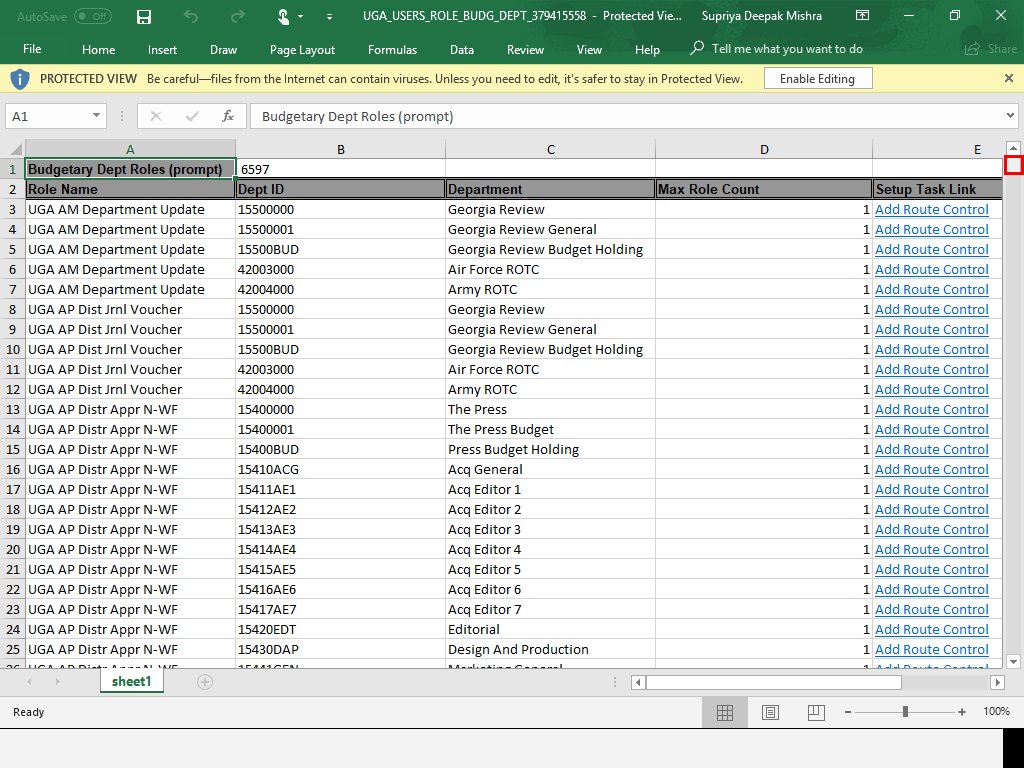
The Excel file is displayed. You can add filters to sort the information as needed.
|
Additional Information:
While AP and TE transactions do not need approvers in budget-only departments, GL and budget journals do. Another query exists to find gaps in workflow for transaction departments (UGA_USERS_ROLE_TRNS_DEPT).
|
Details
Details
Article ID:
150367
Created
Sat 9/24/22 11:41 PM
Modified
Wed 11/4/26 12:25 PM