Viewing Customer Activity
Summary
In this article you will learn how to view Customer Information in The UGA Financial Management System.
Body
Overview
The UGA Financial Management System provides easy access to view various information about customers. In this article you will learn how to view Customer Activity, Aging, History, Outstanding Payments, and Payment History.
In this article you will learn how to view Customer Information in The UGA Financial Management System. This information includes Customer Activity, Aging, History, Outstanding Payments, Payment History and Payments.
Note: This article was recorded using sample values. Actual values may differ in the production version of the UGA Financial Management System.
 |
|
To navigate to the Customer Activity menu, select:
Main Menu > Accounts Receivable > Customer Accounts > Customer Information > Customer Activity
|
|
 |
The Item Activity search page is displayed. This page is used to enter the customer information to locate the Customer Activity.
Enter the appropriate information into the Unit field.
Example shown here: "69200" in the Unit field.
|
|
 |
Enter the appropriate information into the Customer field.
Example shown here: "100018" In the Customer field.
|
|
 |
|
The Item Activity search results page is displayed.
The Item Activity section displays all of the Customer Activity that is available for you to review.
|
|
 |
To view the item, click the appropriate Item ID link.
|
|
 |
|
The Item Maintenance page is displayed.
Review the Detail 1 section and note the key information: Days Late, Balance information, Original Amount and Payment Options.
|
|
 |
|
To navigate to the Customer Aging page, select:
Customer Information > Customer Aging
|
|
 |
The Customer Aging search page is displayed. The Customer search criteria must be entered again. Be sure to check and input the correct information.
Click the Search button.
|
|
 |
|
The Customer Aging page displays Aging Information, Customer Balances, and Customer Aging Days.
|
|
 |
|
To navigate to the Customer History page, select:
Customer Information > Customer History
|
|
 |
Similarly, the Customer search criteria must be entered again. Be sure to check and input the correct information.
Click the Search button.
|
|
 |
The History page is displayed. The Customer History section provides various history elements for each fiscal year and period.
To make sure you are looking at all of the history information, click the View All link.
|
|
 |
|
The Customer History section expands to display all of the payment history.
|
|
 |
|
To navigate to the Outstanding Payments page, select:
Customer Information > Outstanding Payments
|
|
 |
|
Similarly, the Customer search criteria must be entered again. Be sure to check and input the correct information.
Click the Search button.
|
|
 |
|
The Outstanding Payments section shows that there are no outstanding payments.
|
|
 |
|
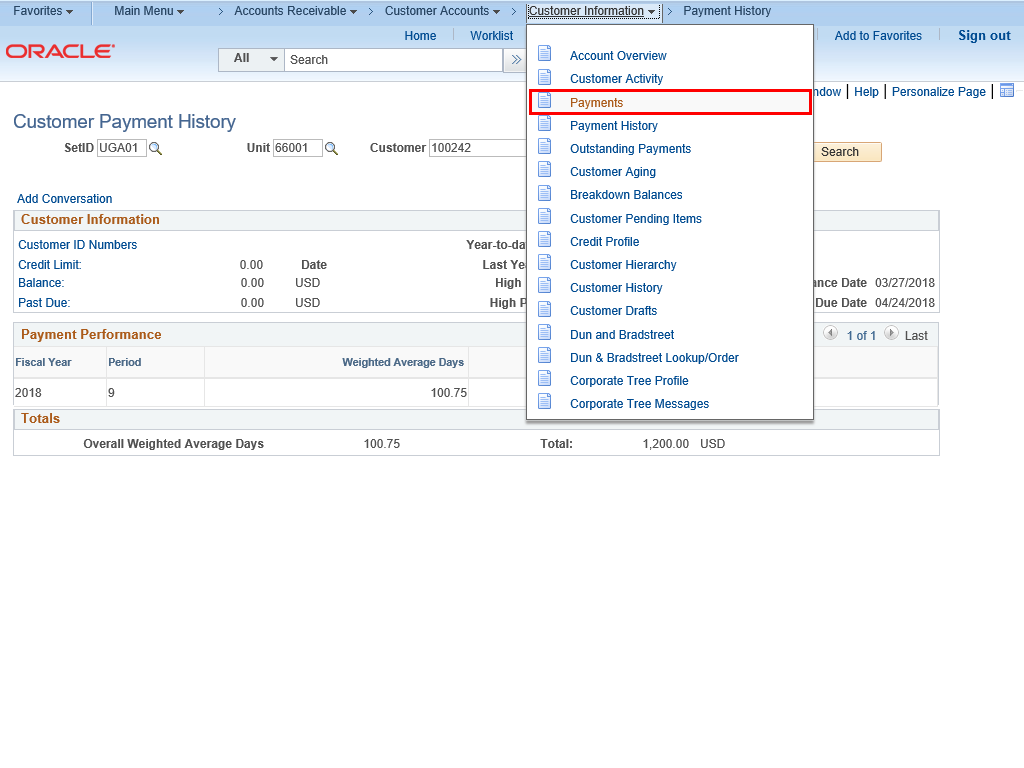
To navigate to the Payment History page, select:
Customer Information > Payment History
|
|
 |
Similarly, the Customer search criteria must be entered again. Be sure to check and input the correct information.
Click the Search button.
|
|
 |
|
The Customer Information and Payment Performance sections display payment history information.
|
|
 |
|
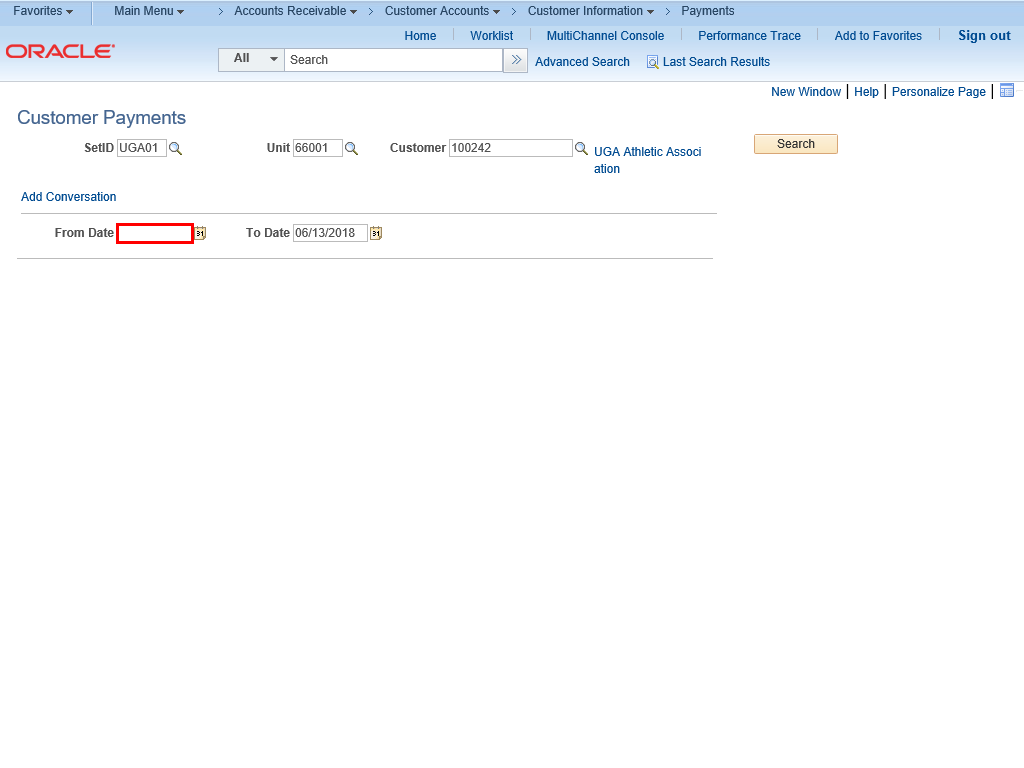
To navigate to the Payments page, select:
Customer Information > Payments
|
|
 |
|
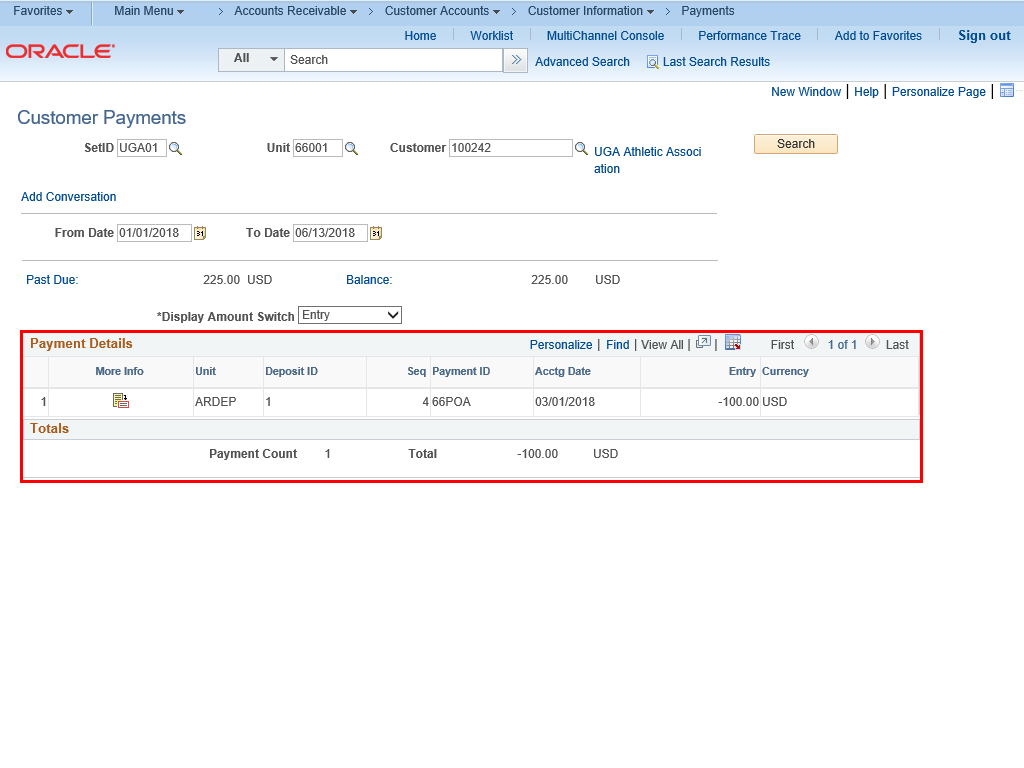
Enter appropriate information into the From Date field.
Example shown here: To search for payments from 01/01/2018 through the To Date, 06/13/2018, enter "01/01/2018" In the From Date field,
|
|
 |
|
The Payment Details section displays the payment information.
|
|
Details
Details
Article ID:
150005
Created
Sat 9/24/22 11:31 PM
Modified
Tue 9/15/26 2:26 PM