Changing the Location of an Asset - Define Operational Info
Summary
Changing the Location of an Asset - Define Operational Info
Body
Overview
The Define Asset Operational Info page is different from the Basic Add page, because it does not show historical changes.
In this article you will learn how to change the location of an Asset to Brooks Hall. This article will help you maintain custodial record of assets.
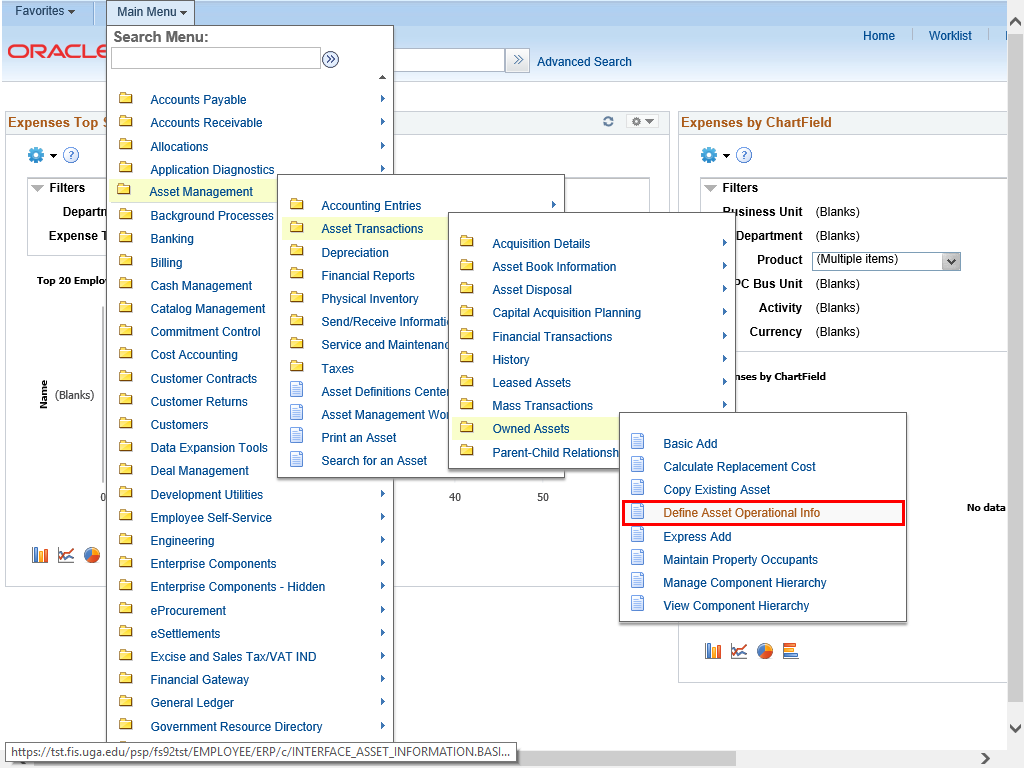 |
To navigate to the Define Asset Operations Info page, select:
Main Menu > Asset Management > Asset Transactions > Owned Assets > Define Asset Operational Info
|
|
 |
The Define Asset Operational Info search page is displayed.
Enter the appropriate search criteria into the Search Criteria fields.
Example shown here: enter "18000".
Note: The Business Unit for Asset Management will always be 18000.
|
|
 |
Leave the Asset ID box blank.
|
|
 |
Enter the appropriate information in the Tag Number field.
Example shown here: "6743890".
|
|
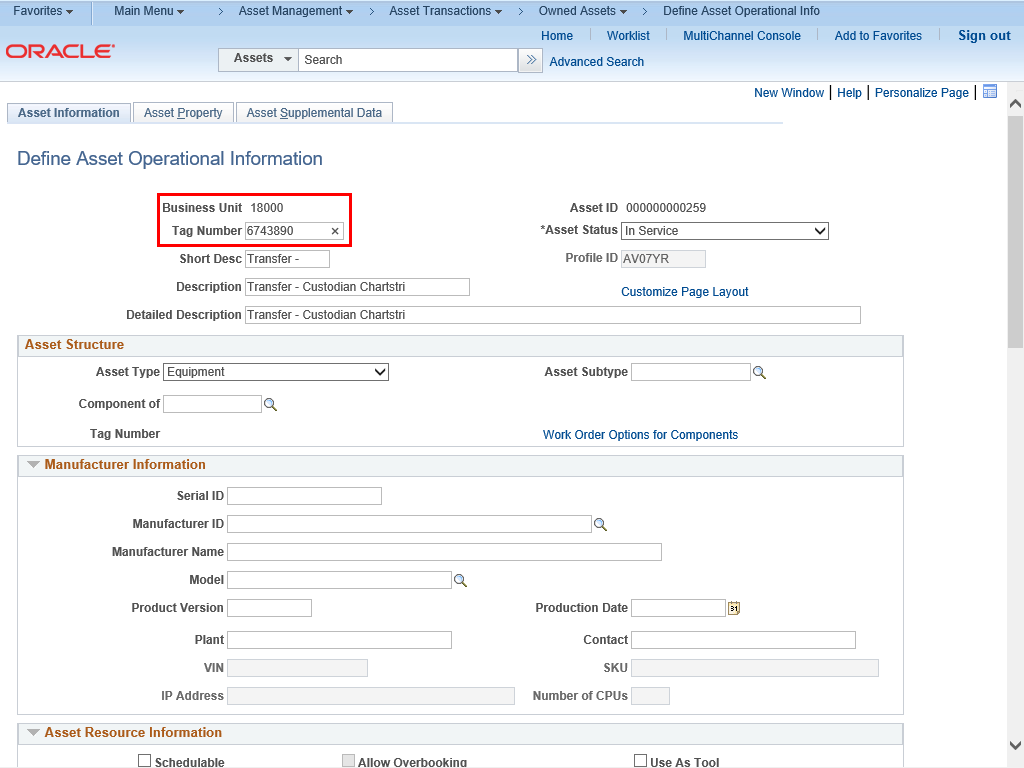 |
The Define Asset Operational Information page displays the information you input in the previous step.
|
|
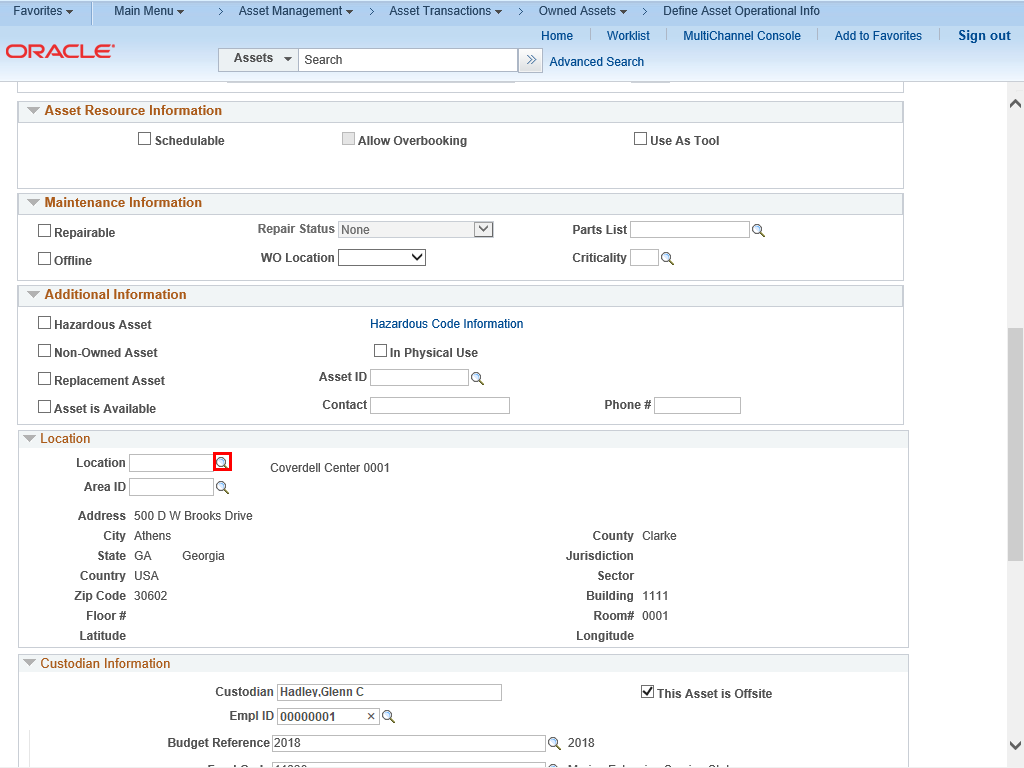 |
To find a location, click the lookup magnifying glass to the right of the Location field.
|
|
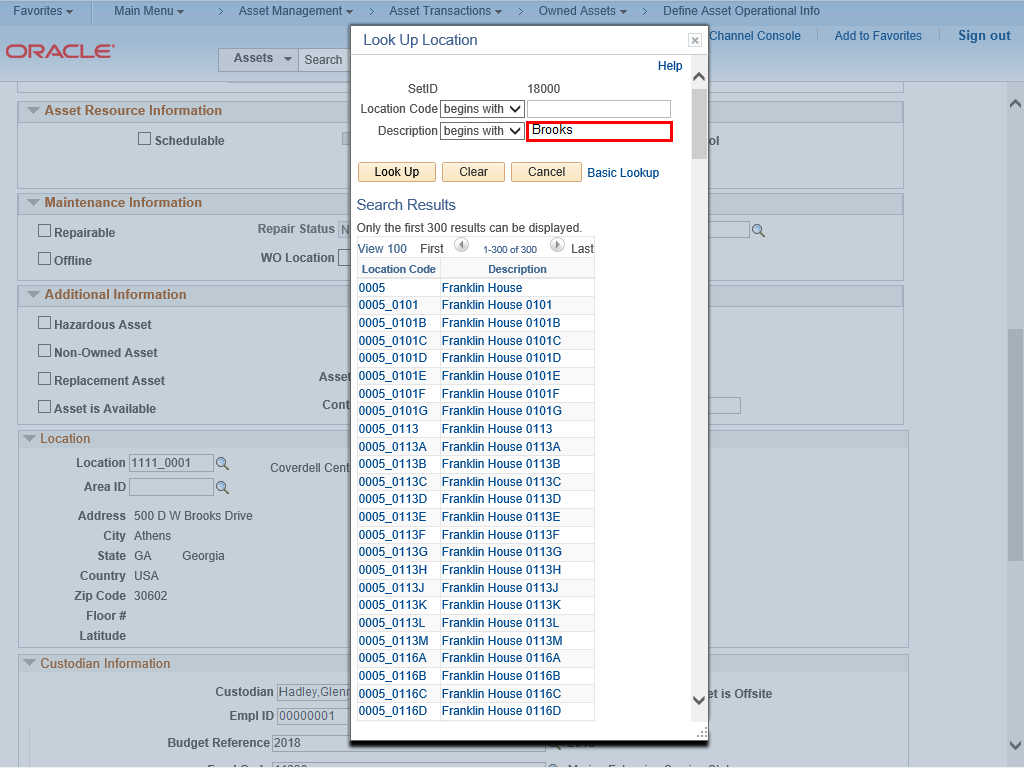 |
The Look Up Location box is displayed.
Example shown here: "Brooks" into the Description field.
|
|
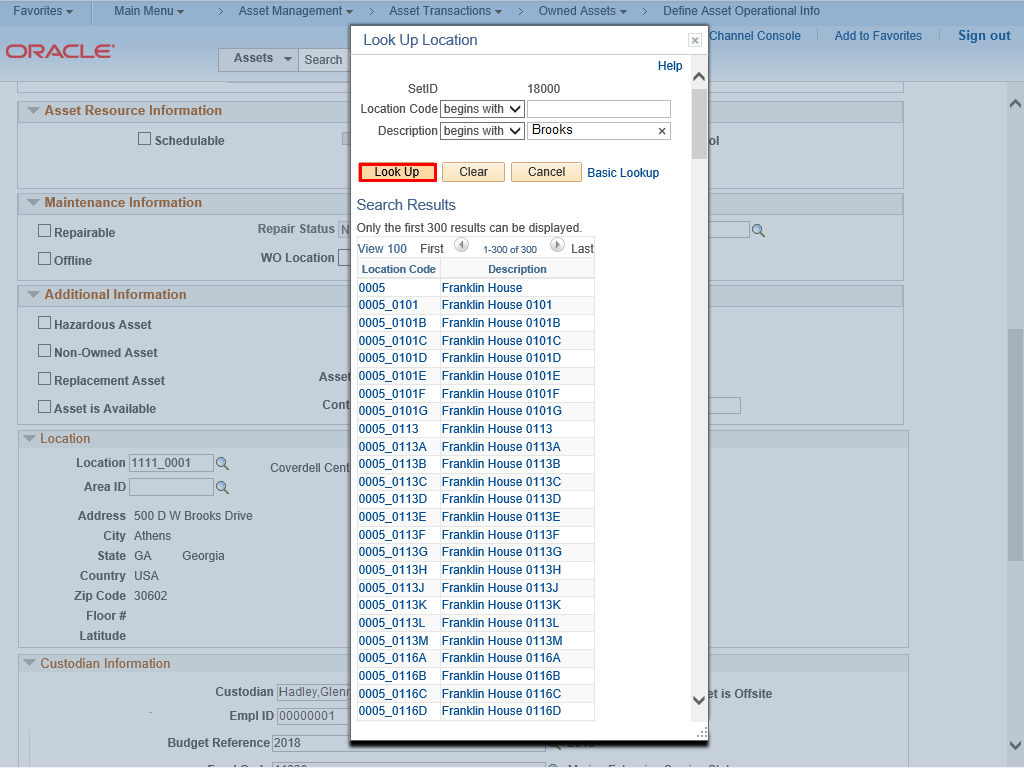 |
Click the Look Up button.
|
|
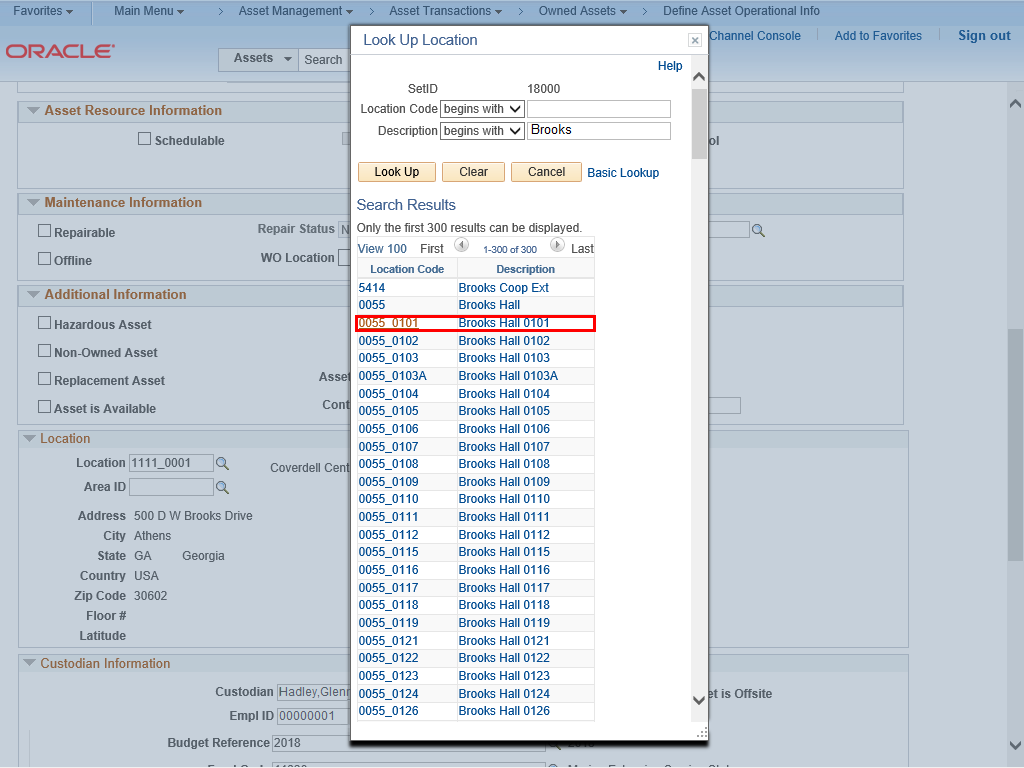 |
A list of locations will display,
Note: The Location Code is a combination of building and room number in one field. The Description is the name of the building.
Click the appropriate Location Code link.
|
|
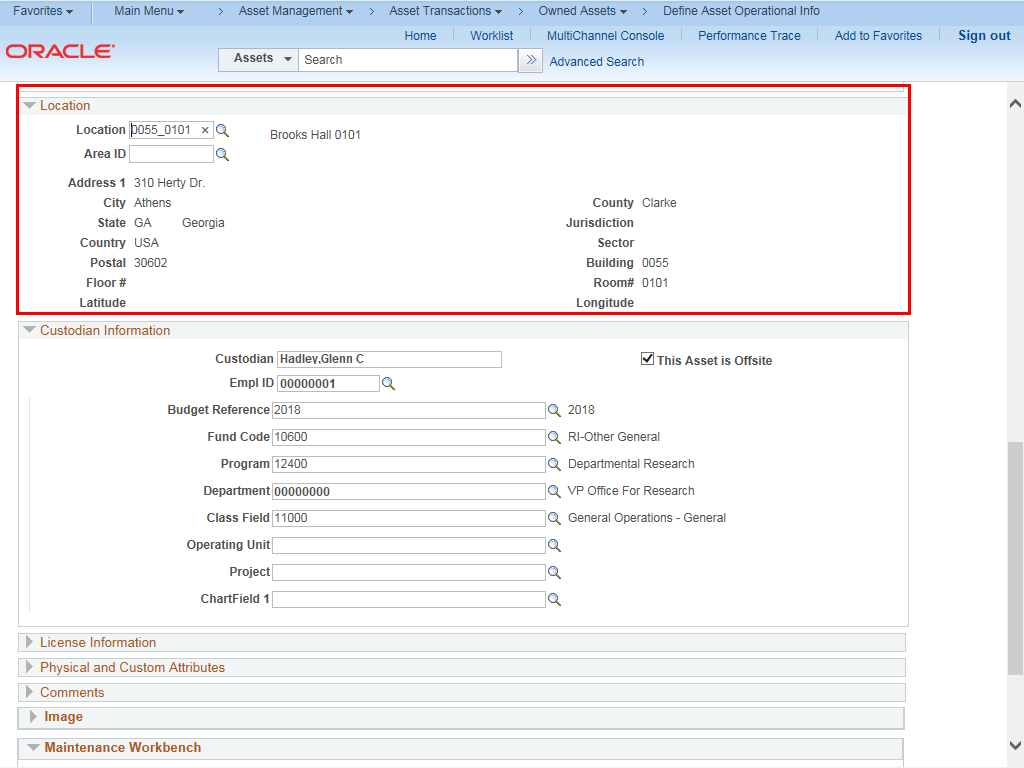 |
The new Location and Custodian Information is updated.
|
|
Details
Details
Article ID:
149990
Created
Sat 9/24/22 11:30 PM
Modified
Mon 5/11/26 11:31 AM