Viewing Number of Transaction Department Approvers
Summary
In this article, you will learn the steps to run a query to view the number of approvers assigned to each pool in any transaction department to locate gaps in workflow.
Body
Overview
You can run a query to view the number of approvers assigned to any transaction department using the query name UGA_USERS_ROLE_TRNS_DEPT. This query can assist in locating gaps in workflow.
There is a separate query to view the number of approvers assigned to budget-only departments. For more information, please see the tutorial titled Viewing Number of Budget Only Department Approvers.
In this article, you will learn the steps to run a query to view the number of approvers assigned to each pool in any transaction department to locate gaps in workflow. The query name is UGA_USERS_ROLE_TRNS_DEPT.
Note : This information can be viewed for Budget Only Departments using a different query (UGA_USERS_ROLE_BUDG_DEPT).
 |
Click the UGA Financials link.
|
|
 |
Click the Query Viewer tile.
|
|
 |
The Query Viewer page is displayed.
Enter " UGA_USERS_ROLE_DEPT " into the begins with field.
|
|
 |
The search result is displayed.
Click the HTML link to open the query as a webpage.
|
|
 |
|
You can search for specific information using the search fields.
You can limit the search results by entering the appropriate information into the Department(s) and/or Role Name fields. To find departments with gaps in workflow, you can enter a 2 or 1 into the Approvers Less Than field.
Example shown here: Search for all departments and roles that have less than 2 approvers, so you will not change the default information.
|
|
 |
Click the View Results button to display results based on your search criteria.
|
|
 |
|
The search results are displayed. You can view information by role name and department ID.
The # of Approvers column indicates the number of employees assigned to a role and depends upon the information search in the Approvers Less Than field.
|
|
 |
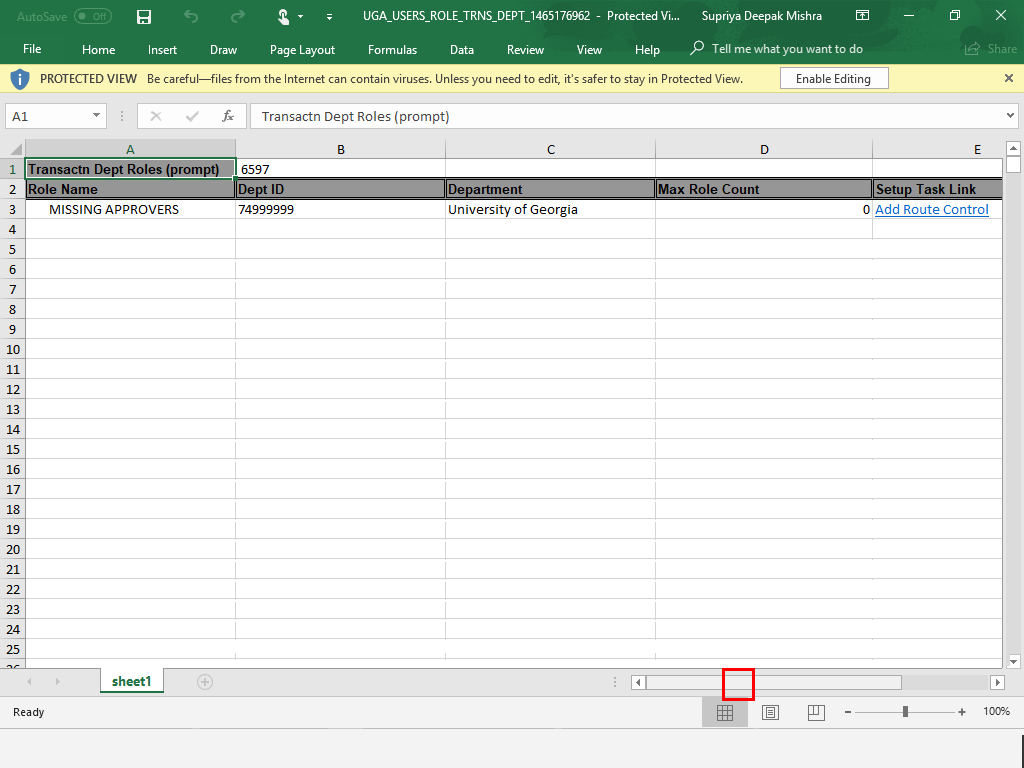
Click the Excel SpreadSheet link to download the results into an Excel file.
|
|
 |
|
The Excel file is displayed. You can add filters to sort the information as needed.
|
|
Details
Details
Article ID:
149714
Created
Sat 9/24/22 11:22 PM
Modified
Mon 4/1/24 2:54 PM