Requesting Budget Development Access
Summary
In this article, you will learn the steps to request UGA Budget Development Access for an employee using the Access Request Form in the UGA Financial Management System.
Body
Overview
Budget Development access in the UGA Budget Management System is assigned as a role in the UGA Financial Management System, similar to the process for assigning new roles in UGA Financials. This tutorial outlines how a supervisor can assign Budget Development access through the Access Request Form in UGA Financials.
In this article, you will learn the steps to request UGA Budget Development Access for an employee using the Access Request Form in the UGA Financial Management System.
The form should be completed by the employee's HR Supervisor.
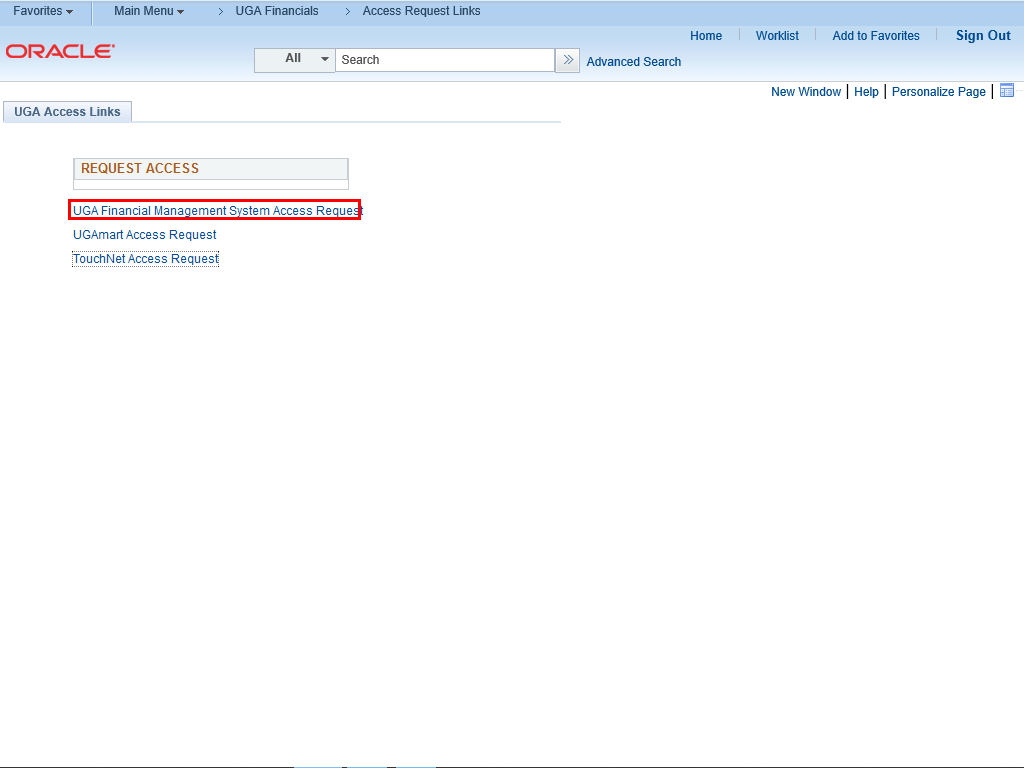 |
The UGA Access Links page is displayed.
To request UGA Budget Development Access, click the UGA Financial Management System Access Request link.
|
|
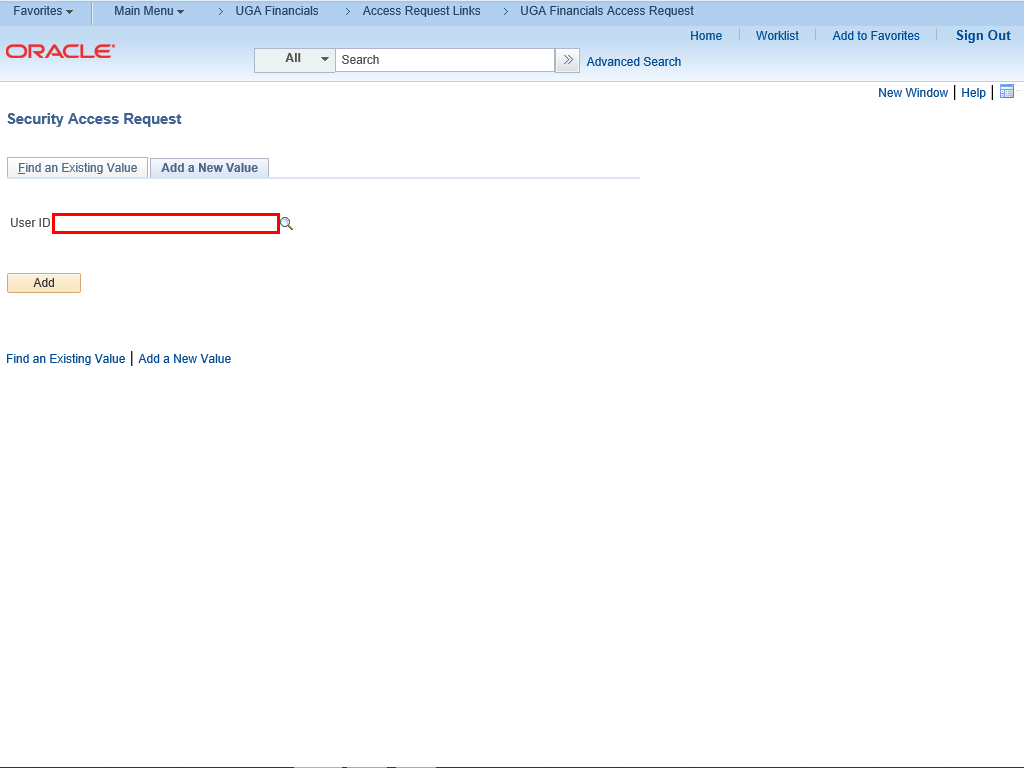 |
The Security Access Request page is displayed.
Under the Add a New Value tab, enter the MyID of the employee for whom you wish to request UGA Budget Development Access in the User ID field.
Note: You can use the lookup magnifying glass to search for an employee. The Description search prompt will be a last name search.
Example shown here: " uga12345 ".
|
|
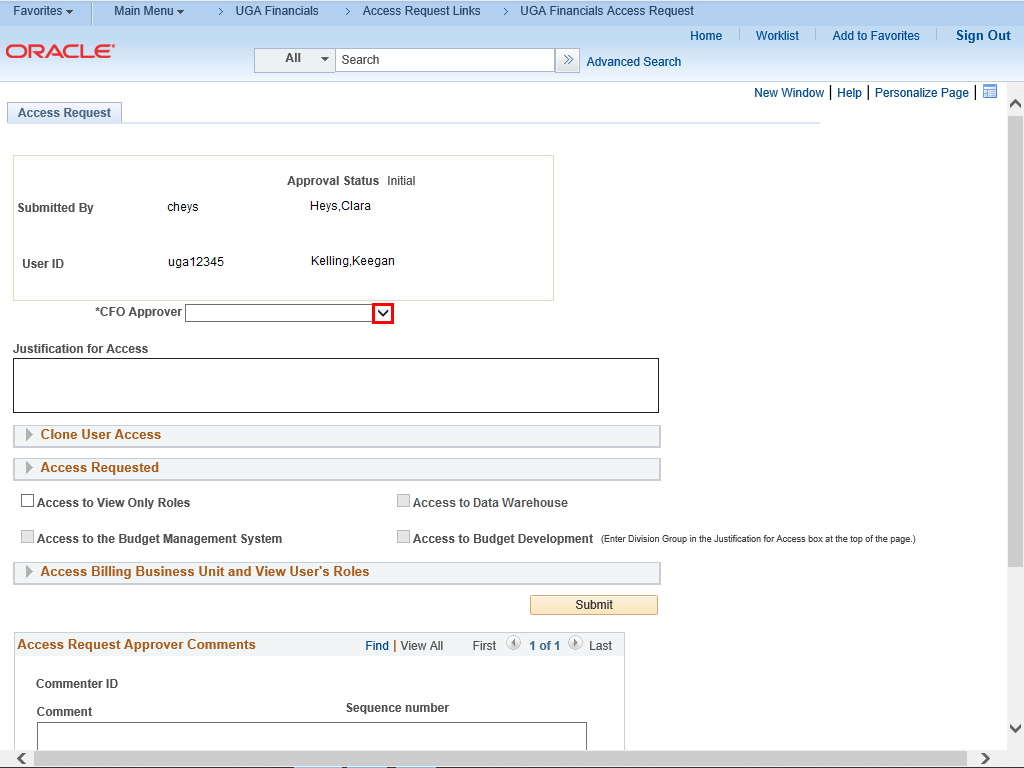 |
The Access Request page is displayed. Your name and User ID are recorded as part of the Access Request form.
Your School/College/Unit Chief Financial Officer (CFO) is responsible for approving the access request.
To select the CFO Approver, click the CFO Approver drop-down menu.
|
|
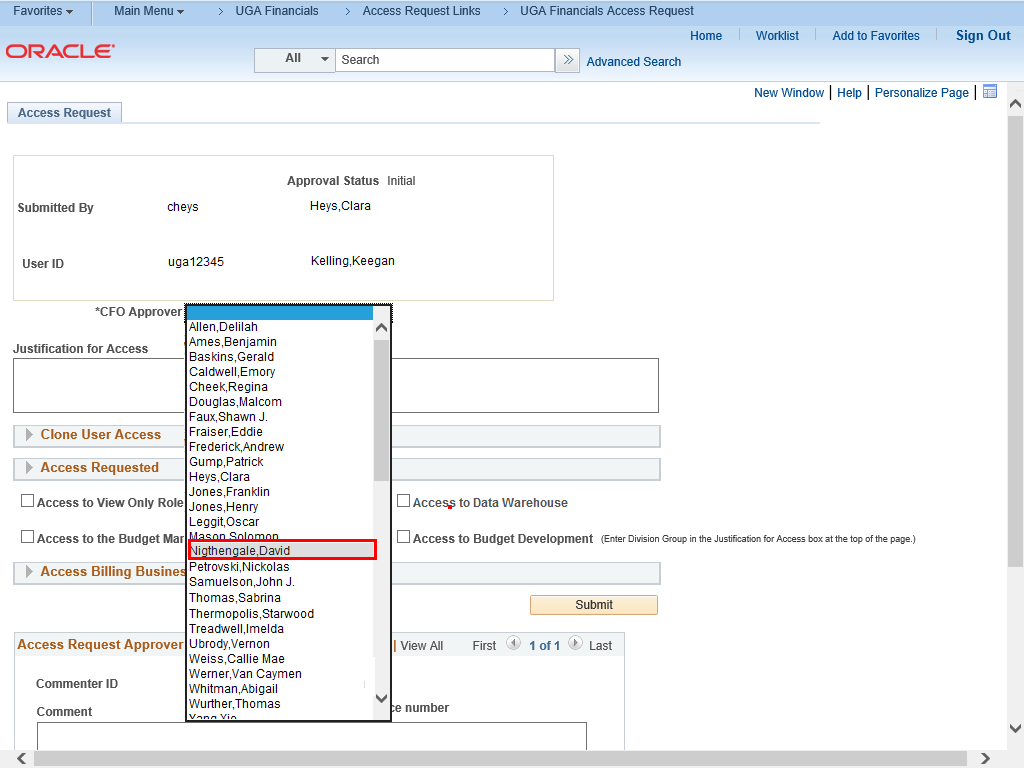 |
Click the appropriate CFO Approver from the list.
Example shown here: Nightengale,David .
|
|
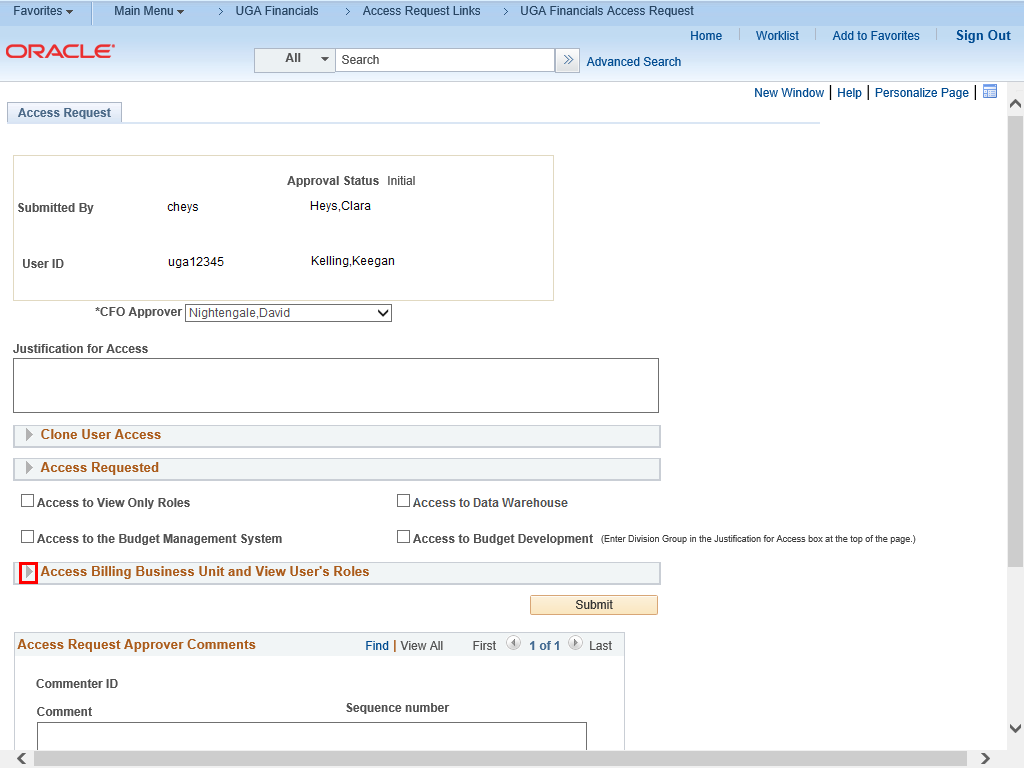 |
To view the selected employee's current access, click the arrow to the left of the Access Billing Business Unit and View User's Roles section.
Note: You can do this to confirm whether an employee already has UGA Budget Development Access.
|
|
 |
|
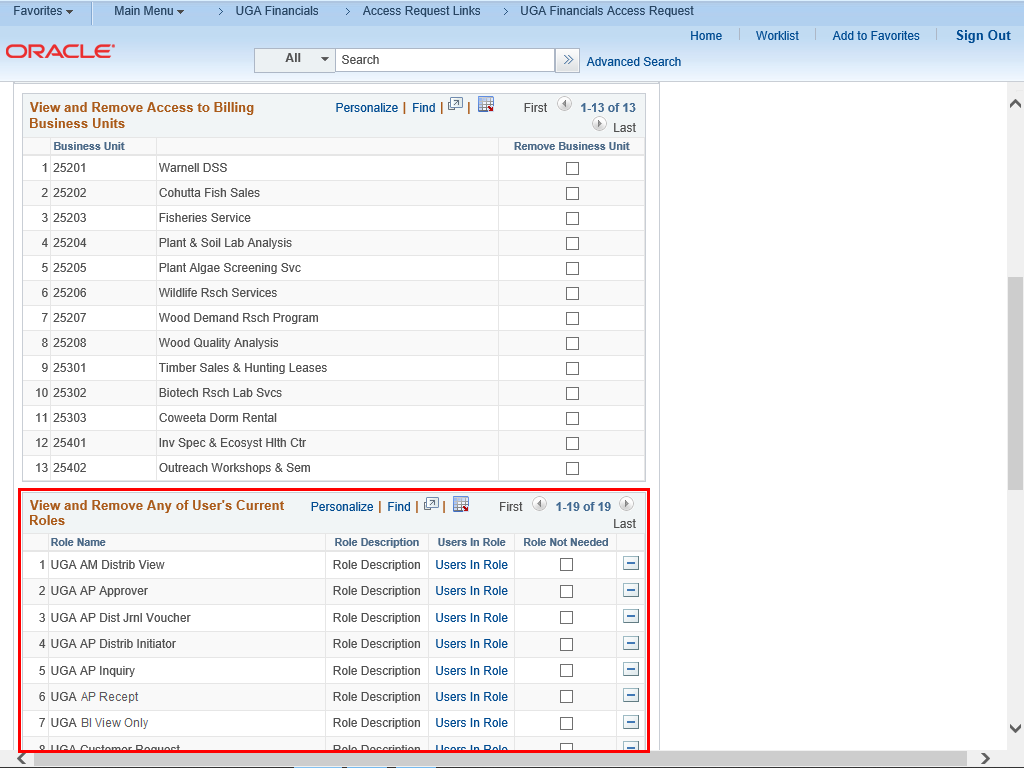
In the View and Remove Any of User's Current Roles section, you can view what access the employee currently has before you request additional access for the employee.
For this example, the selected employee does not have UGA Budget Development access (UGA Budget Planning Salary Set).
|
|
 |
|
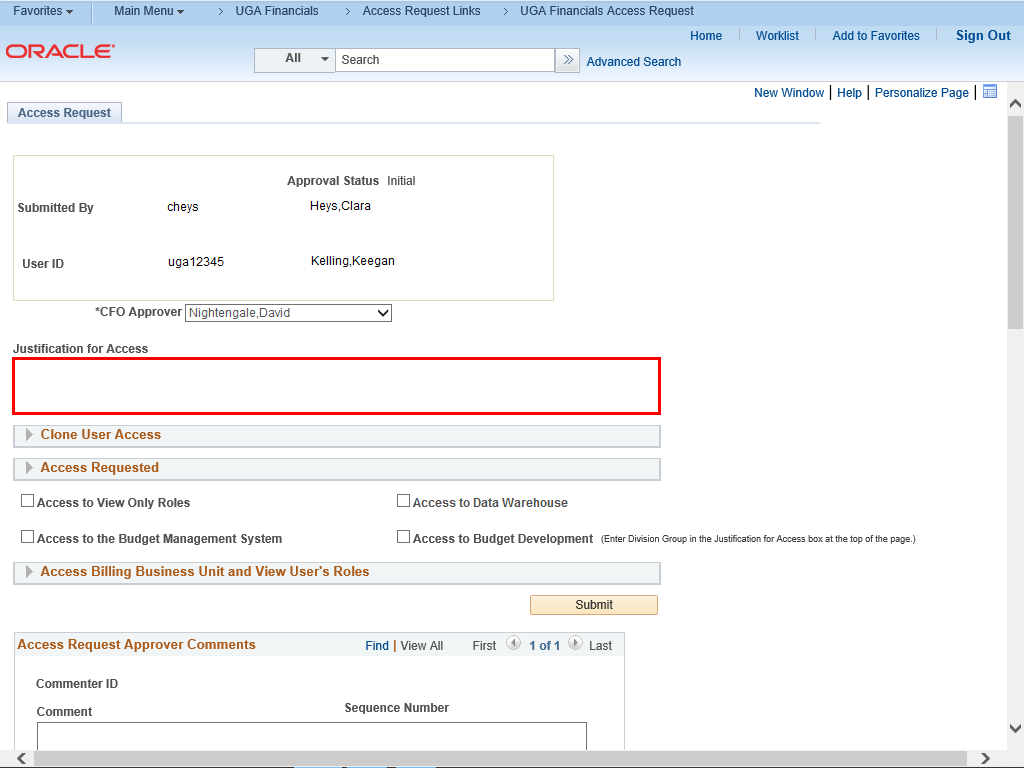
You can enter a reason why you are requesting UGA Budget Development Access for the selected employee in the Justification for Access field.
Note: Make sure to note all Intermediate Units (IU or Division Groups) the selected employee will need to access. The employee will also need “View Only” access.
|
|
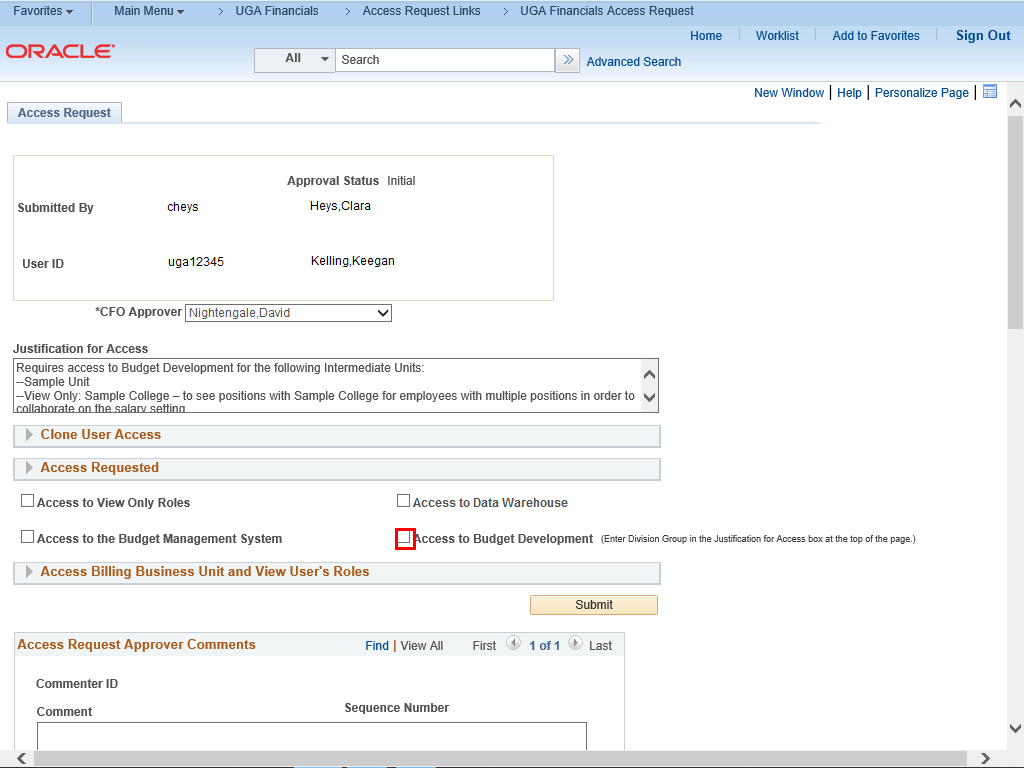 |
If the selected employee does not currently have access to UGA Budget Development, you will need to check the Access to Budget Development option.
Example shown here: Access to Budget Development checkbox.
|
|
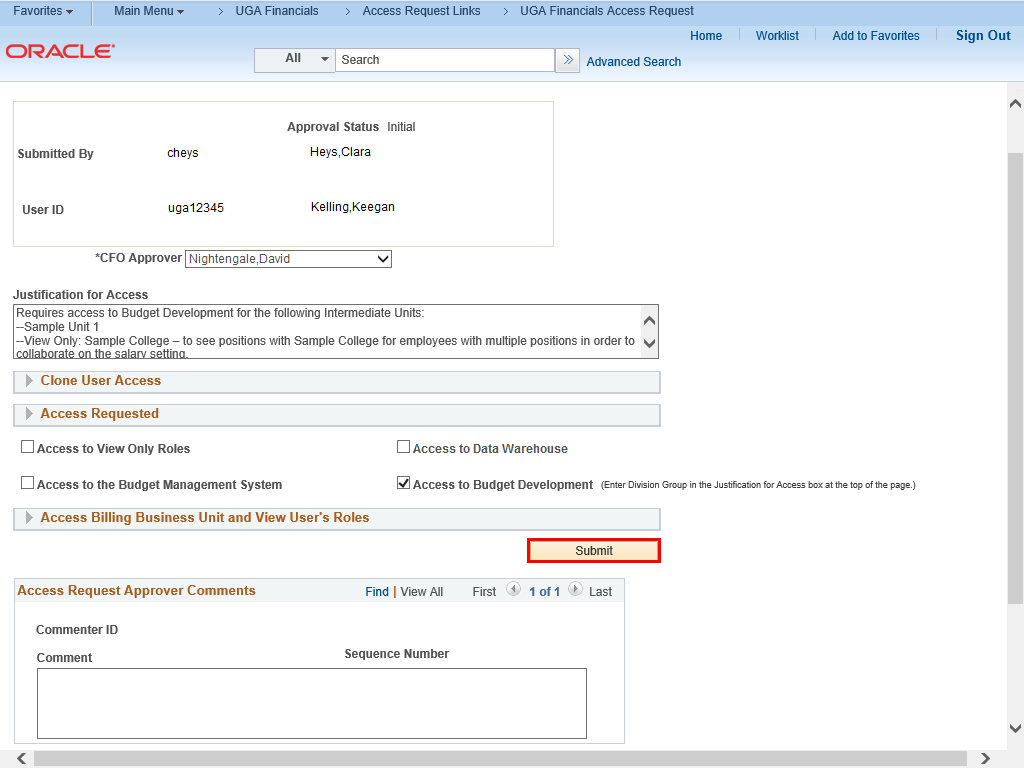 |
When you are ready, click the Submit button.
|
|
 |
|
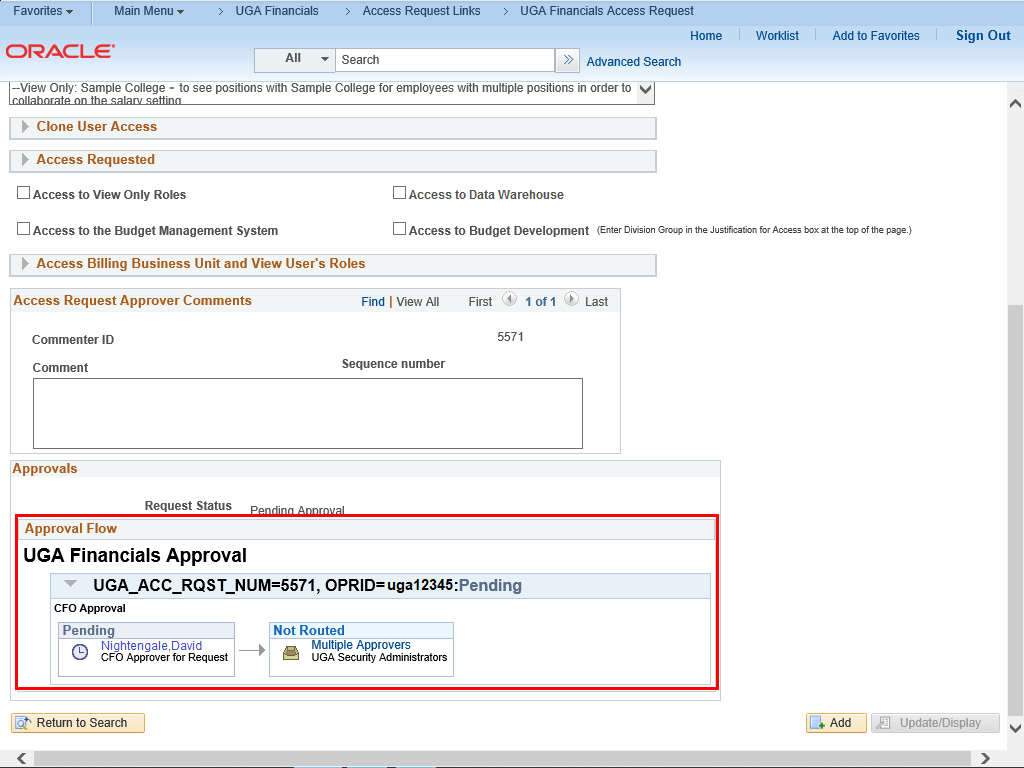
The request has been submitted to the CFO for approval. You can view the approval workflow at the bottom of the page.
|
|
Additional Information:
UGA Budget Development Role:
- Role Title: UGA Budget Planning Salary Set
This role will give access to the Budget Planning and Salary Setting functionality in UGA Budget Management. A couple of items to consider when assigning this role:
- Prior to being assigned the UGA Budget Planning Salary Set role, an employee must have access to the Budget Management system by being assigned the role UGA Budg Mgmt Access. Both roles can be assigned at the same time via the same Access Request Form submission.
- BPSS access is granted by Intermediate Unit (IU of Division Group). The IU an employee is assigned to will determine what HR Departments/Positions they have the ability to develop funding for in BPSS. When assigning this role on the Access Request Form, the supervisor will need to declare what IU they would like to request the employee to have access to in the justification section of the form. A list of the IUs to choose from can be found below.
- "View Only" can be listed before the IU (for example: View Only: College of Arts & Sciences). This gives the employee the ability to see the HR Departments/Positions in the IU; however, they will not be able to take action on those positions. This is typically requested when two IUs share an employee within multiple positions so that they can see and collaborate on the salary setting between the two units.
| Intermediate Units |
| Athletics |
| AU/UGA Medical Partnership |
| Auxiliary Services Division |
| College of Agric & Environ Sci |
| College of Arts & Sciences |
| College of Business |
| College of Education |
| College of Engineering |
| College of Env & Design |
| College of Family & Consum Sci |
| College of Journalism & Mass Comm |
| College of Pharmacy |
| College of Public Health |
| College of Veterinary Medicine |
| Emergency Preparedness |
| Enterprise IT Services |
| Environmental Safety |
| Equal Opportunity Office |
| Facilities Management |
| Facilities Planning |
| Finance Division Unit |
| Graduate School |
| Human Resources Division |
| Internal Audit |
| Legal Affairs Office |
| Libraries |
| President's Office |
| School of Ecology |
| School of Forestry & Nat Res |
| School of Law |
| School of Public & Intl Affairs |
| School of Social Work |
| University Police Department |
| VP Dev & Alumni Affairs |
| VP Finance and Administration |
| VP for Academic Affairs |
| VP for Government Relations |
| VP for Instruction |
| VP for Research |
| VP Marketing Communication |
| VP Public Service & Outreach |
| VP Student Affairs |
| Central Budget Office |
| Service Desk View |
Details
Details
Article ID:
149628
Created
Sat 9/24/22 11:19 PM
Modified
Tue 5/26/26 3:50 PM