Viewing Sponsored Expenditures for the Fiscal Year
Summary
In this article, you will learn the steps to run a query to view total sponsored expenditures for the fiscal year, with the ability to filter by financial department.
Body
Overview
You can run a query in the UGA Financial Management System to view the total sponsored expenditures for a fiscal year by project, with a filter available for department. The name of the query is UGA_GM_SPONS_EXPENDITURES.
In this article, you will learn the steps to run a query to view total sponsored expenditures for the fiscal year, with the ability to filter by financial department.
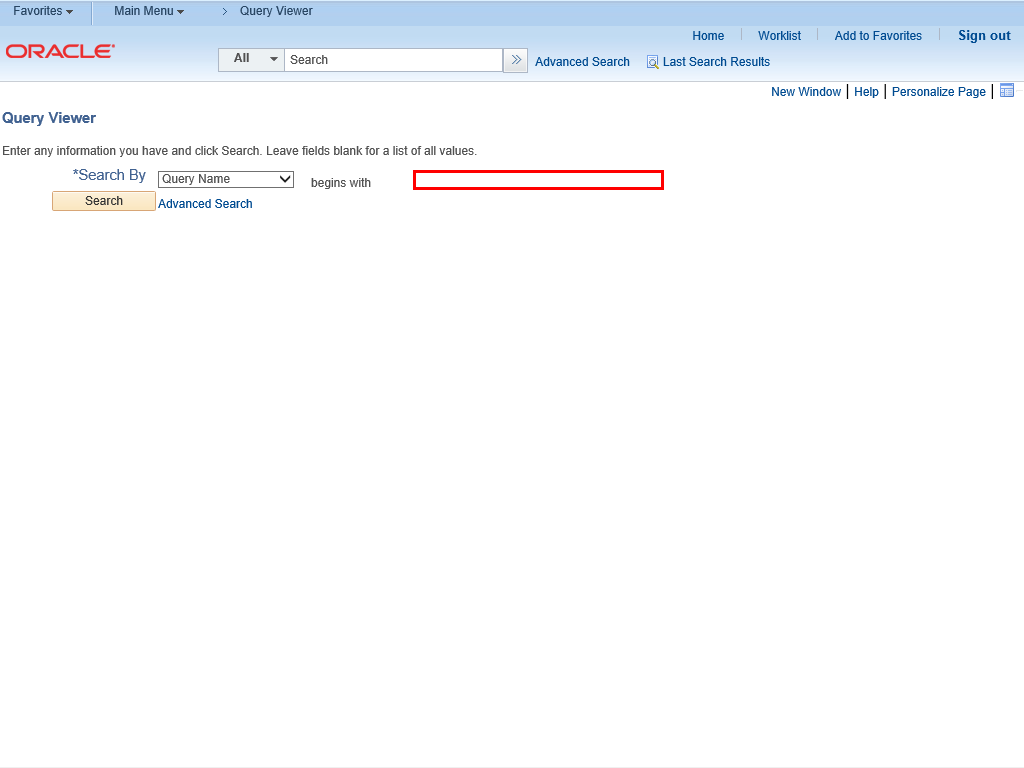 |
The Query Viewer page is displayed.
Enter the query name " UGA_GM_SPONS_EXPENDITURES " into the begins with field.
|
|
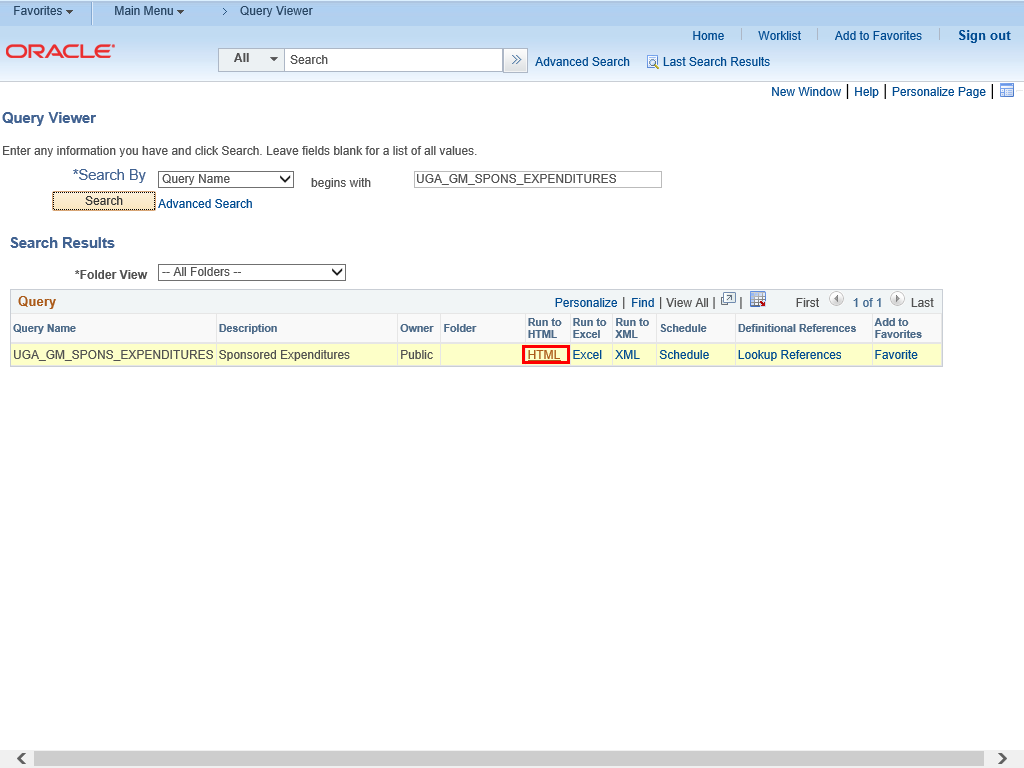 |
The query is displayed. Click the HTML link to open the query as a webpage.
|
|
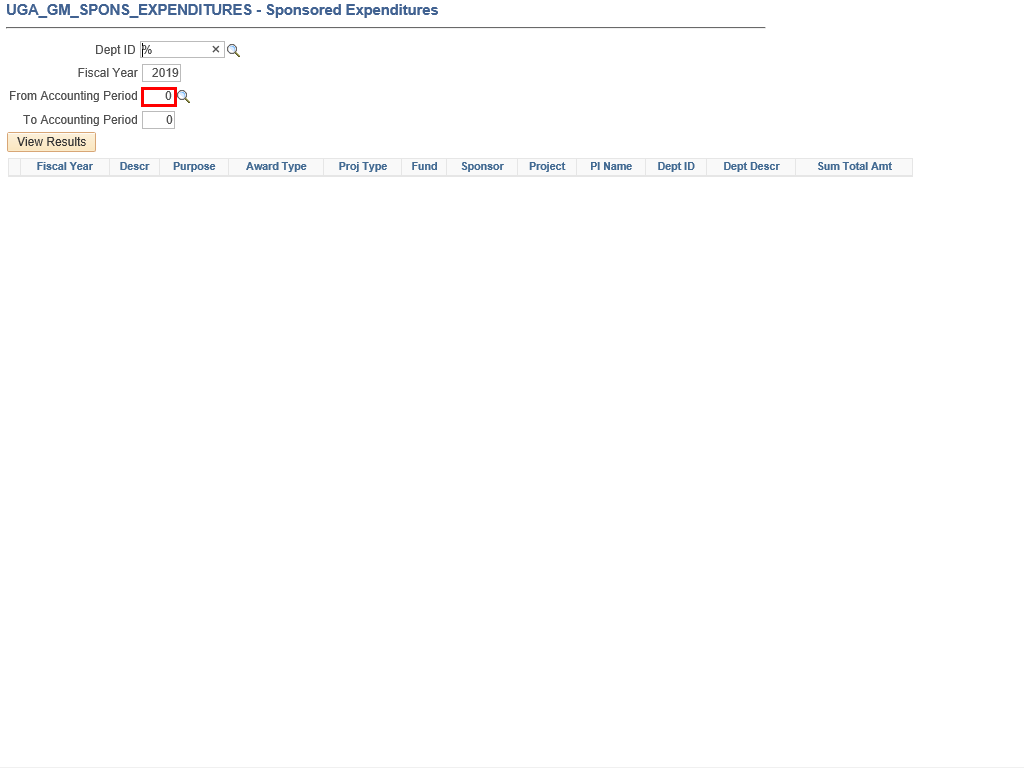 |
The search criteria for the query is displayed. You can enter available information into the search fields to refine your results.
Note: The Accounting Period in Financials is based on the Fiscal Year, not the Calendar Year. Ex. 1 = July, 2= August, etc.
Enter appropriate information into the From Accounting Period field.
Example shown here: " 1 " .
|
|
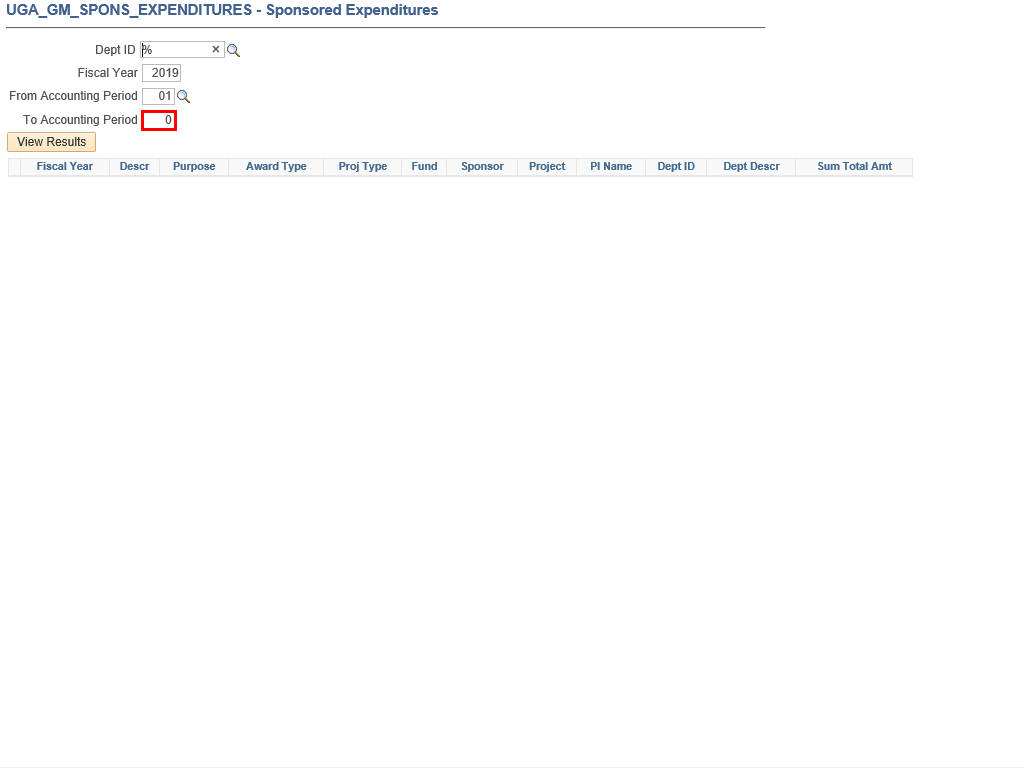 |
Enter appropriate information into the To Accounting Period field.
Example shown here " 6 ".
|
|
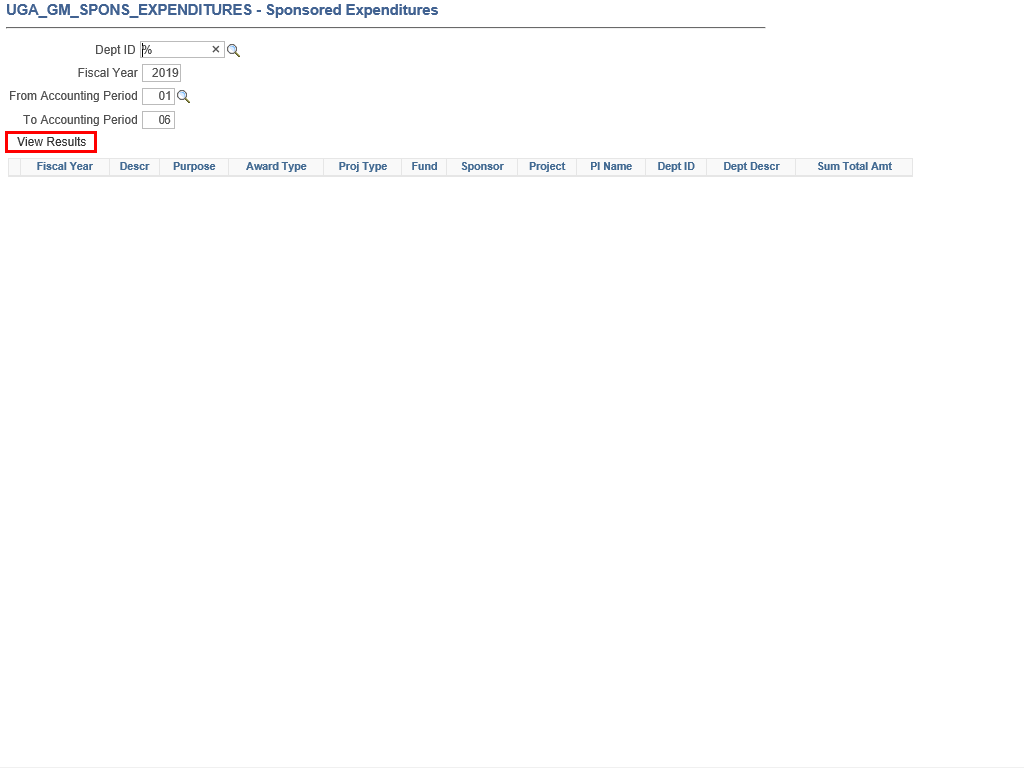 |
Click the View Results button.
|
|
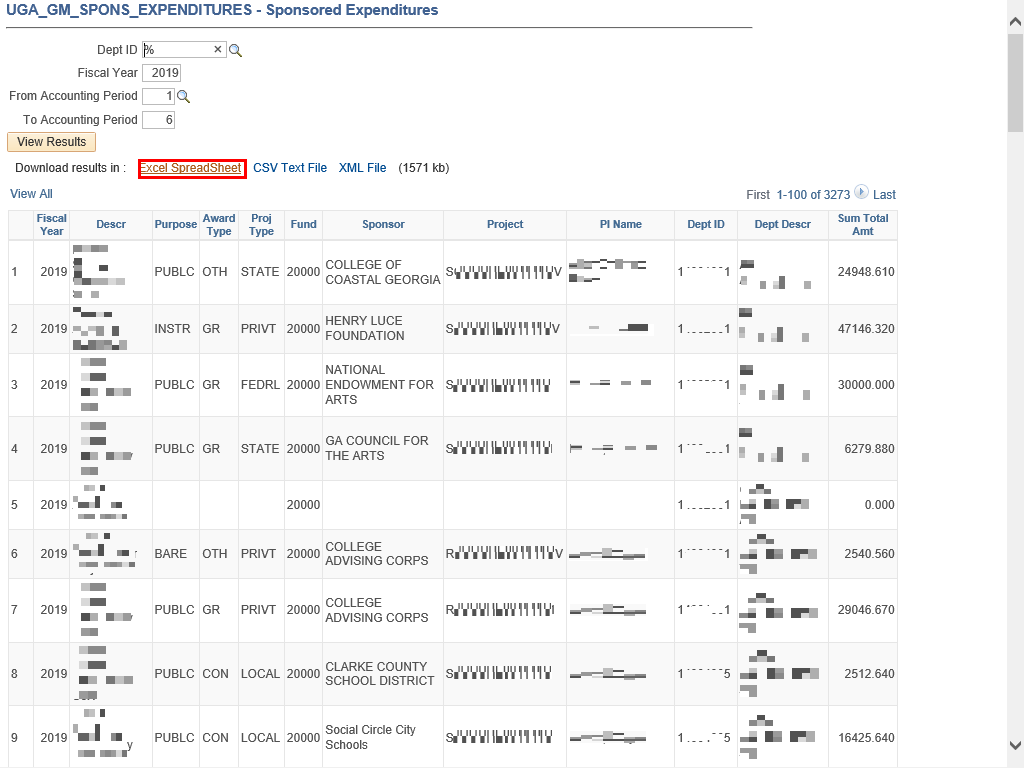 |
The results are displayed.
Click the Excel SpreadSheet link to download the data into an Excel file.
|
|
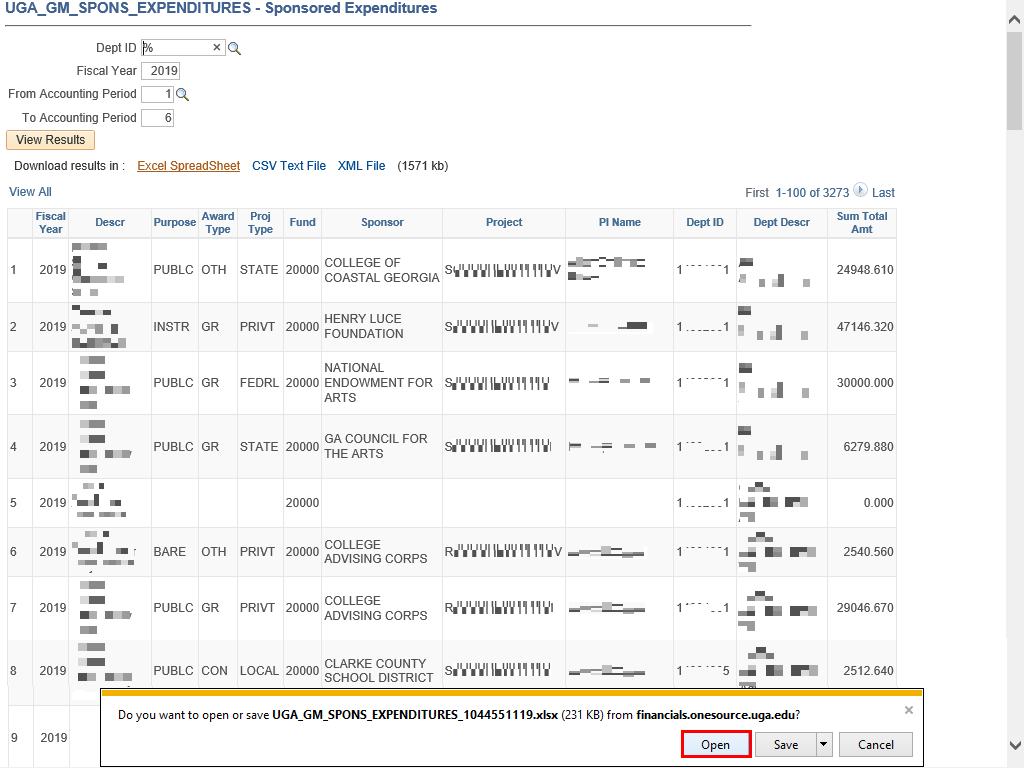 |
Once prompted, click the Open button.
|
|
 |
|
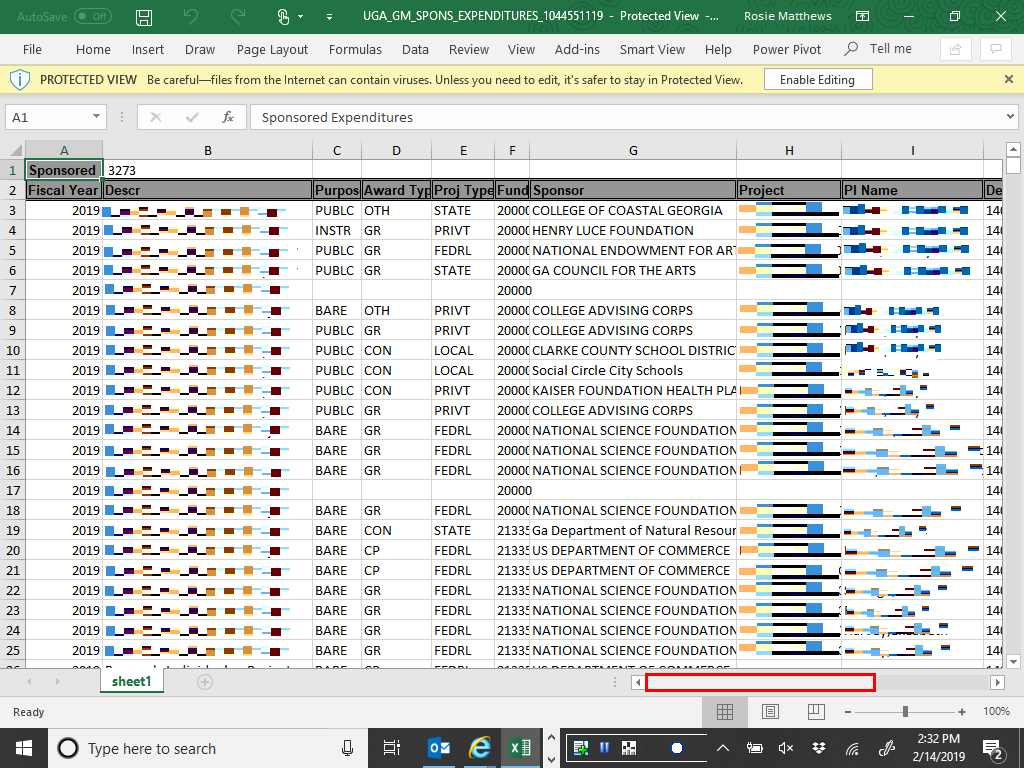
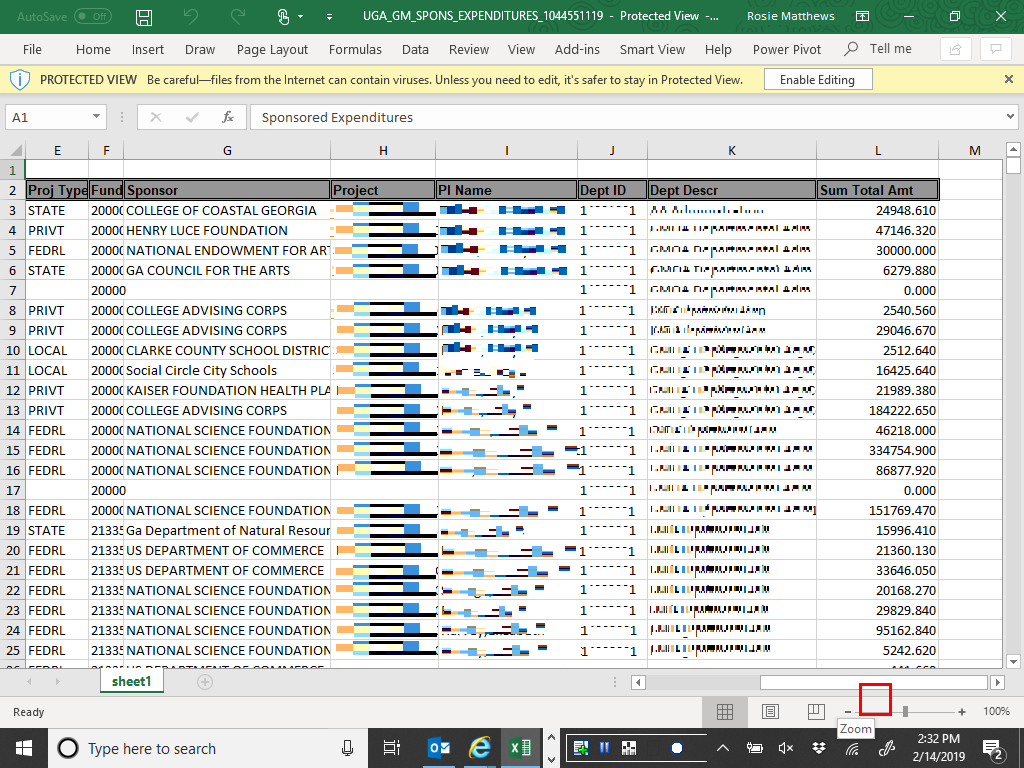
The Excel file is displayed. You can filter and sort the data to view the information that you need. Scroll to the right to view additional information.
|
|
 |
|
Additional columns are displayed, including PI Name and total sponsored expenditures for the fiscal year.
|
|
Details
Details
Article ID:
149600
Created
Sat 9/24/22 11:19 PM
Modified
Thu 10/1/26 5:21 PM