Running the Budget Status Cube
Summary
In this article, you will learn the steps to run the Budget Status Cube in the Data Warehouse.
Body
Overview
The Budget Status Cube, available in the Data Warehouse, can be used to determine available balances to spend when a project ID is not used. It provides-budet-to-actual information at the summary and detail levels. It downloads as an Excel Cube with Pivot Table functionality.
In this article, you will learn the steps to run the Budget Status Cube in the Data Warehouse.
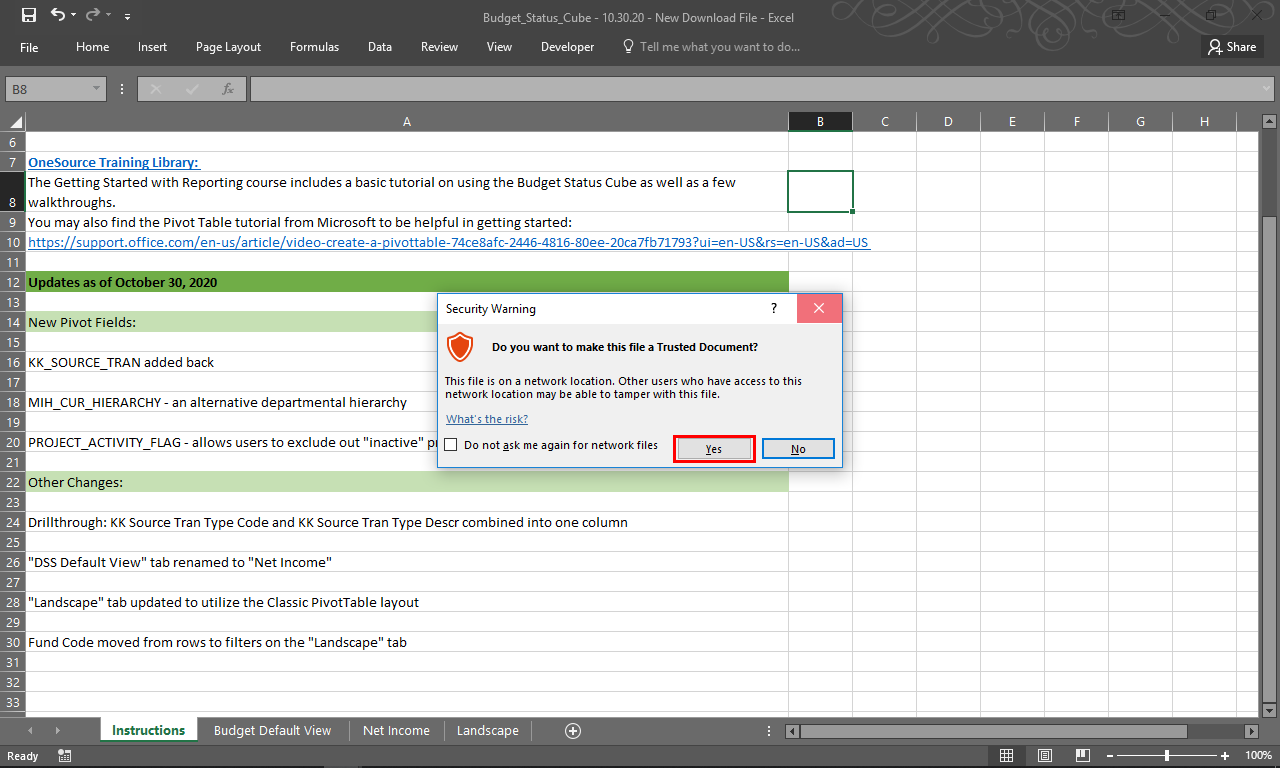 |
A security warning will appear.
Click the Yes button.
|
|
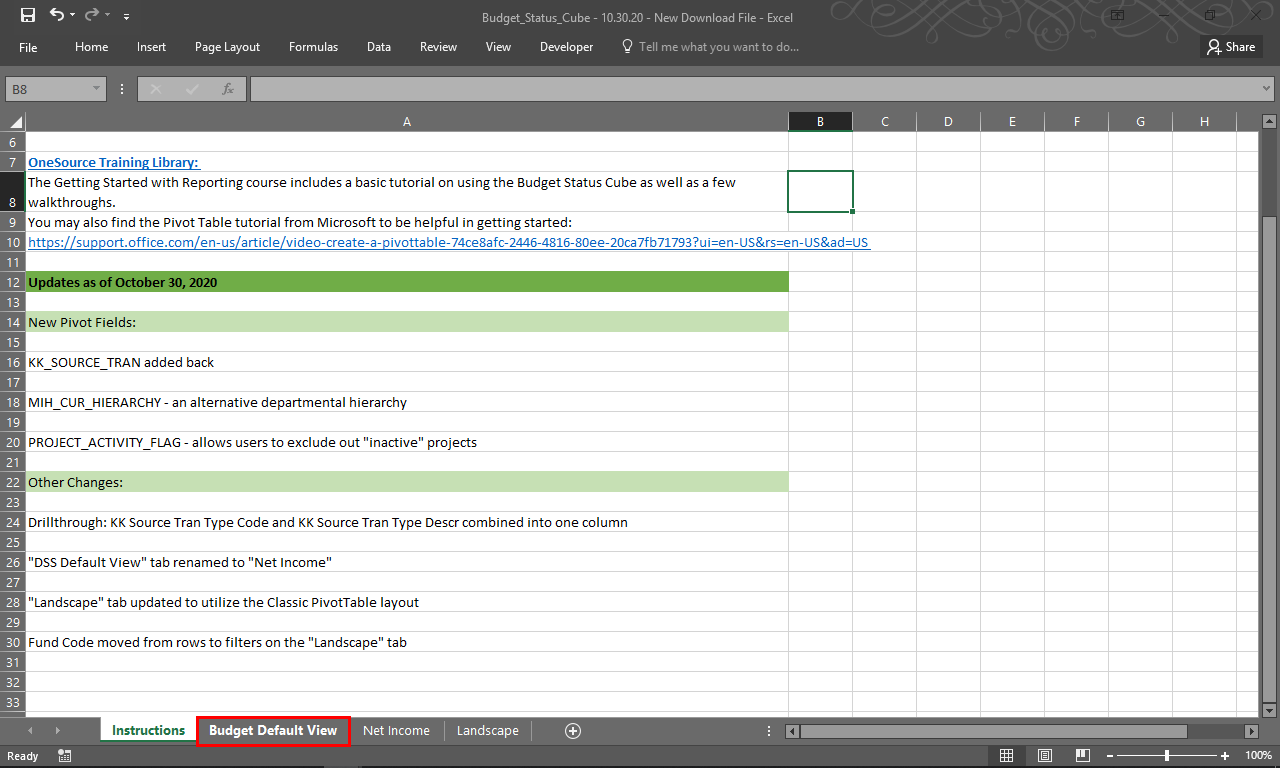 |
The content is enabled.
Click the Budget Default View tab.
|
|
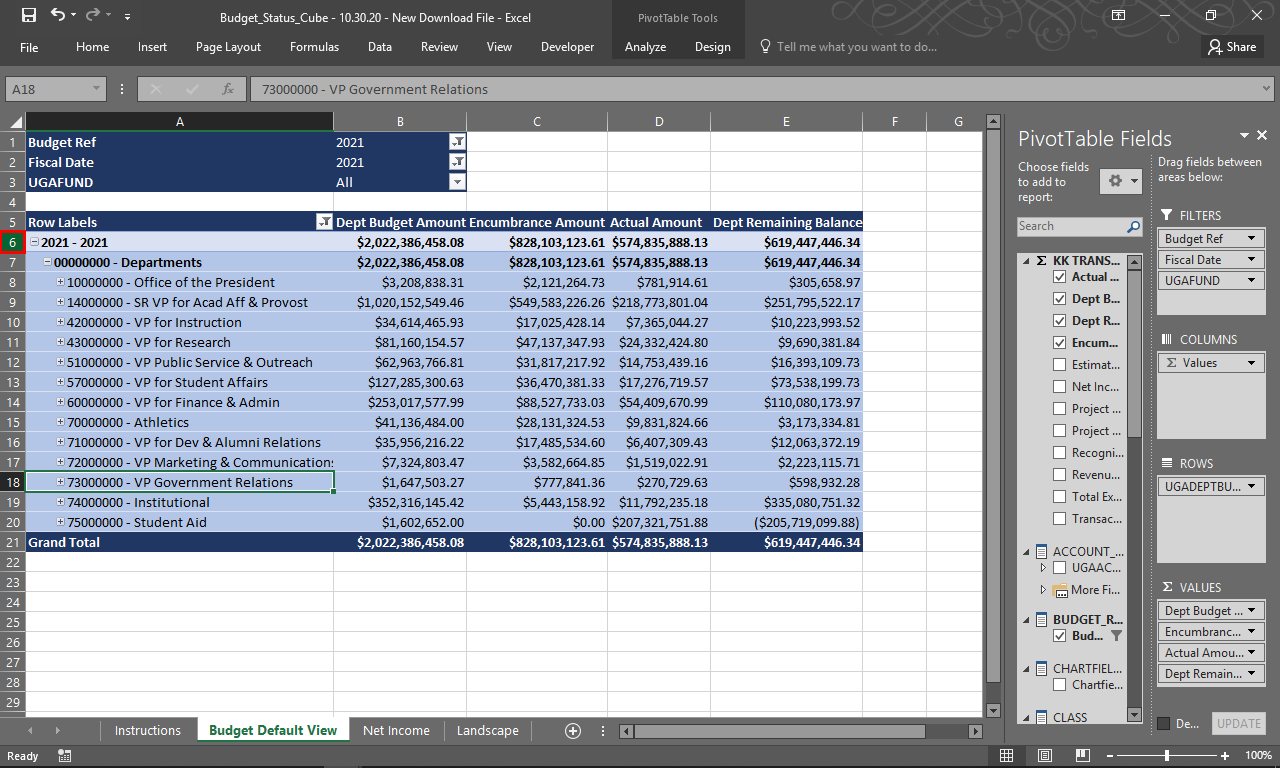 |
The Budget Default View is displayed.
To freeze the filters and row labels, click the 6 row header.
|
|
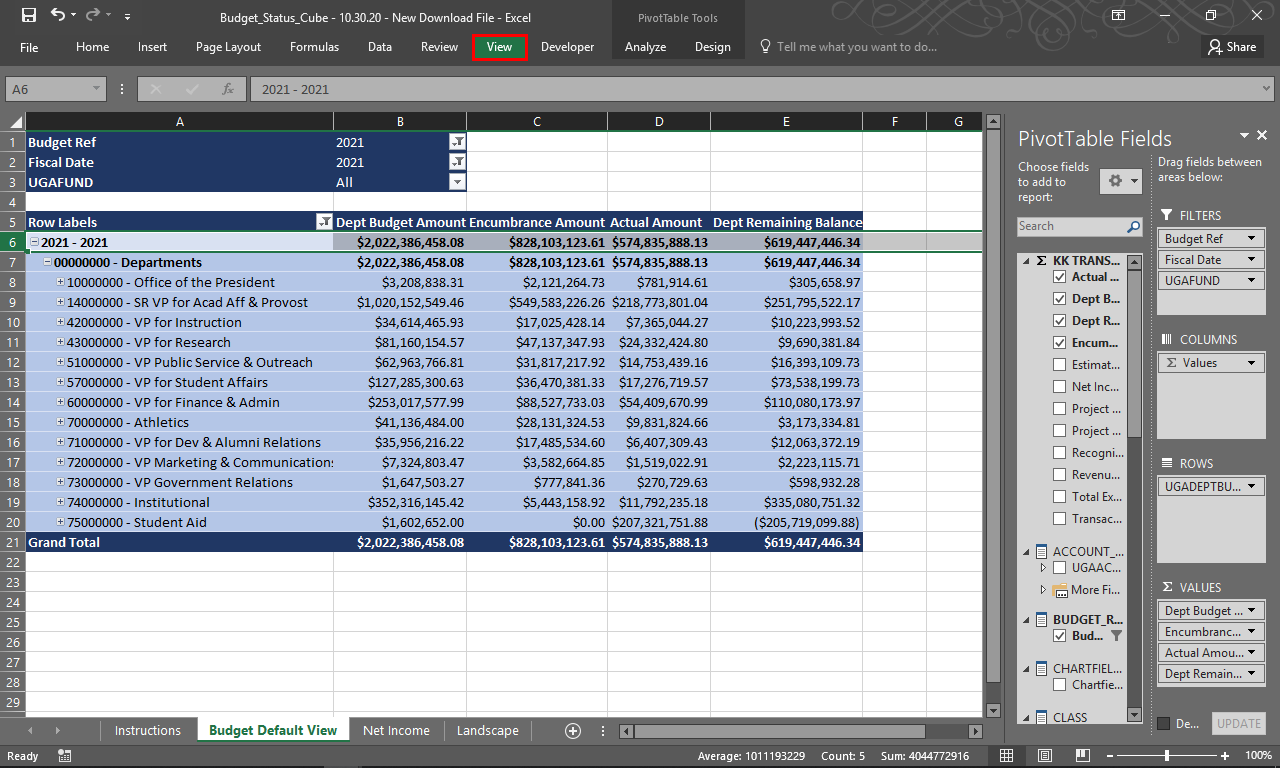 |
Row 6 is selected. The freeze panes options are located under the View tab.
Click the View tab.
|
|
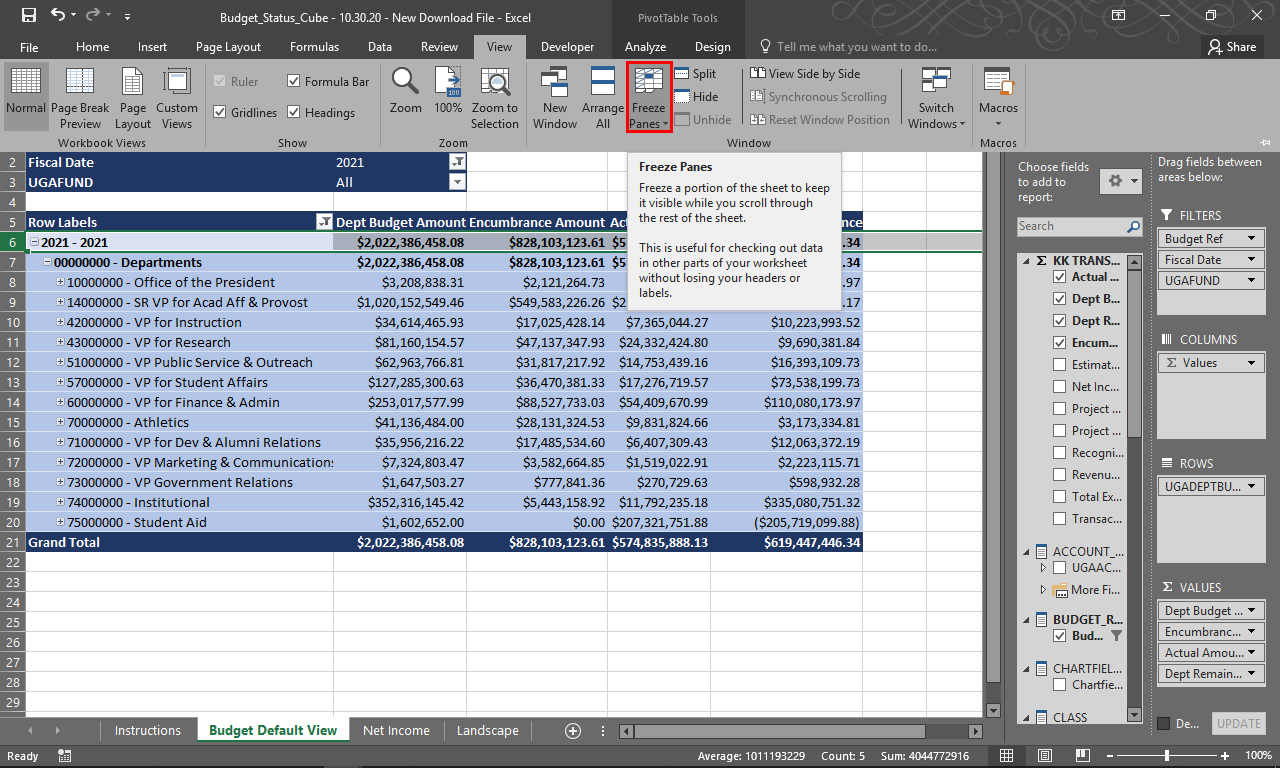 |
Click the Freeze Panes menu.
|
|
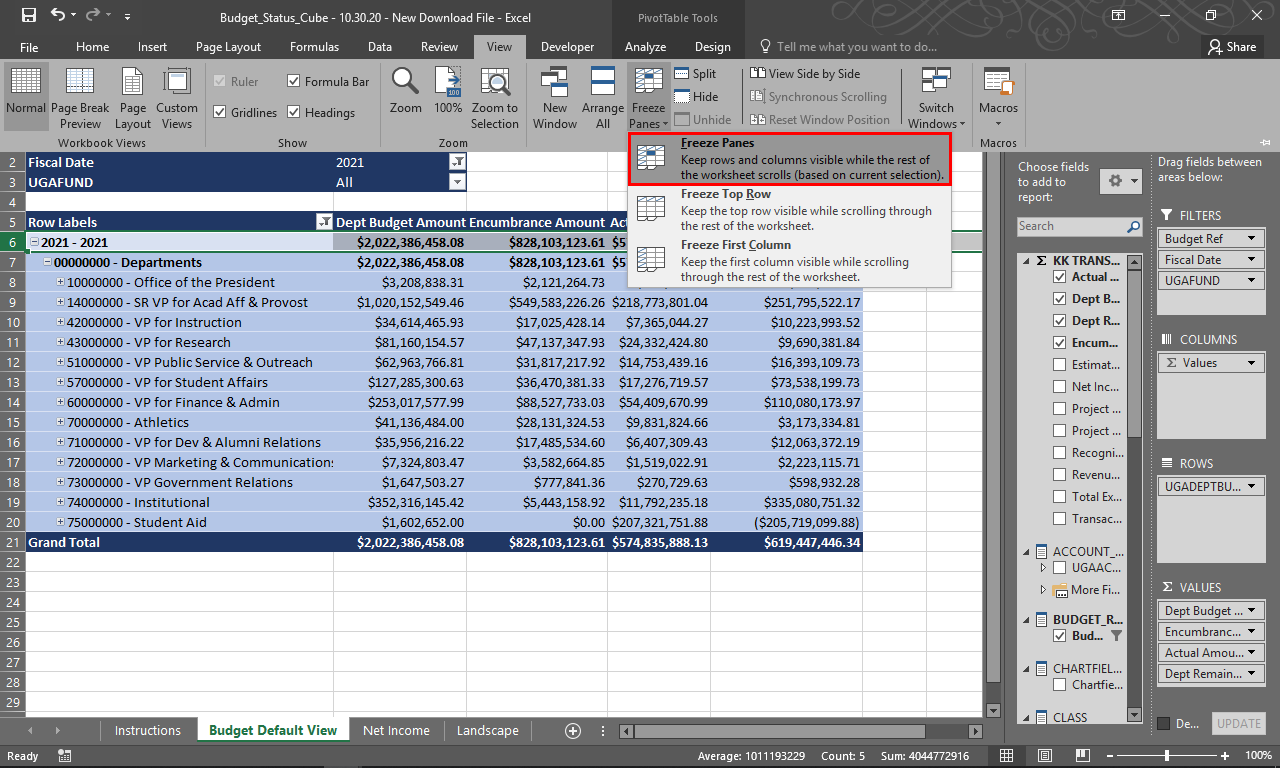 |
The Freeze Panes menu is displayed.
Click the Freeze Panes option.
|
|
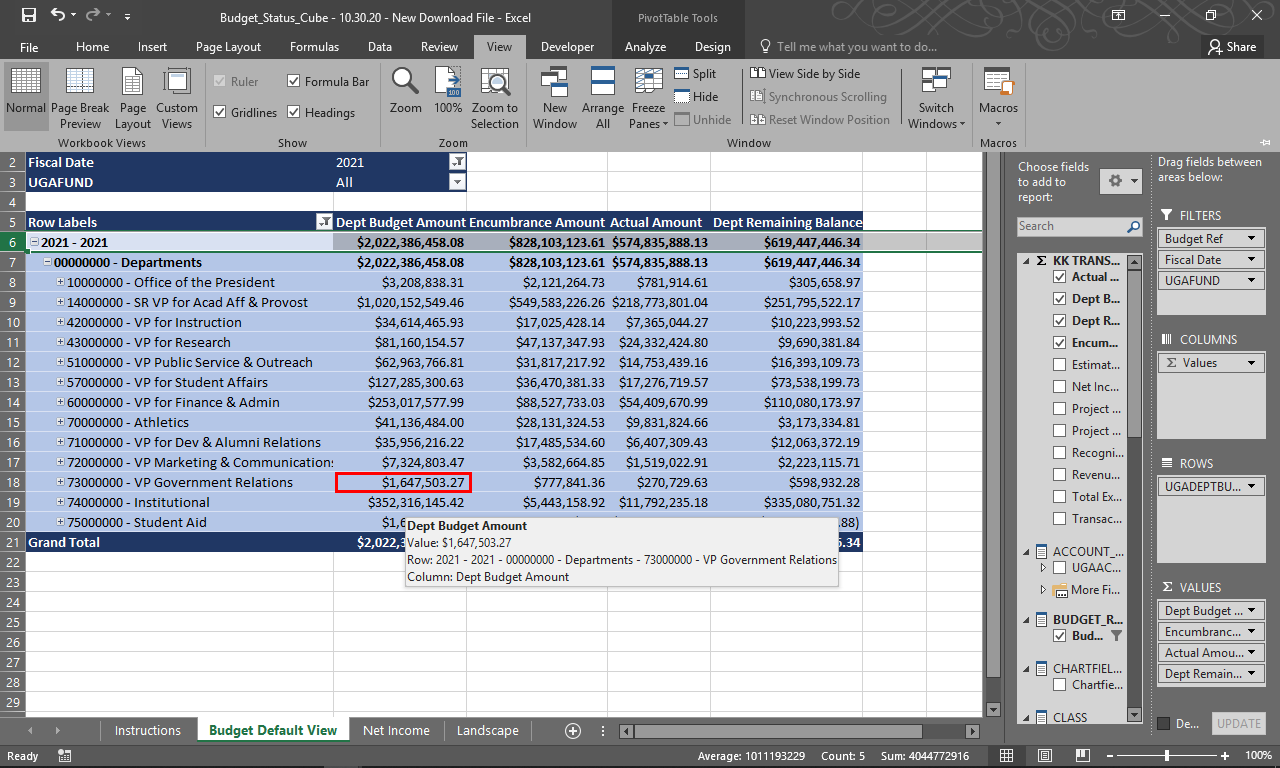 |
The top rows are frozen in the view.
Click within the table to view the PivotTable Fields menu.
|
|
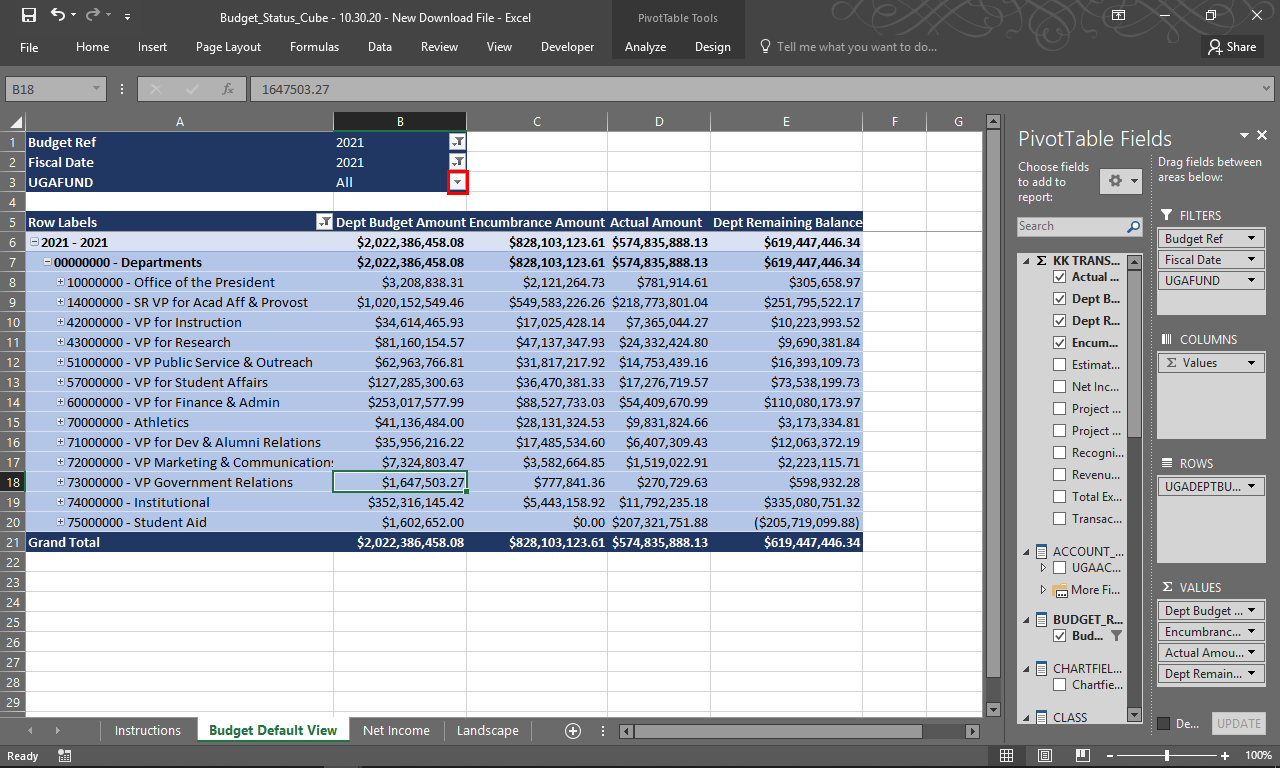 |
The PivotTable Fields menu is displayed.
Click the UGAFUND drop-down menu.
|
|
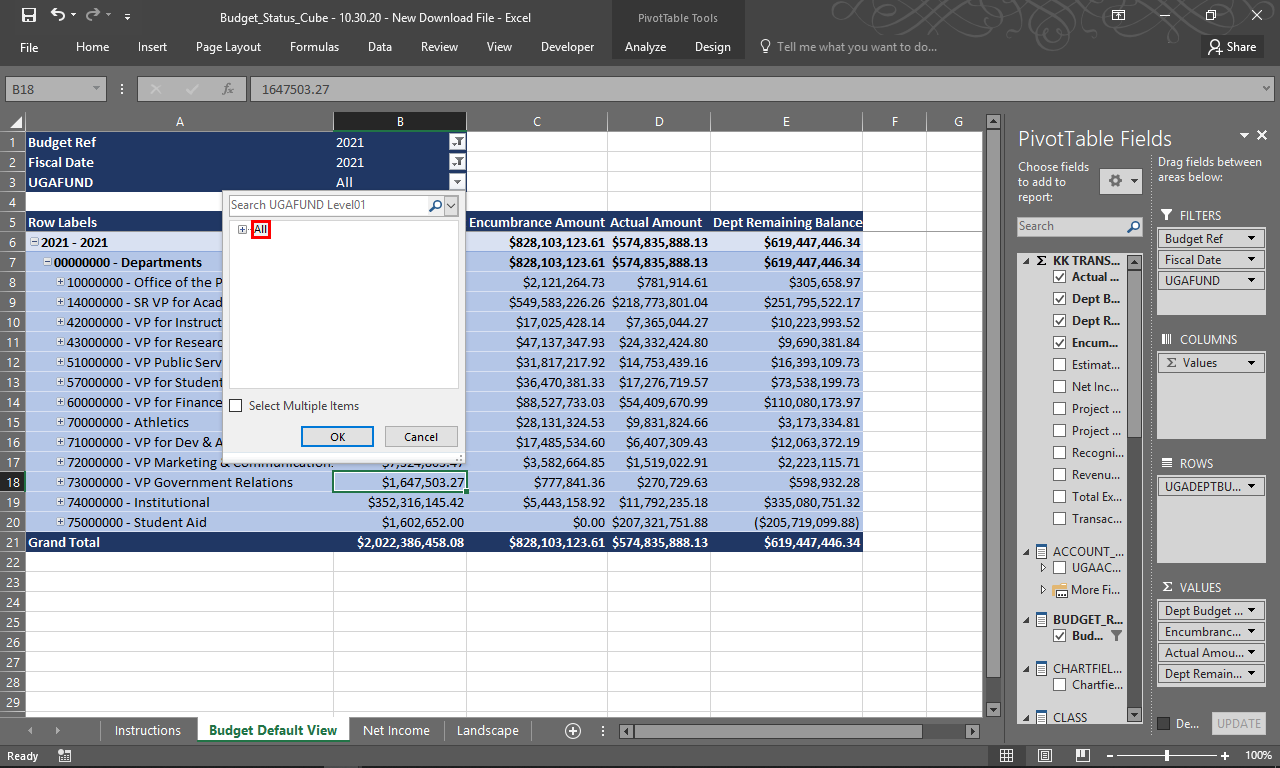 |
The UGAFUND drop-down menu is displayed.
To view available options,
click the All tree item.
|
|
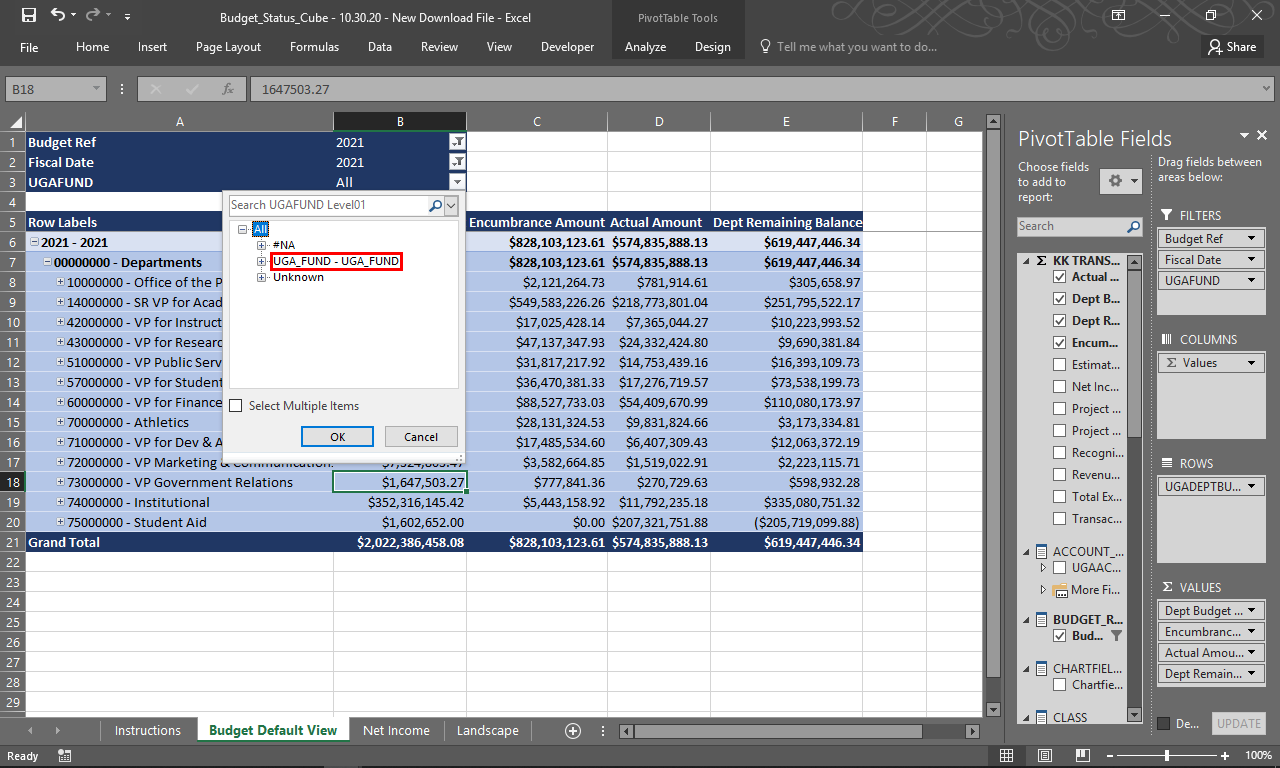 |
Click the UGA_FUND - UGA_FUND tree item.
|
|
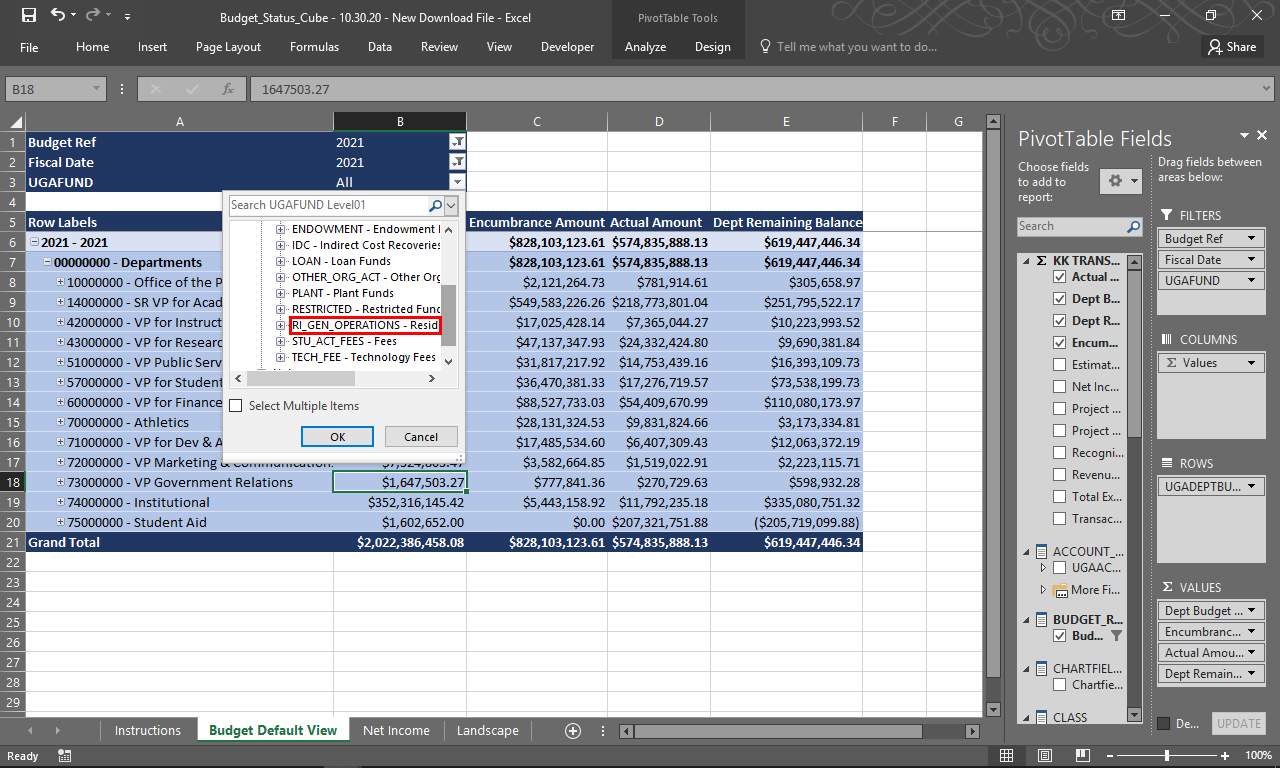 |
Click the RI_GEN_OPERATIONS - Resident Instruct General Oper tree item.
|
|
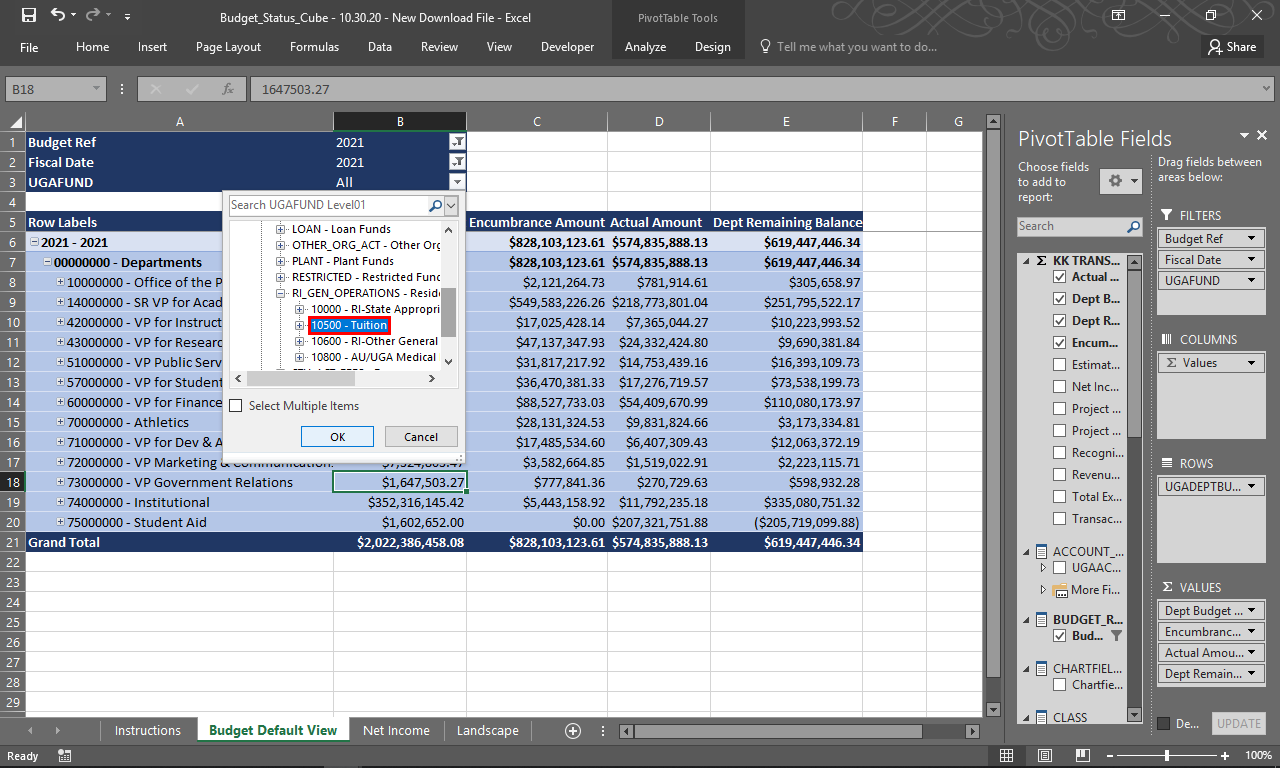 |
Click the 10500 - Tuition tree item.
|
|
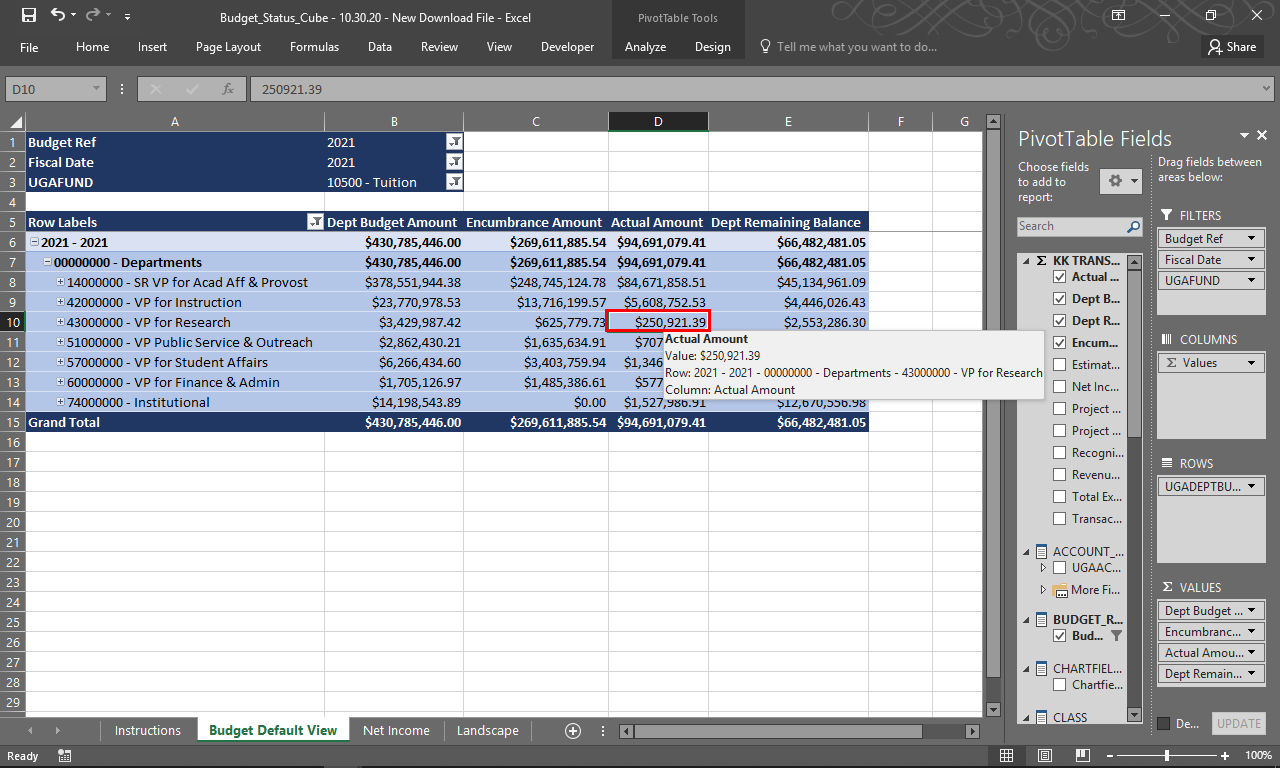 |
The data is filtered by the Tuition fund.
To view the KK Drill Through, right-click the appropriate cell.
Example shown here: $250,921.39.
|
|
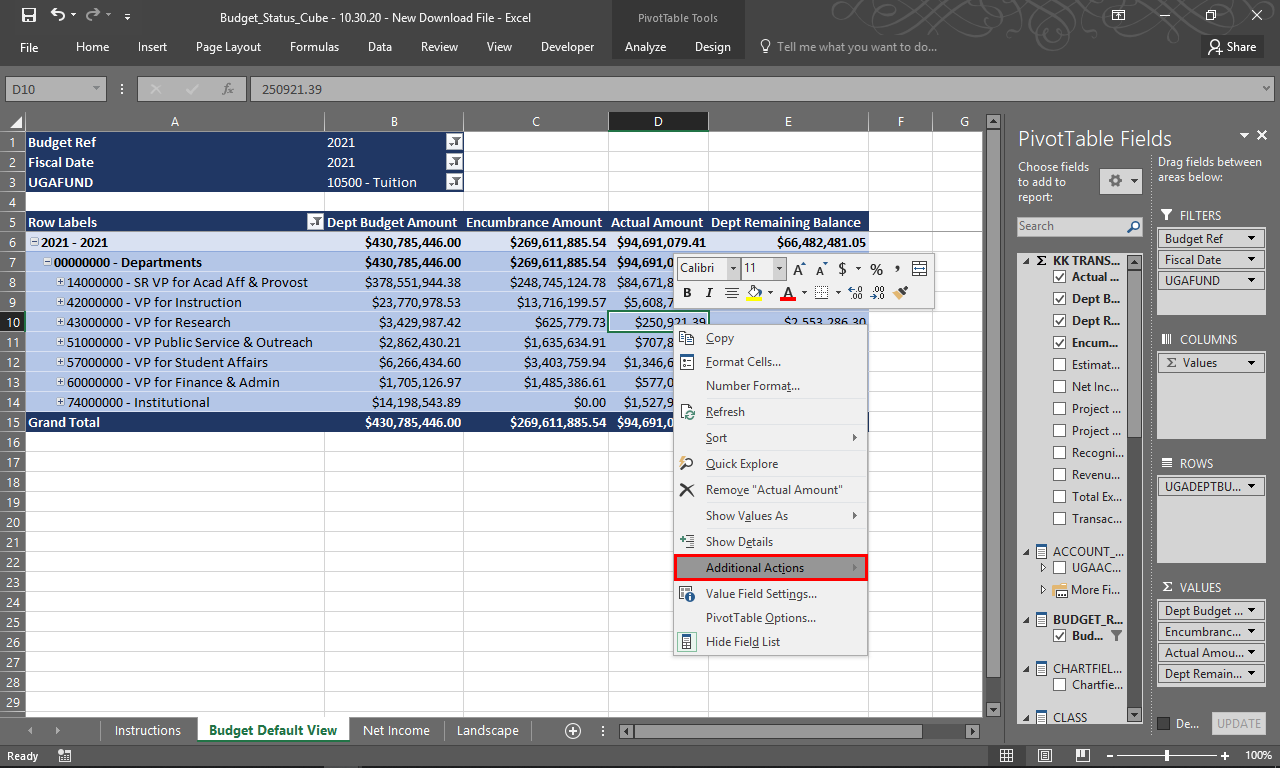 |
The cell options menu is displayed.
Click the Additional Actions menu.
|
|
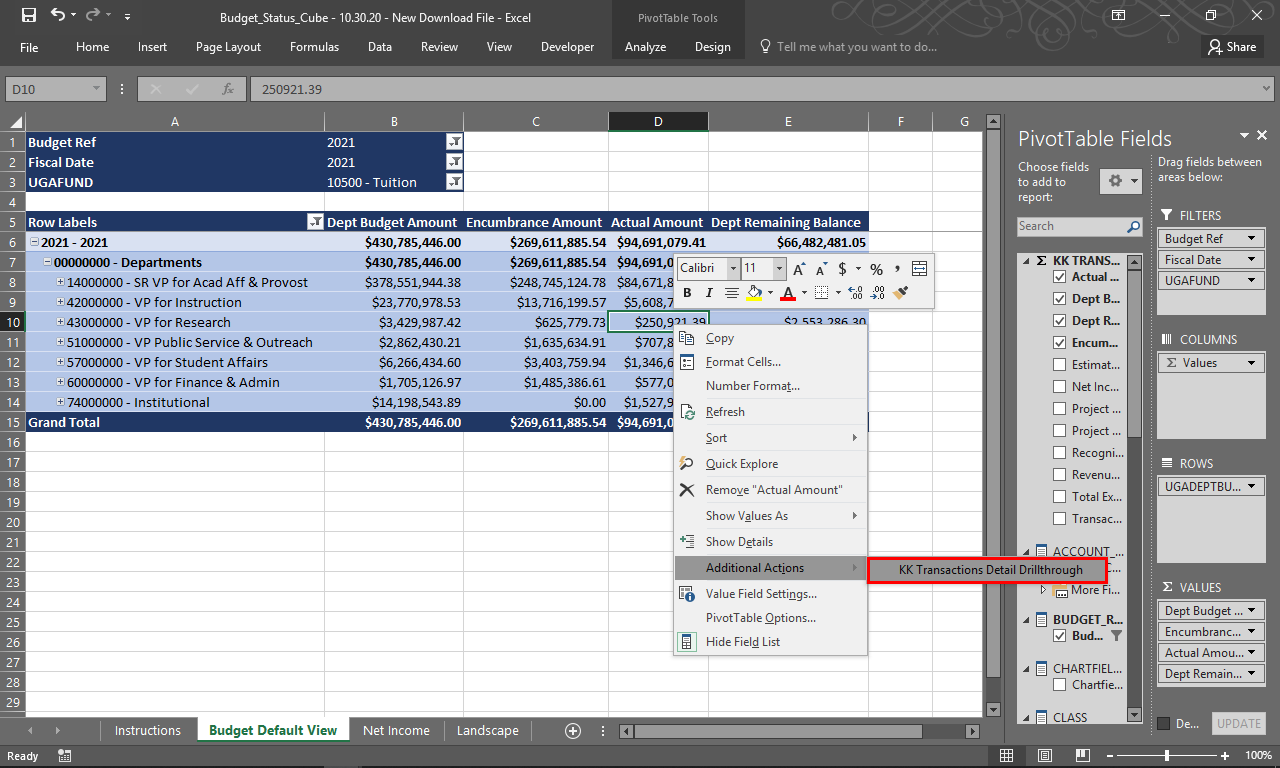 |
The Addition Actions menu is displayed.
Click the Addition Actions > KK Transactions Detail Drillthrough link.
|
|
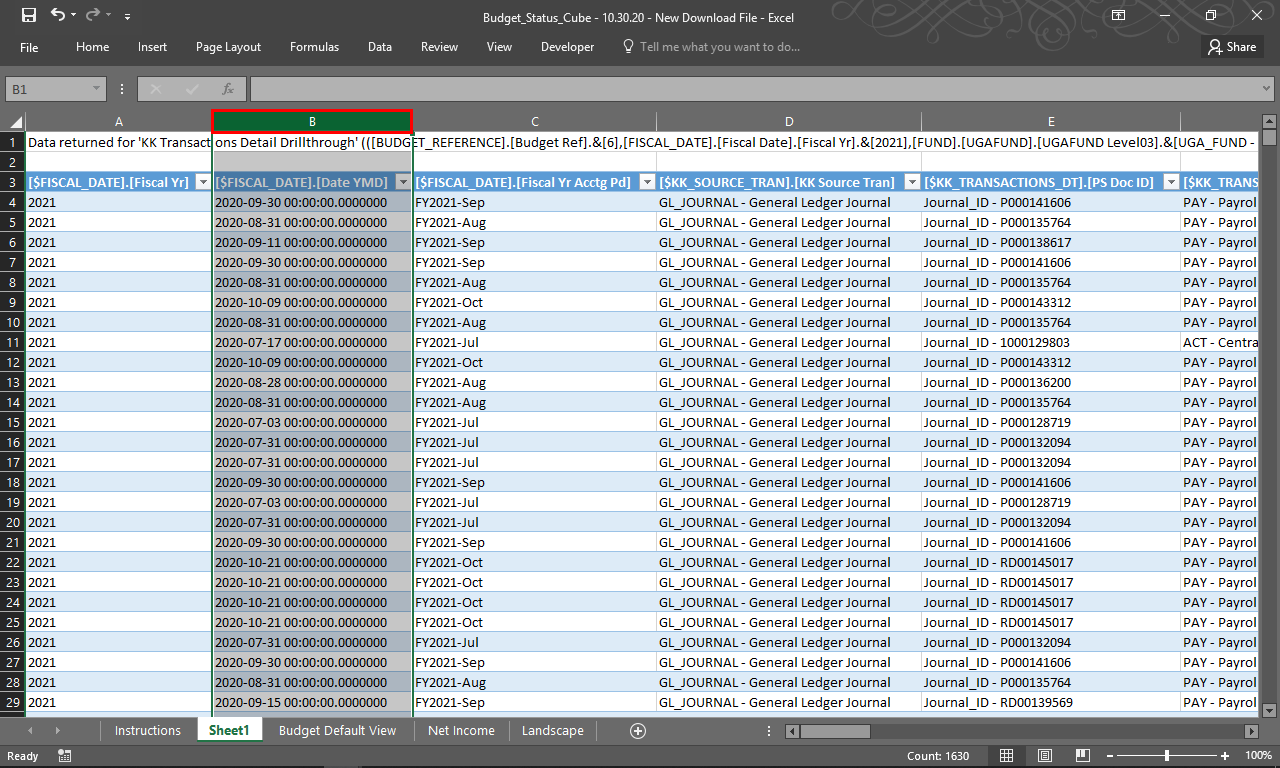 |
The KK Drill through is displayed in a new sheet.
Choose the appropriate column(s) you would like to exclude from the report.
Example shown here: “ B ” column header.
|
|
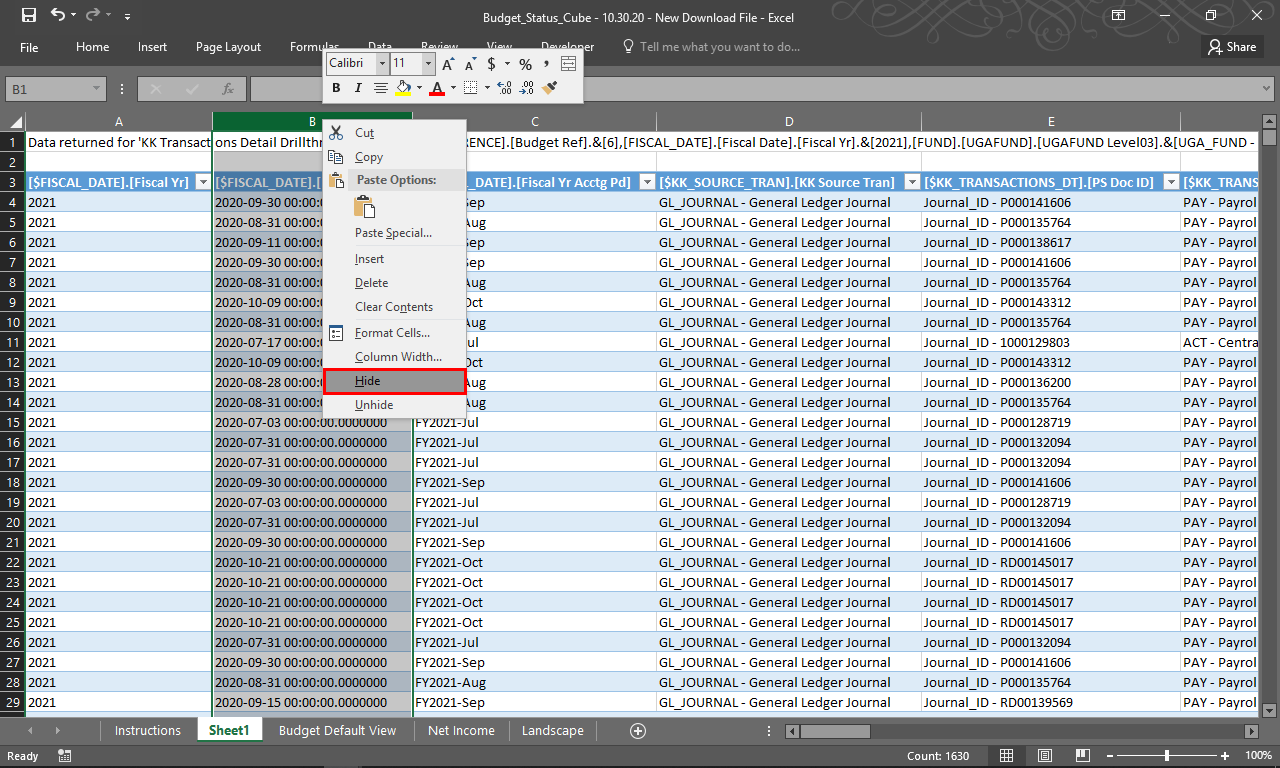 |
The column options menu is displayed.
Click the Hide link.
|
|
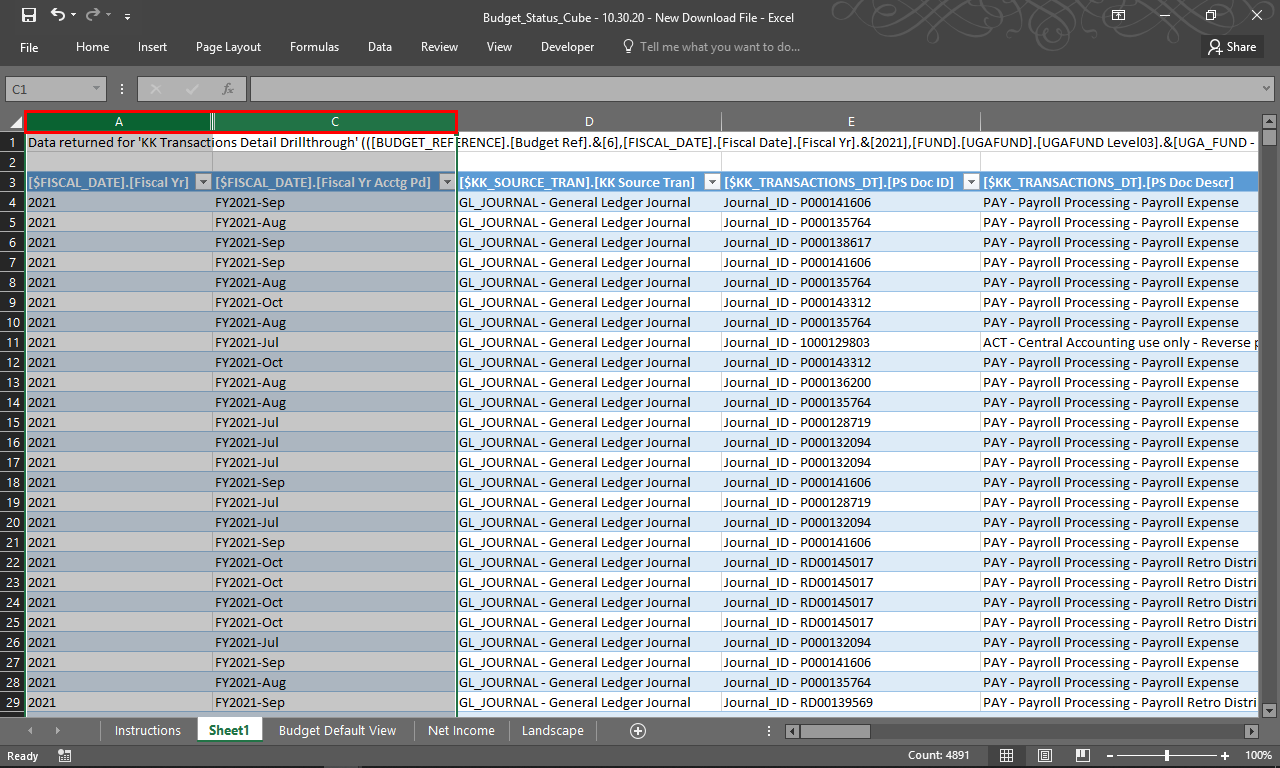 |
The B column is now hidden in view.
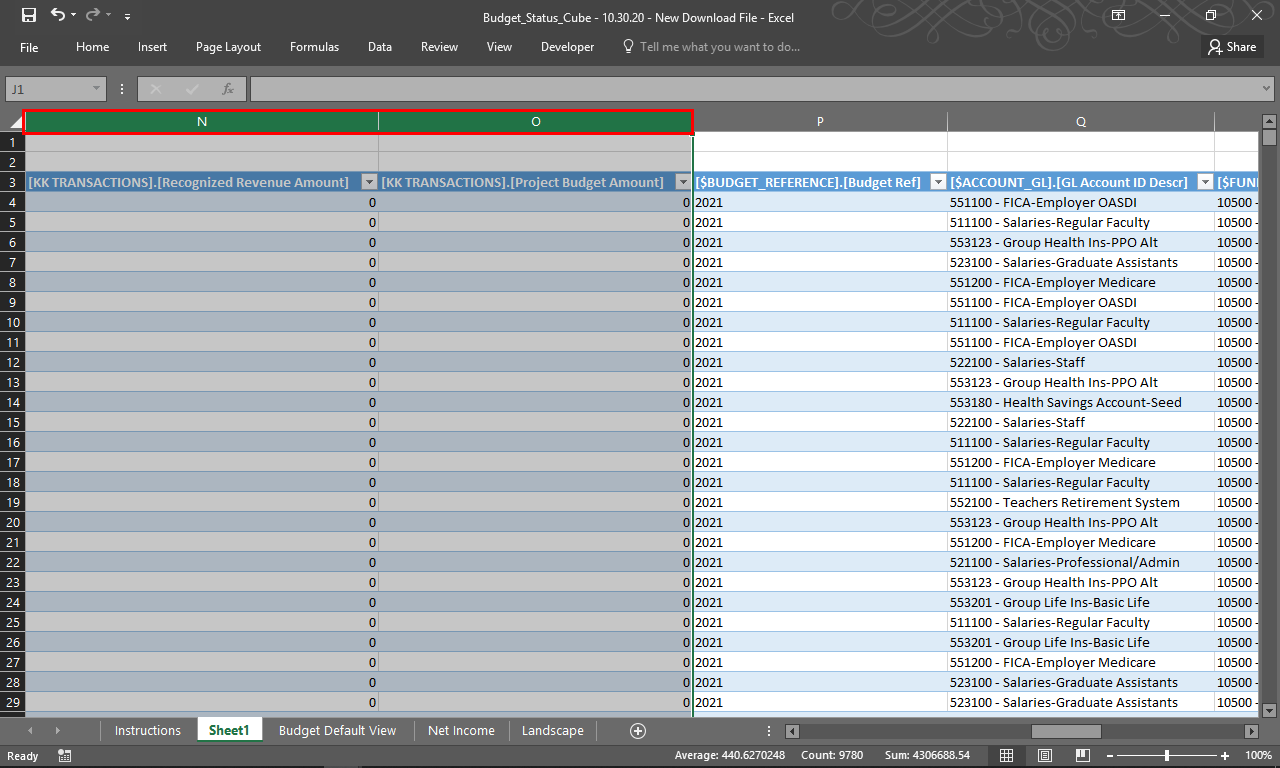
To unhide the column, highlight the A column header and C column header and right-click the either column.
|
|
 |
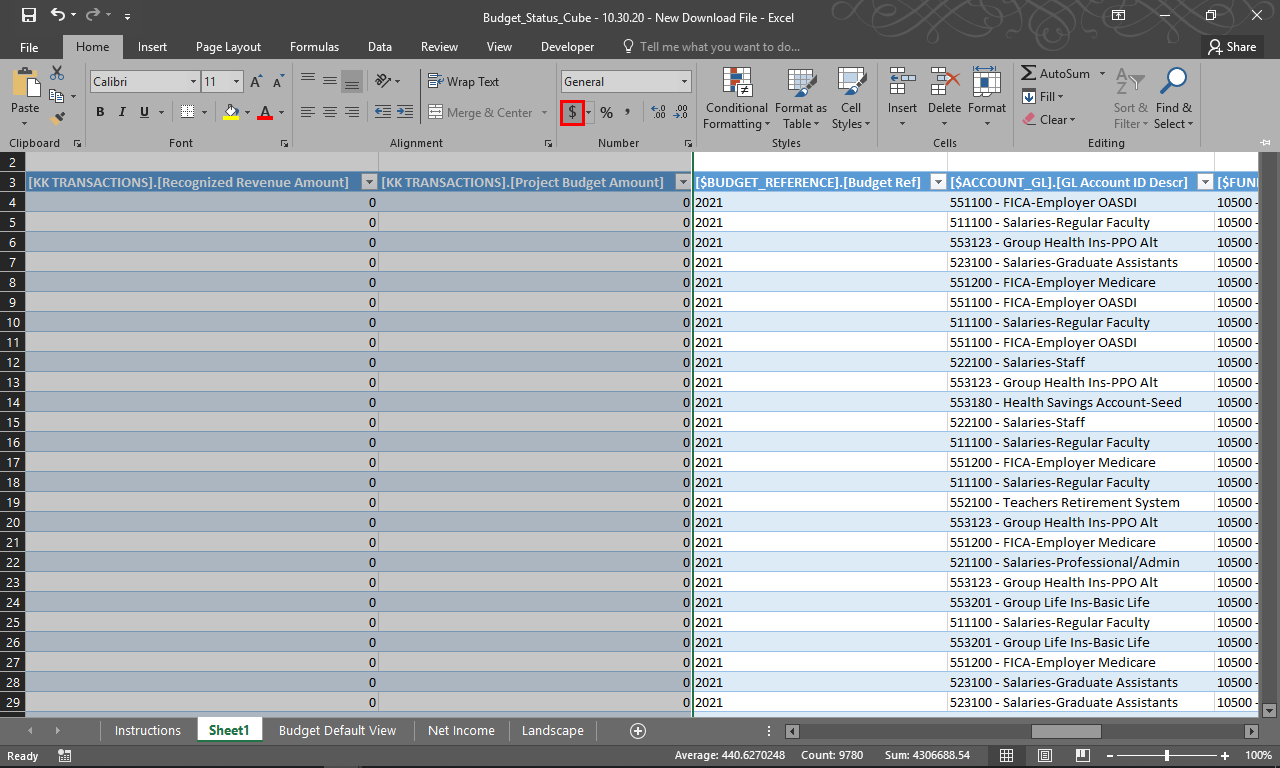
If necessary, scroll to view additional columns.
To display the Amount columns in an accounting format, highlight the O and N column headers.
|
|
 |
The Home menu is displayed.
Under the Number section, click the $ (Accounting Number Format) sign .
|
|
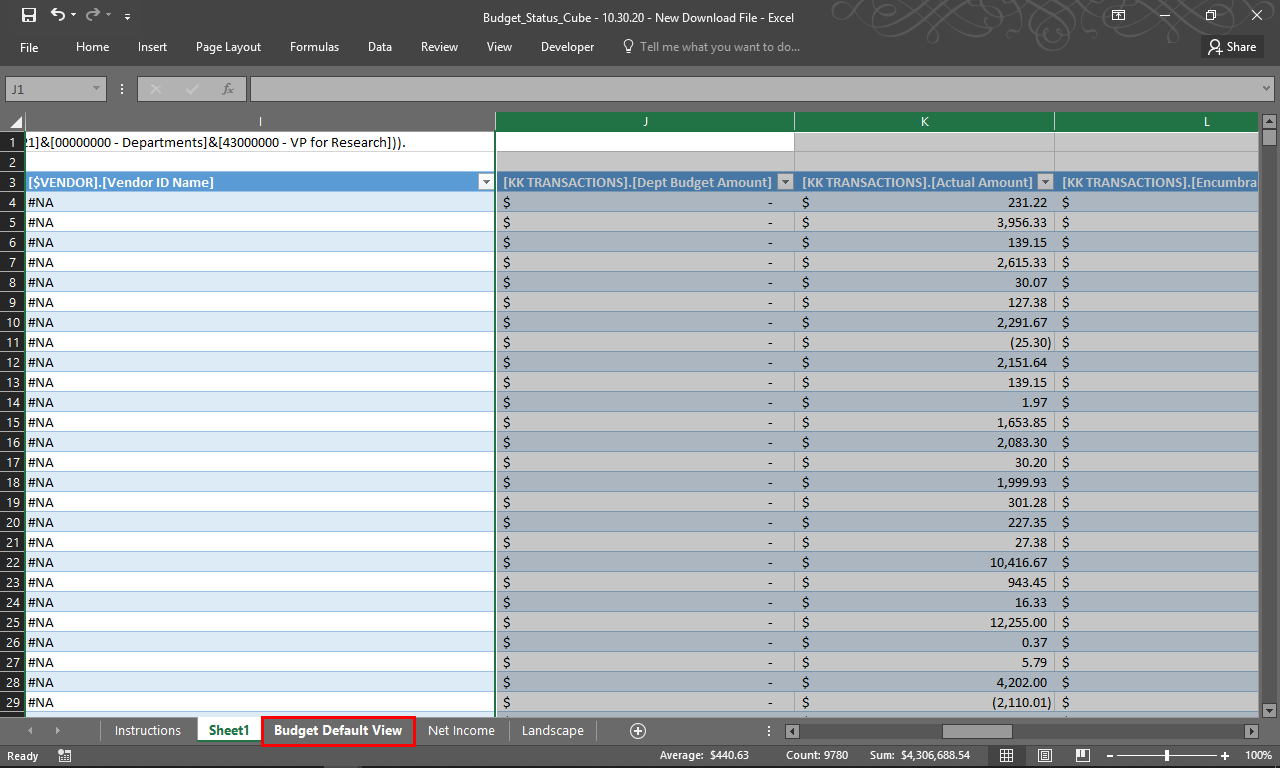 |
The Amount columns are displayed in an accounting format.
To return to the prior view, click the Budget Default View tab.
|
|
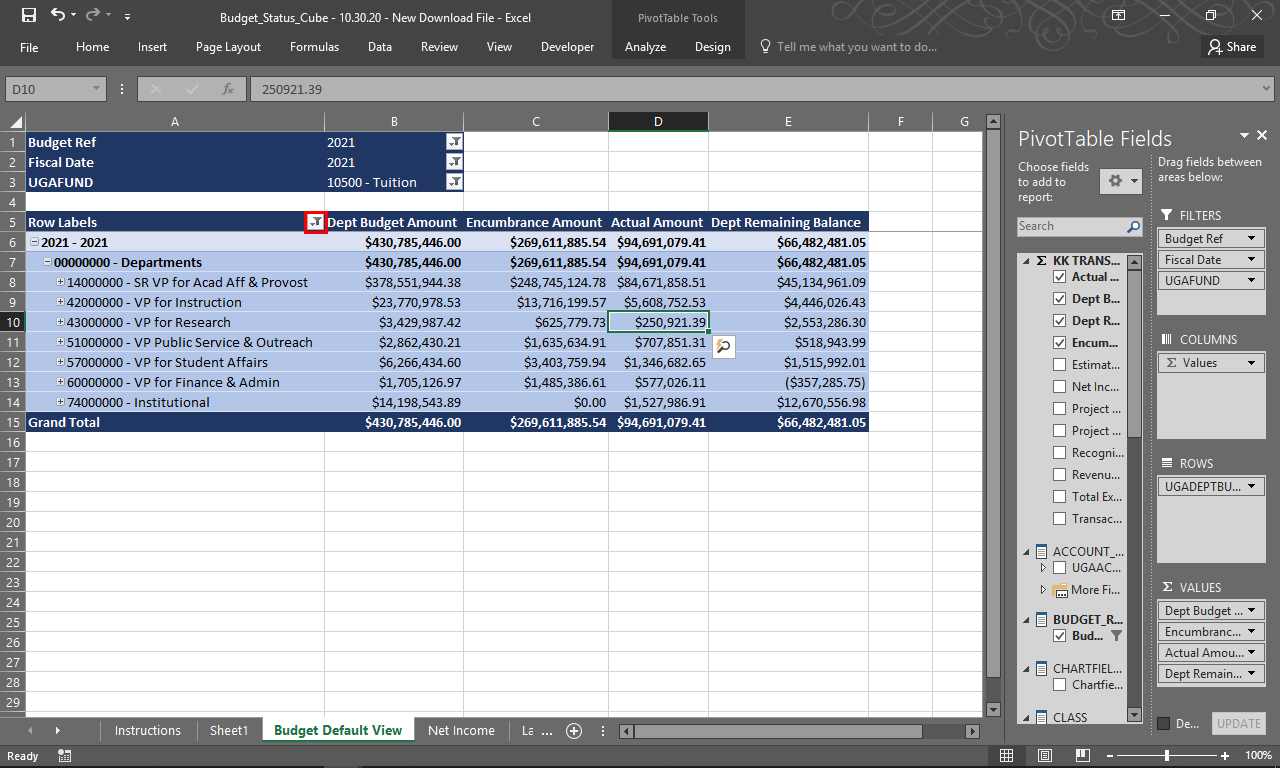 |
The Budget Default View is displayed.
To filter by department budget year, click the Row Labels filter button.
|
|
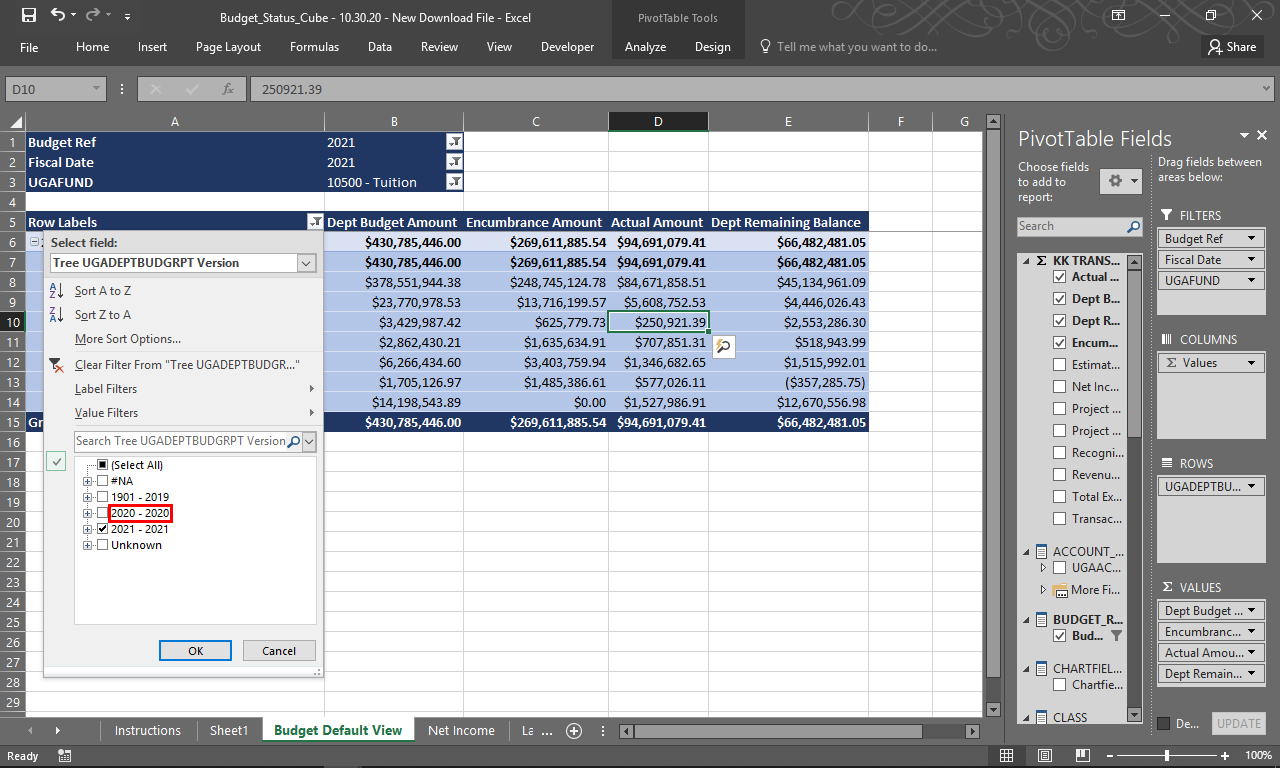 |
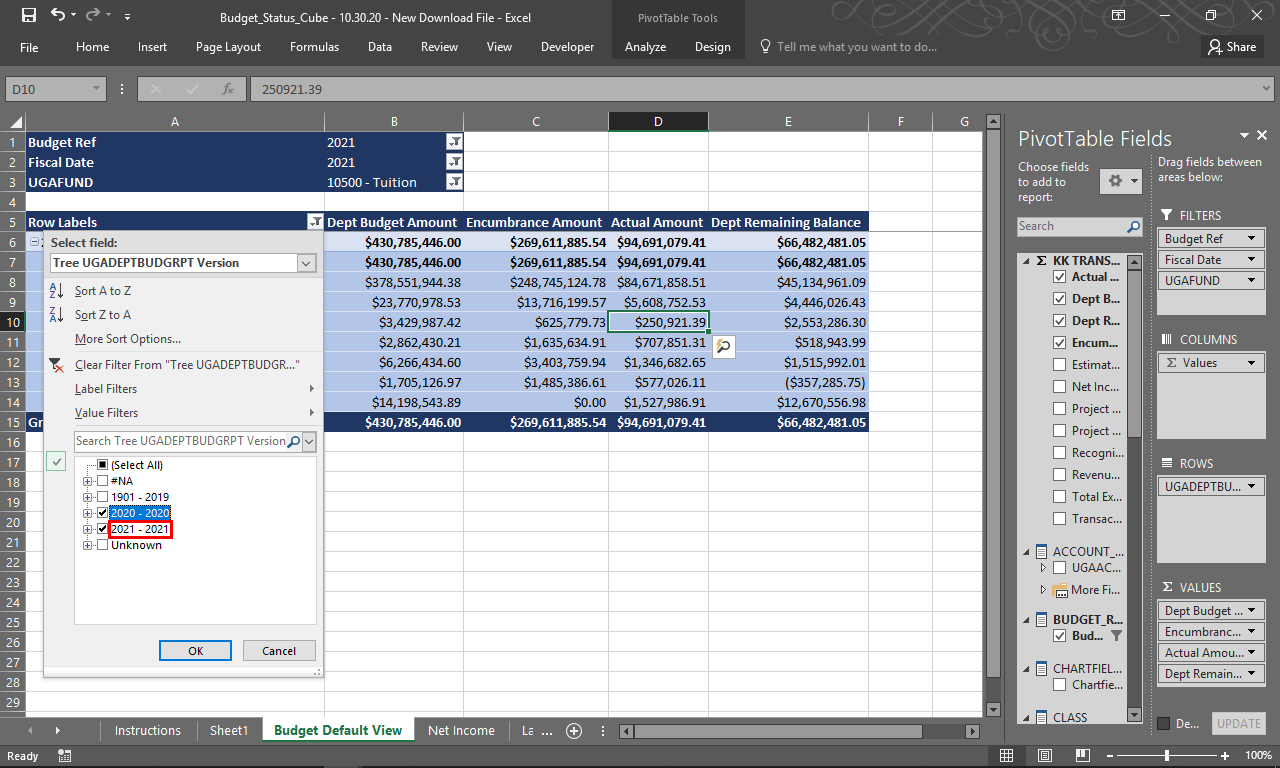
The UGADEPTBUDGRPT menu is displayed.
To select, click the 2020 - 2020 .
|
|
 |
To deselect, click the 2021 - 2021 .
|
|
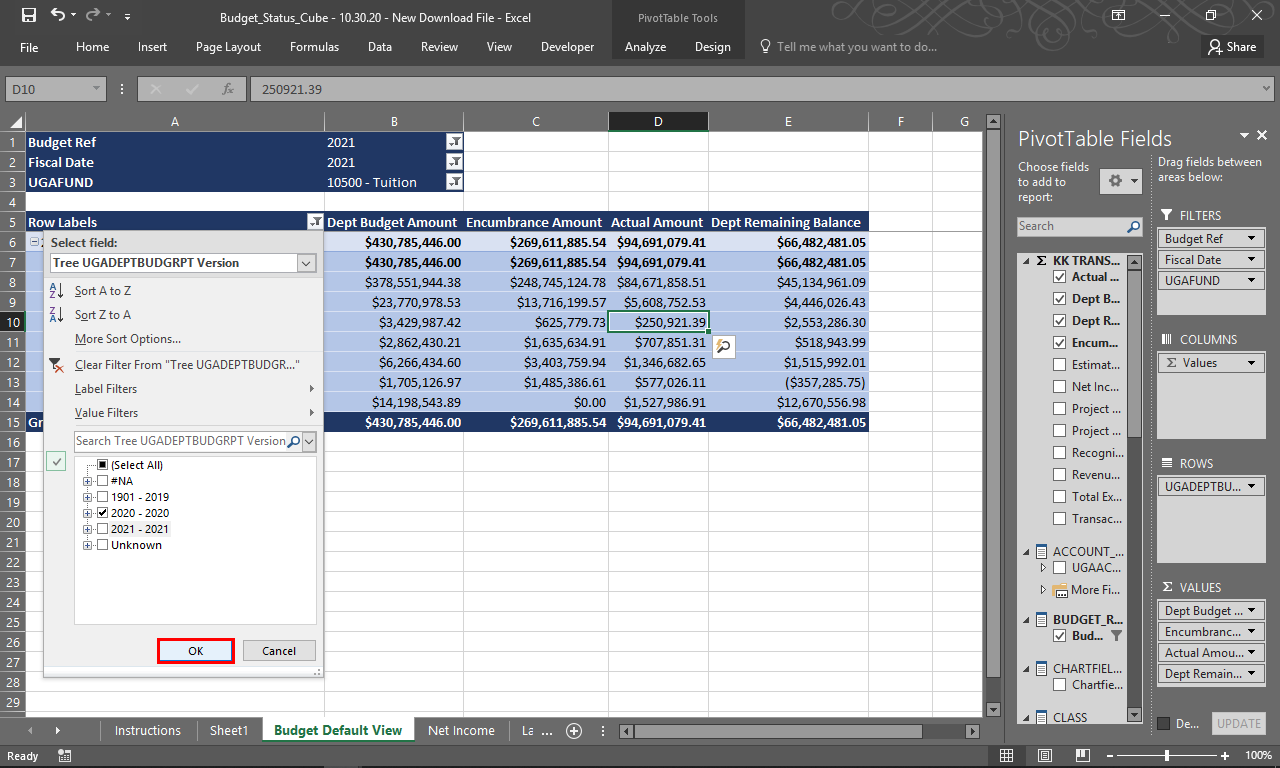 |
With only 2020 selected, click the OK button.
|
|
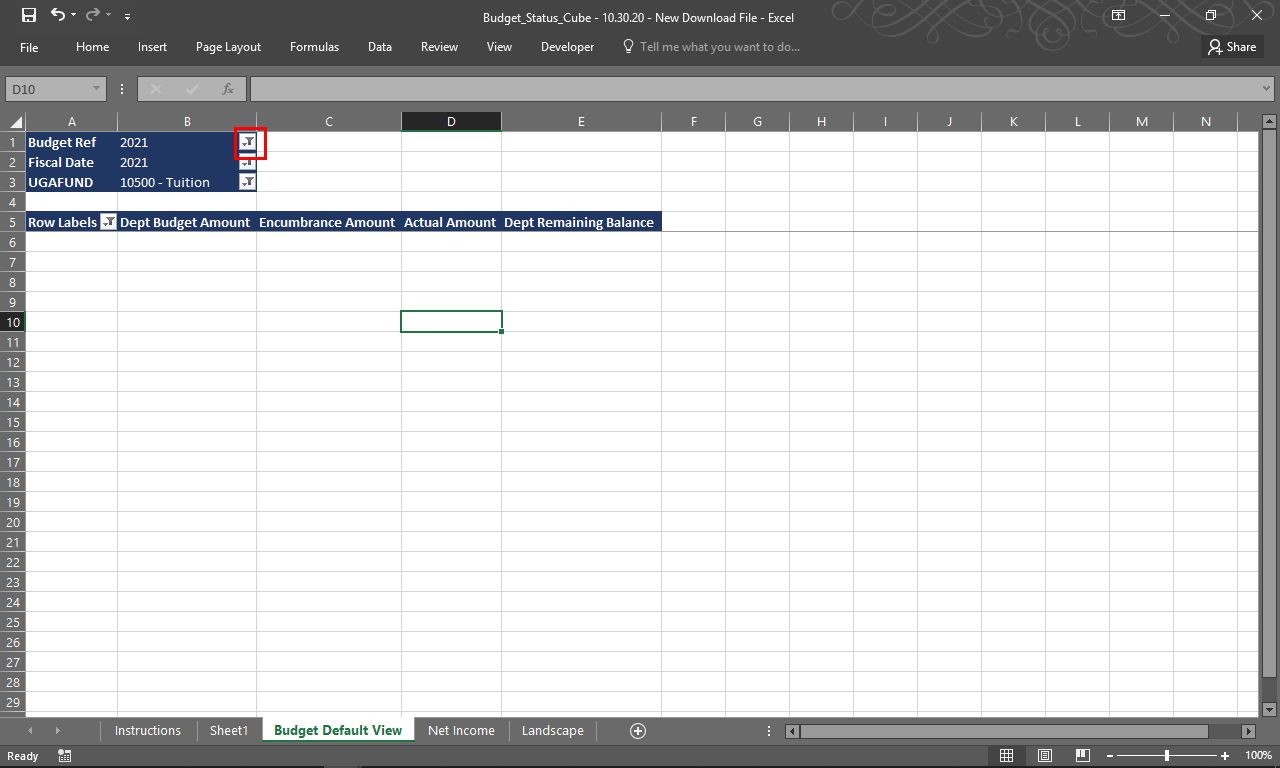 |
The data is updated to show 2020- department budget data. No data is displayed because nothing matches the other filter settings.
To set the correct data, click the Budget Ref filter.
|
|
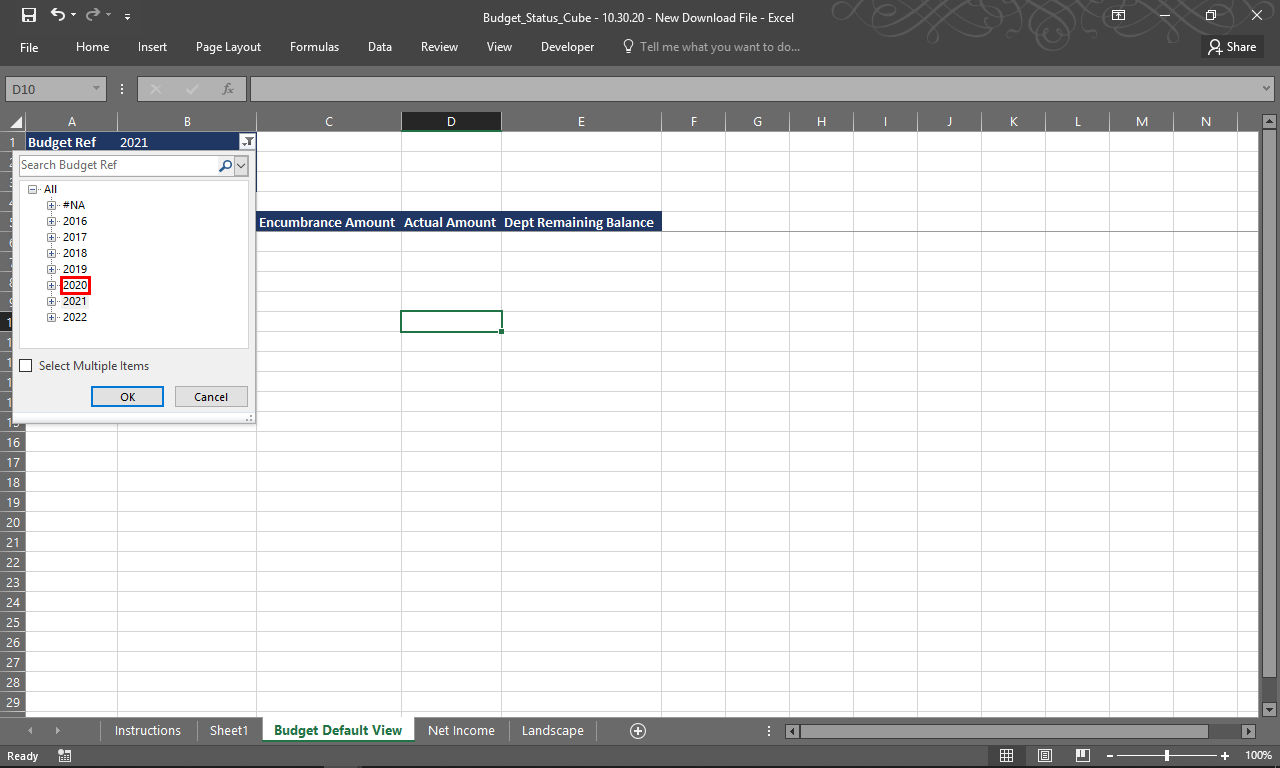 |
The Budget Ref filter menu is displayed.
Click the 2020 link.
|
|
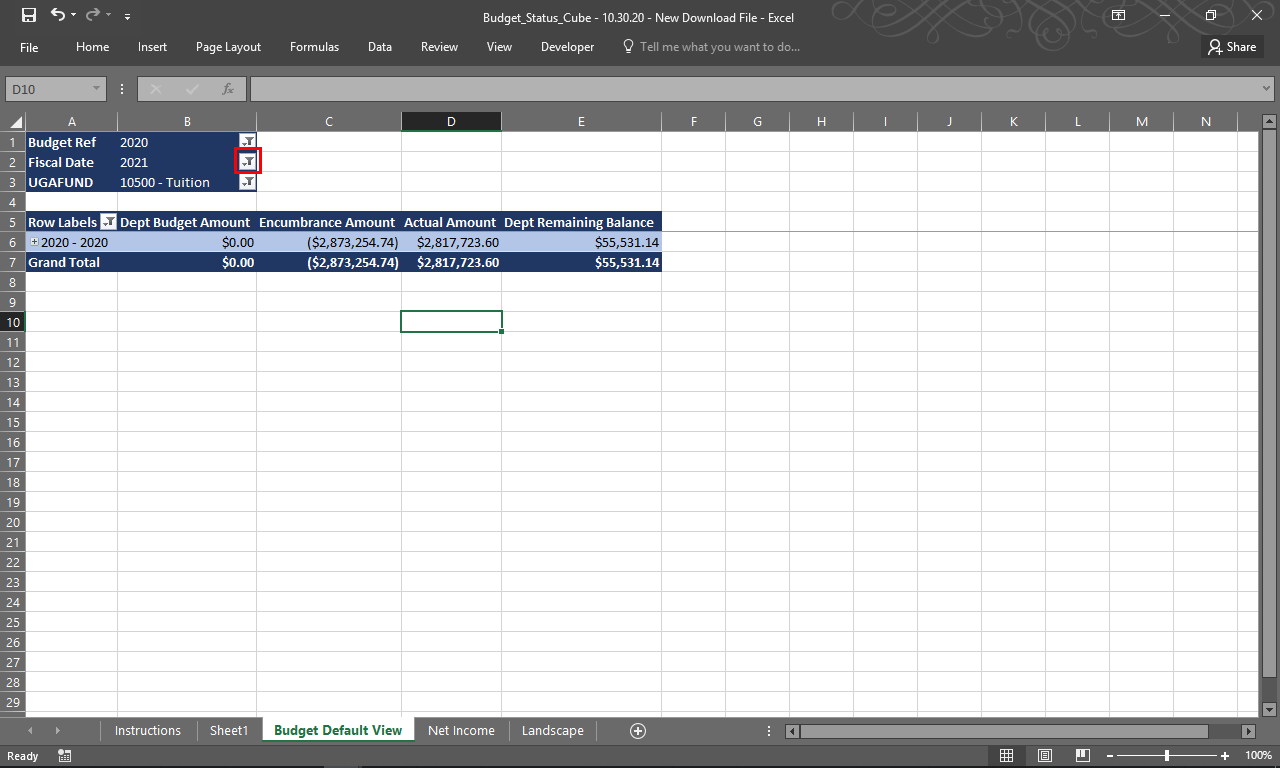 |
Click the Fiscal Date filter button.
|
|
![2020 budget data displayed with the 2020-2020 Expansion [+] button highlighted](https://uga.teamdynamix.com/TDClient/3109/FandA/Shared/FileOpen?AttachmentID=71d7f49a-d520-4ee5-94e3-c5be5547ba5e&ItemID=150690&ItemComponent=26&IsInline=0) |
To 2020 budget data is displayed.
To view additional data, click the 2020-2020 Expansion [+] button.
|
|
![00000000 - Department row displayed with the 00000000 - Departments Expansion [+] button highlighted](https://uga.teamdynamix.com/TDClient/3109/FandA/Shared/FileOpen?AttachmentID=874148a1-ba34-44c3-8169-3026ce1fd399&ItemID=150690&ItemComponent=26&IsInline=0) |
The 00000000 - Department row is displayed.
Click the 00000000 - Departments Expansion [+] button.
|
|
Details
Details
Article ID:
149176
Created
Sat 9/24/22 11:05 PM
Modified
Fri 4/17/26 8:36 AM