Viewing User Security Roles
Summary
In this article, you will learn the steps to run a query to view user data and the associated roles.
Body
Overview
You can run a query to find a list of all of the security roles given to an employee using the query name "UGA_USERS_ROLES."
In this article, you will learn the steps to run a query to view user data and the associated roles.
 |
Click the drop-down button next to the Employee Self Service menu.
|
|
 |
Click the UGA Financials link.
|
|
 |
Click the Query Viewer tile.
|
|
 |
The Query Viewer page is displayed. Enter appropriate information into the begins with field.
Enter " UGA_USERS_ROLES " into the begins with field.
|
|
 |
The search results are displayed.
Click the HTML link next to the query UGA_USERS_ROLES.
|
|
 |
You can search for specific information using the displayed search criteria.
Example shown here: View Results button.
|
|
 |
The result page is displayed. Click the Excel SpreadSheet link to download the data into an Excel file.
Note: Data has been masked to protect employee information.
|
|
 |
|
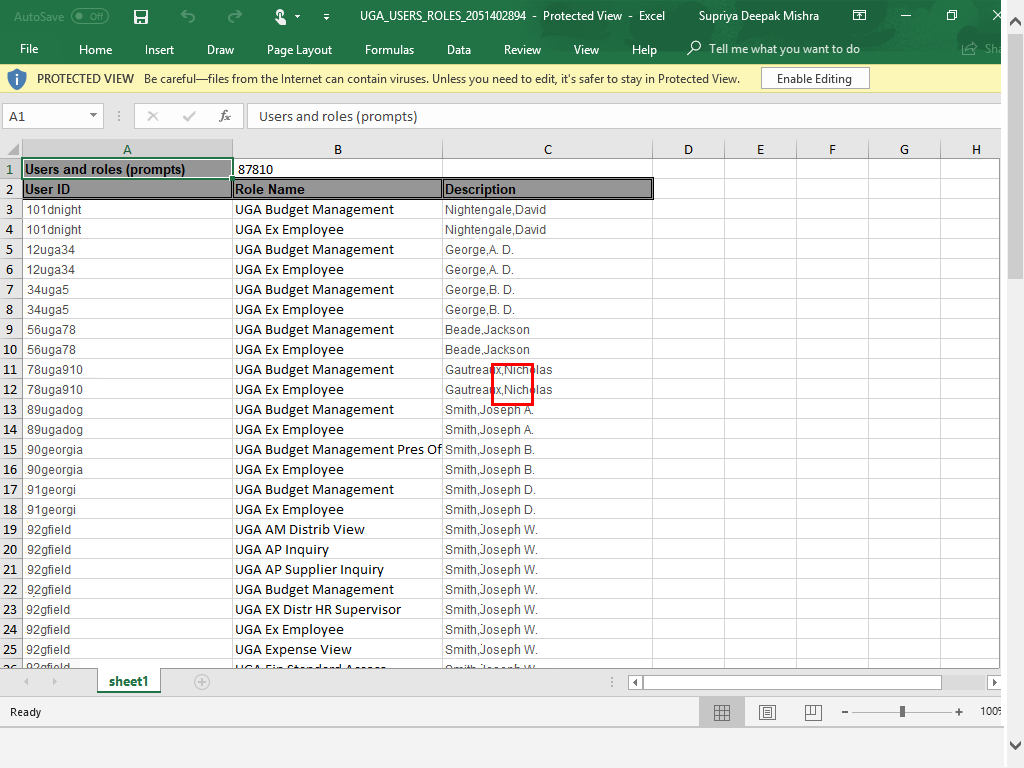
Results are displayed in an Excel sheet. You can filter through the data to view the information that you need by user ID or role name.
|
|
Details
Details
Article ID:
149053
Created
Sat 9/24/22 11:02 PM
Modified
Thu 4/9/26 12:15 PM