Printing a Payment Request
Summary
In this article, you will learn the steps to print a payment request in the UGA Financial Management System if you wish to have a paper copy.
Body
Overview
The UGA Financial Management System stores information relating to your payment request. However, if for some reason you would like a paper copy, you can print your request by using the [Ctrl+P] keys on your computer.
In this article, you will learn the steps to print a payment request in the UGA Financial Management System if you wish to have a paper copy.
 |
First log onto https://financials.onesource.uga.edu/
On the UGA Financial homepage, click the Payment Request Center tile.
|
|
 |
The Payment Request Center page is displayed. Select the Payment Request that you want to print.
Example shown here: select the Request ID 0000425195 link.
|
|
 |
|
The Payment Request page is displayed. To print the request press [Ctrl+P].
|
|
 |
The Print window is displayed. Select the appropriate printer and click the Print button.
Note: To ensure that the entire transaction prints, you may need to adjust your print settings to shrink the page or change the orientation of the page.
|
|
 |
To print the attachment, click the Attachments button.
|
|
 |
|
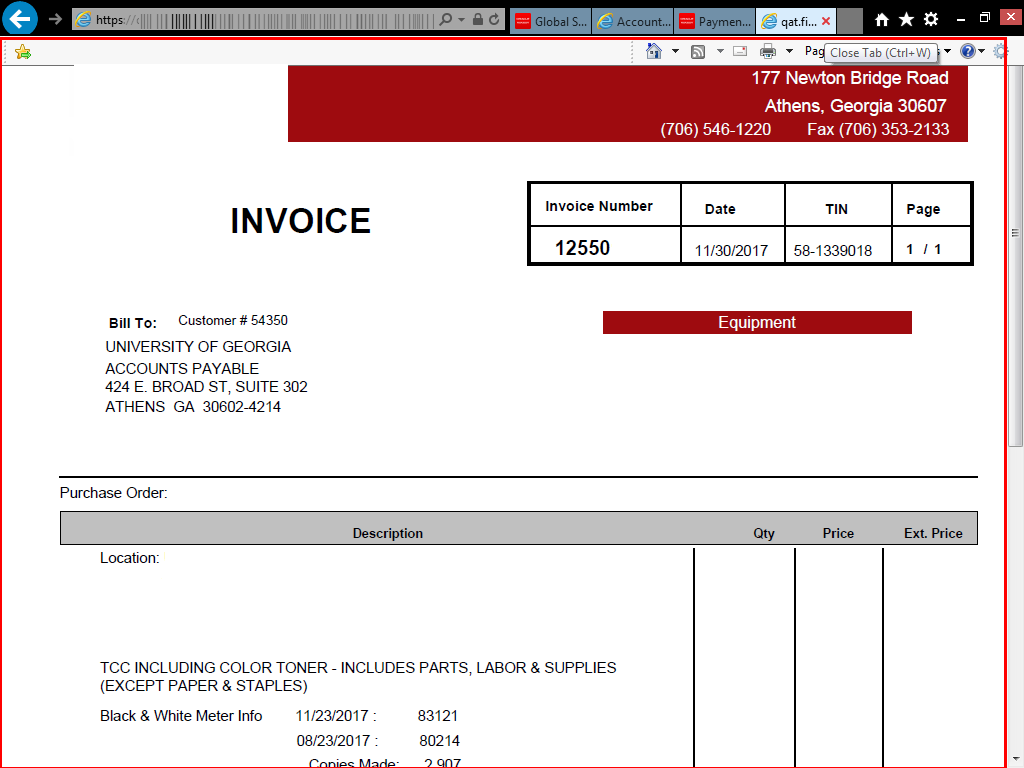
The Attachments page is displayed. Select the attached file you want to print.
|
|
 |
|
The attachment is displayed. Press [Ctrl+P] to print the attachment.
|
|
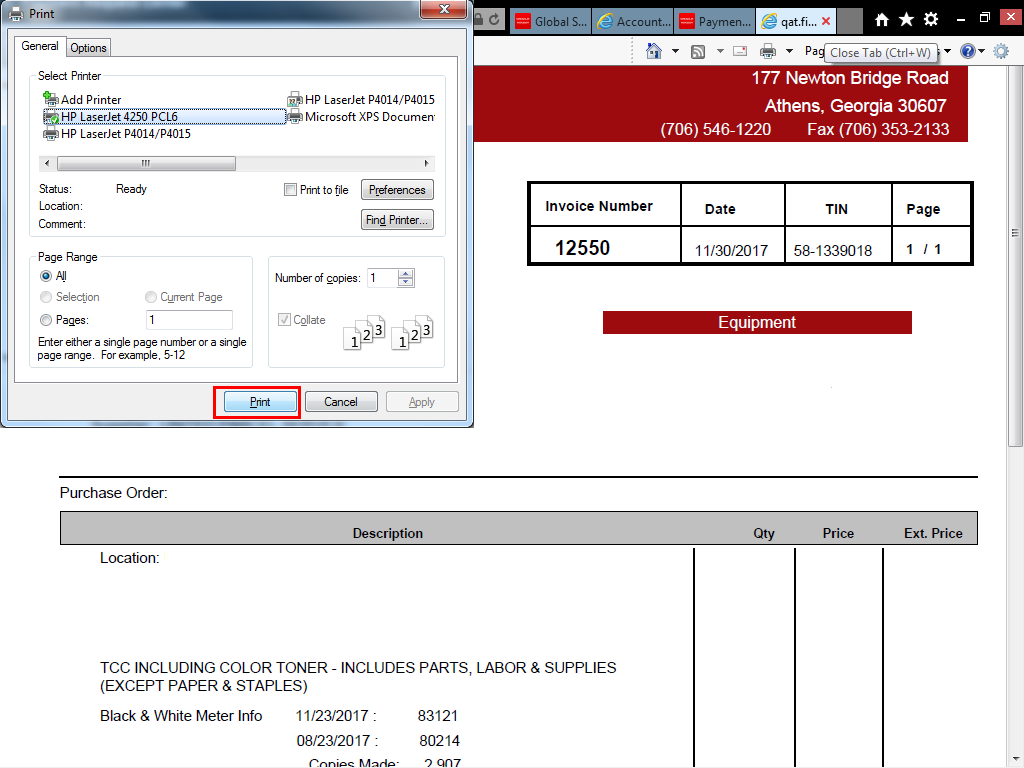 |
The Print window is displayed.
Select the appropriate printer and click the Print button.
|
|
Details
Details
Article ID:
148567
Created
Sat 9/24/22 10:47 PM
Modified
Wed 3/20/24 1:48 PM