Accessing the Budget Status Reports
Summary
In this article, you will learn how to access the Budget Status Reports from the UGA Office of Institutional Research homepage.
Body
Overview
You can access the following Budget Status Reports via the Office of Institutional Research Operational Reports page (https://oir.uga.edu/data/oper/):
- Budget Status Cube
- Budget Status Paginated Report (BSR v1.0)
- Budget Status Report v2.0 by Department, Fund, and Account
- Budget Status Report v2.0 by Fund, Department, and Account
- Budget Status Report by Class and Department
- Financials Transaction Log
Instructions
In this article, you will learn how to access the Budget Status Reports from the UGA Office of Institutional Research homepage.
The OIR homepage can be accessed at https://oir.uga.edu/ .
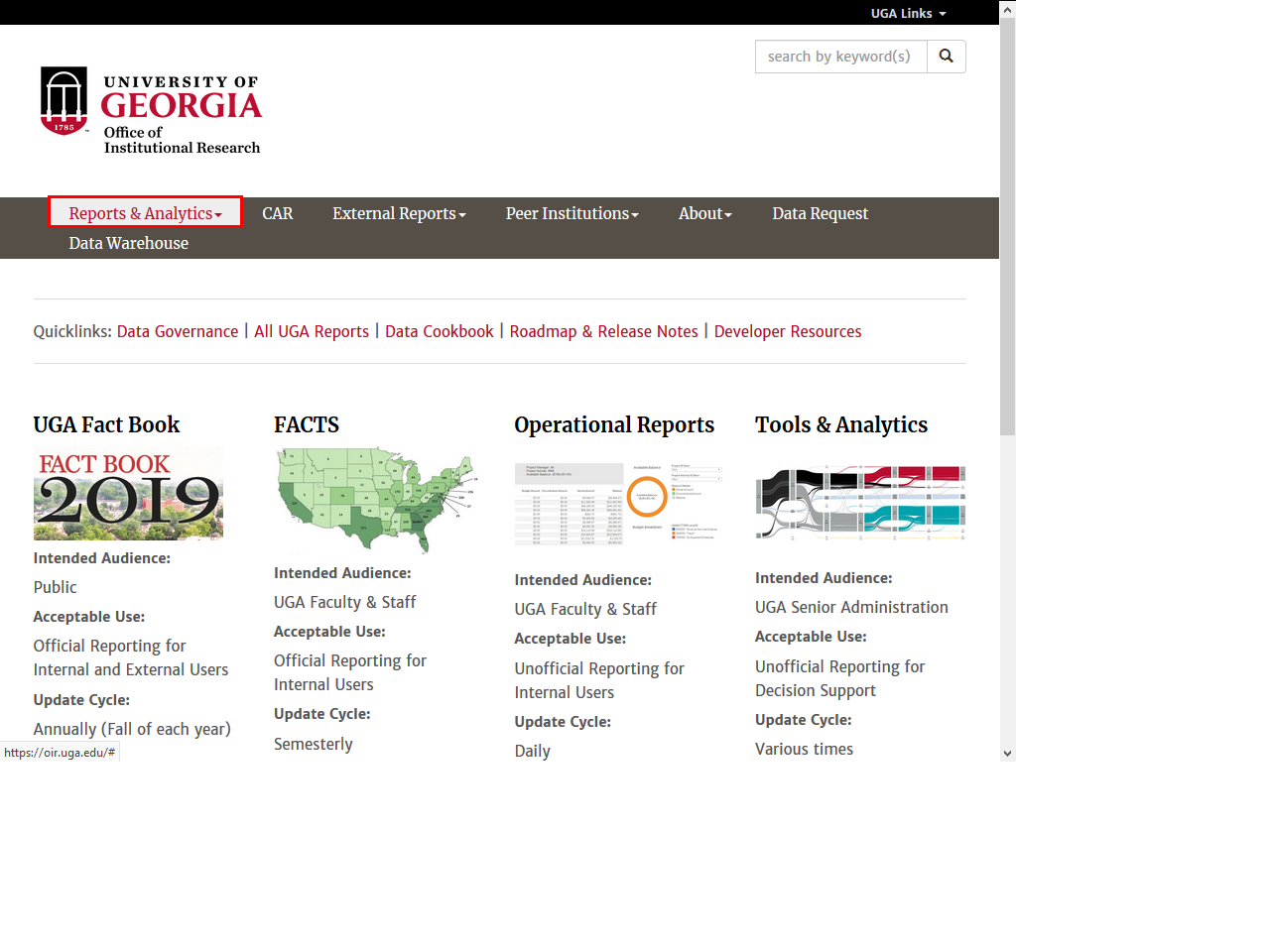 |
On the UGA Office of Institutional Research homepage, click the Reports & Analytics link.
|
|
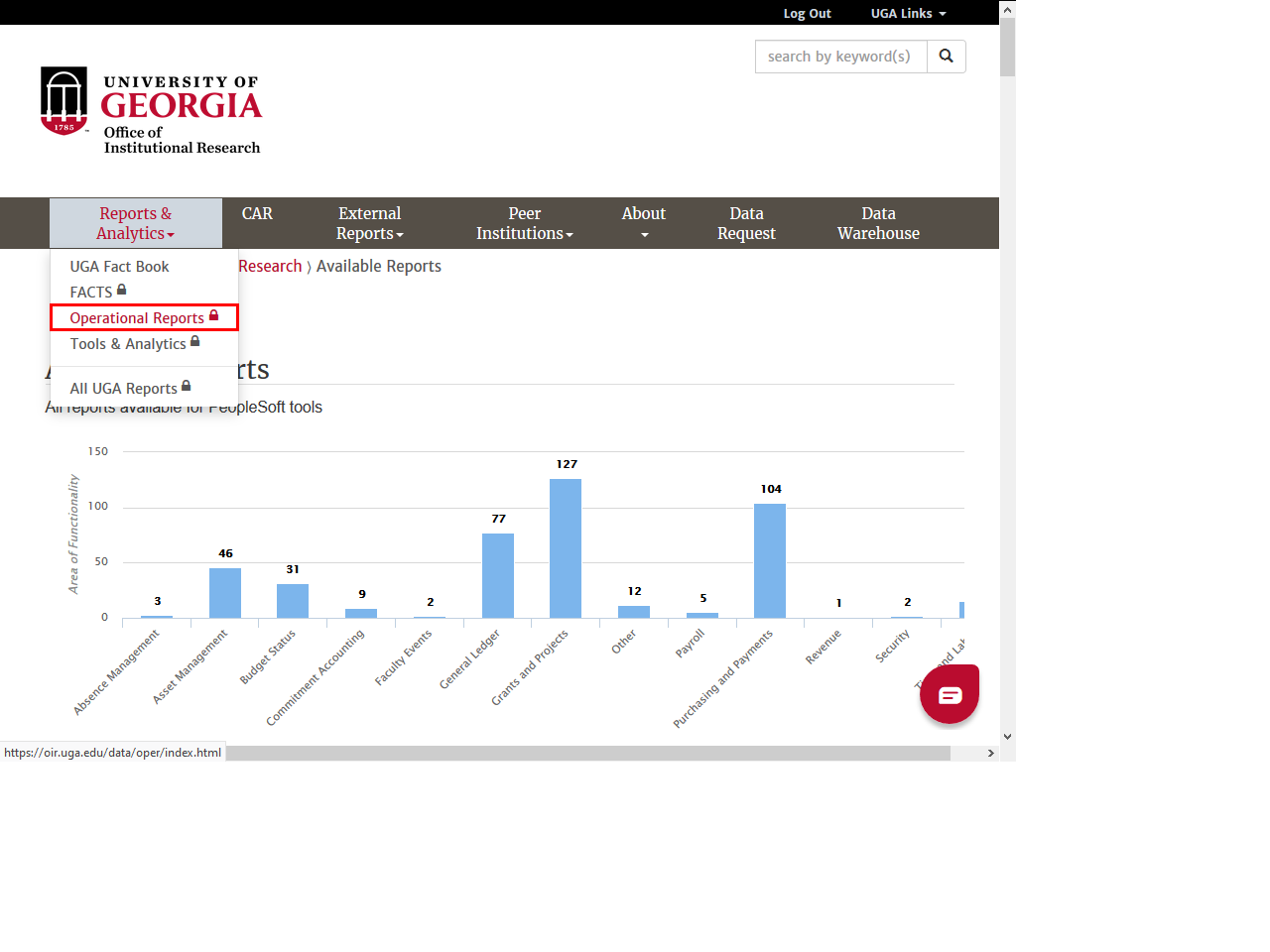 |
Click the Operational Reports link.
|
|
 |
You will be asked to log in using your UGA CAS page using your MyID and password.
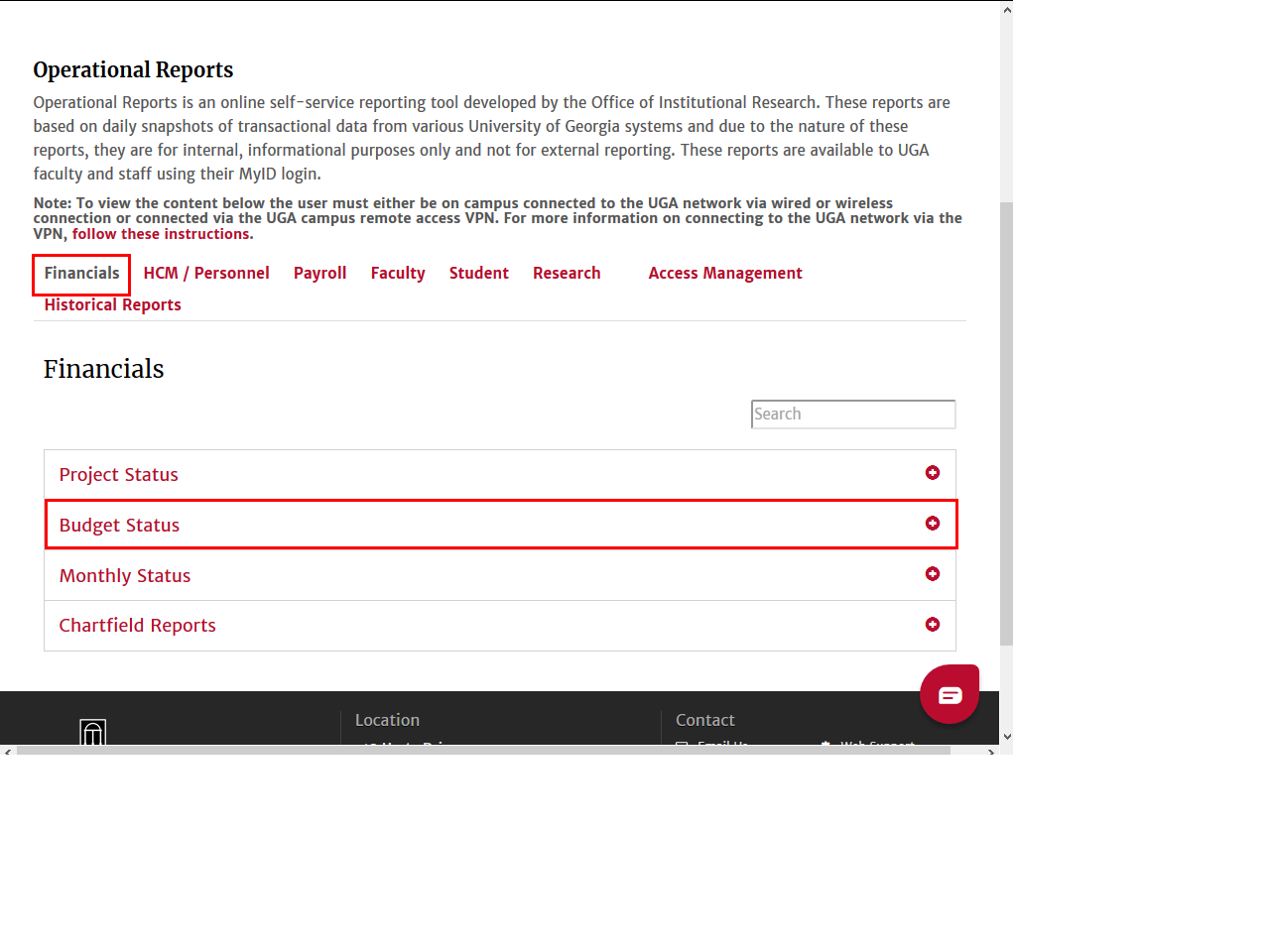
Once you are logged in, the Operational Reports page is displayed.
Note: The UGA Operational Reports are intended to be used only for internal and informational purposes. On this page, you can access various reports based on daily transactions from the UGA systems.
On the Financials tab, click anywhere on the Budget Status line to expand the Budget Status section.
|
|
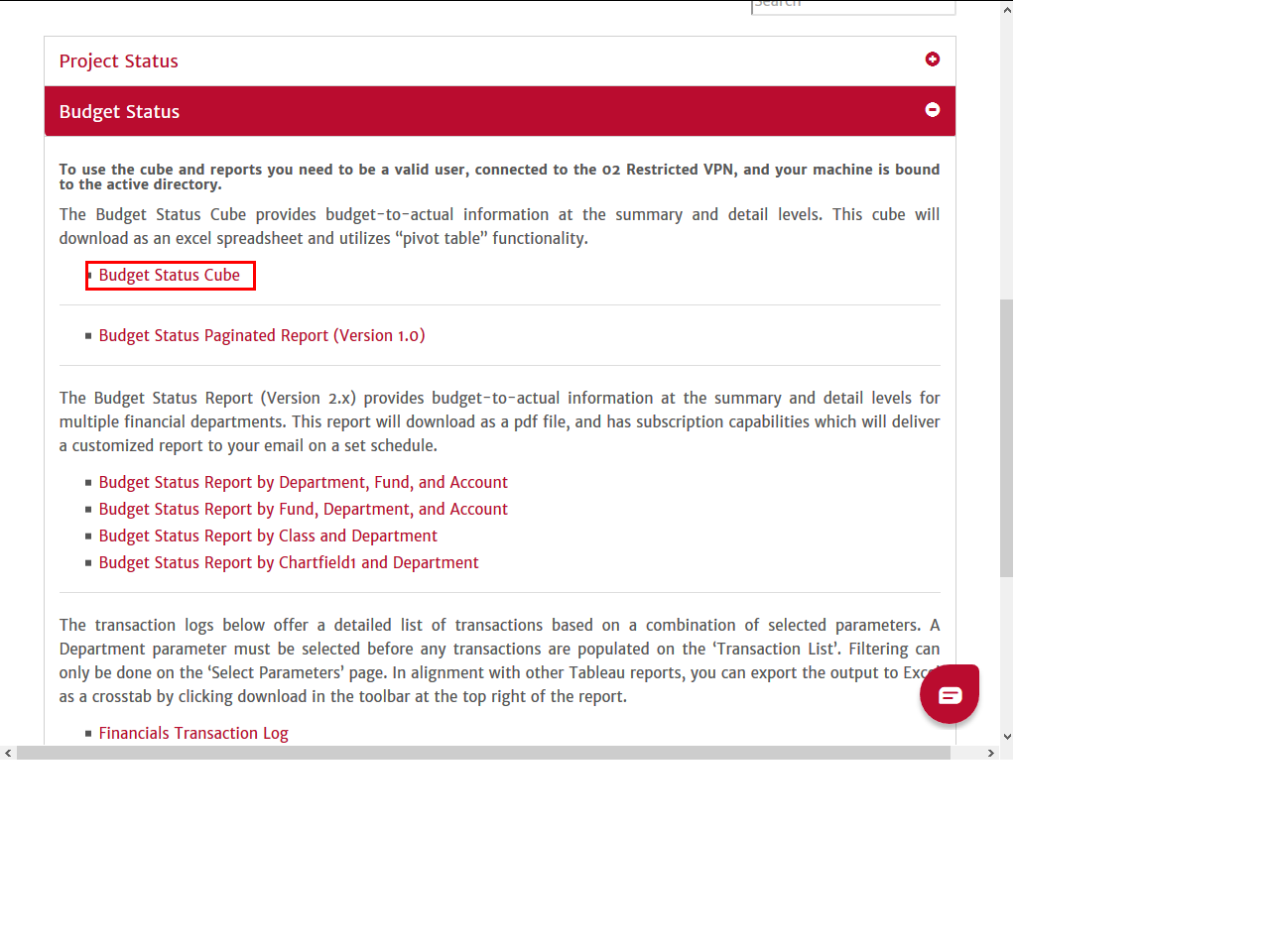 |
A list of the Budget Status Reports is displayed.
The Budget Status Cube is a good resource when you need to display financial data in a specific way. The cube allows for increased manipulation of the data and the ability to drill through to transaction details.
|
|
 |
|
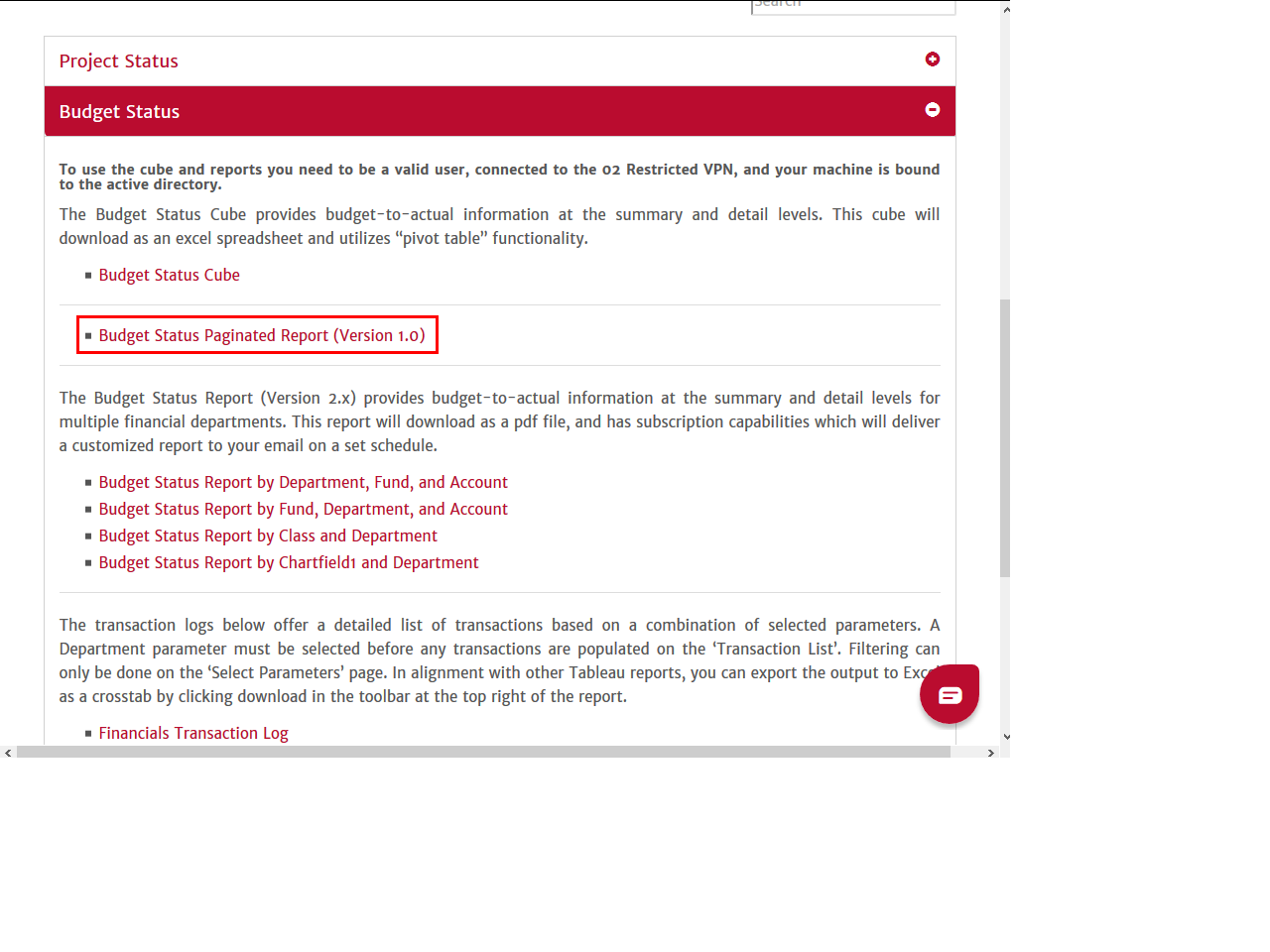
Budget Status Paginated Report (Version 1.0) is the original version of the Budget Status Report. It is a paginated report. Users will be prompted to select a budget reference, fiscal year, and department.
Note: Only one department can be displayed at a time. This report can be exported to Excel.
|
|
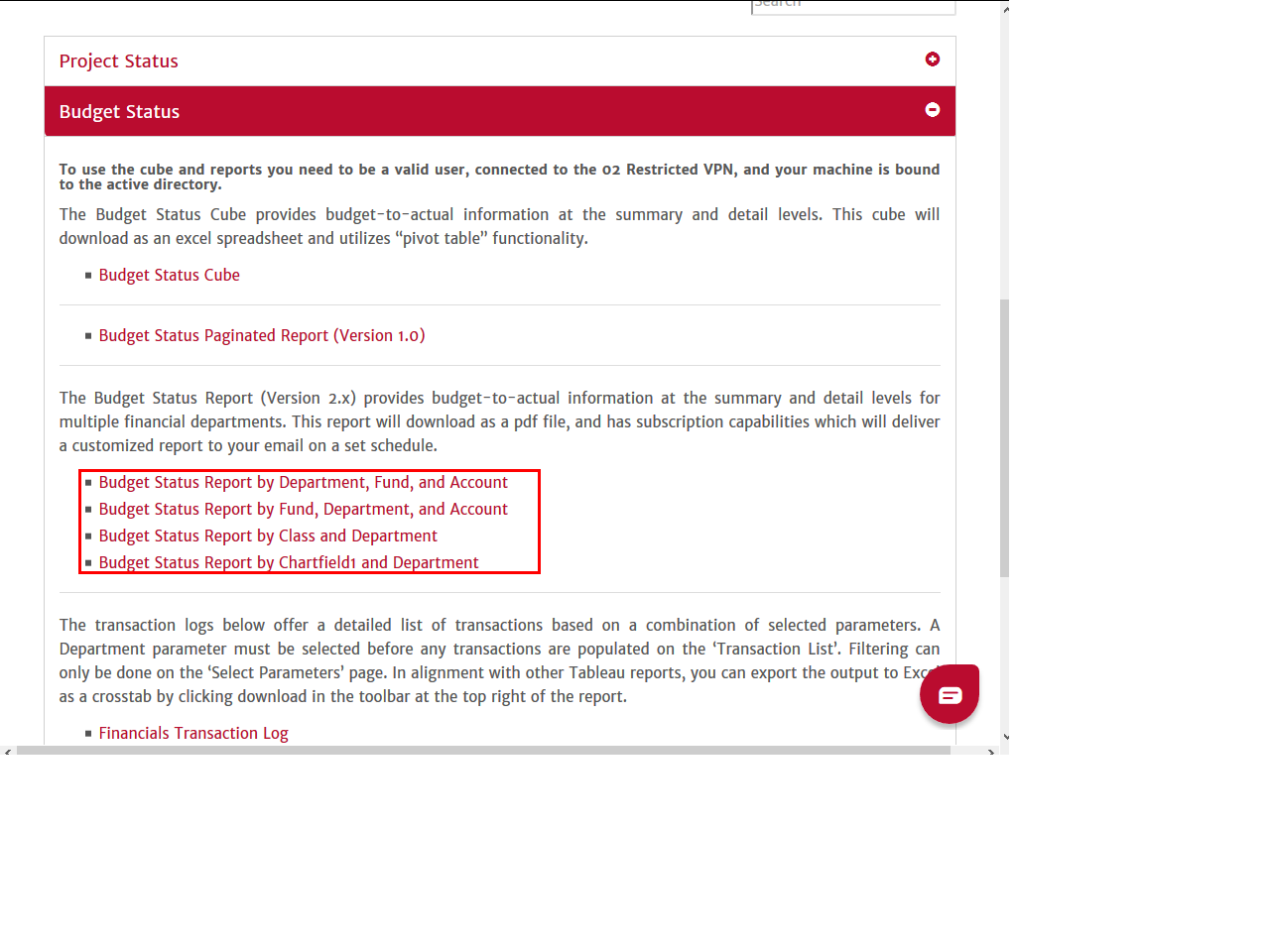 |
Budget Status Report (Version 2.x) has four different views from which users can select. Each view has a summary, detail, and transactions list tab.
|
|
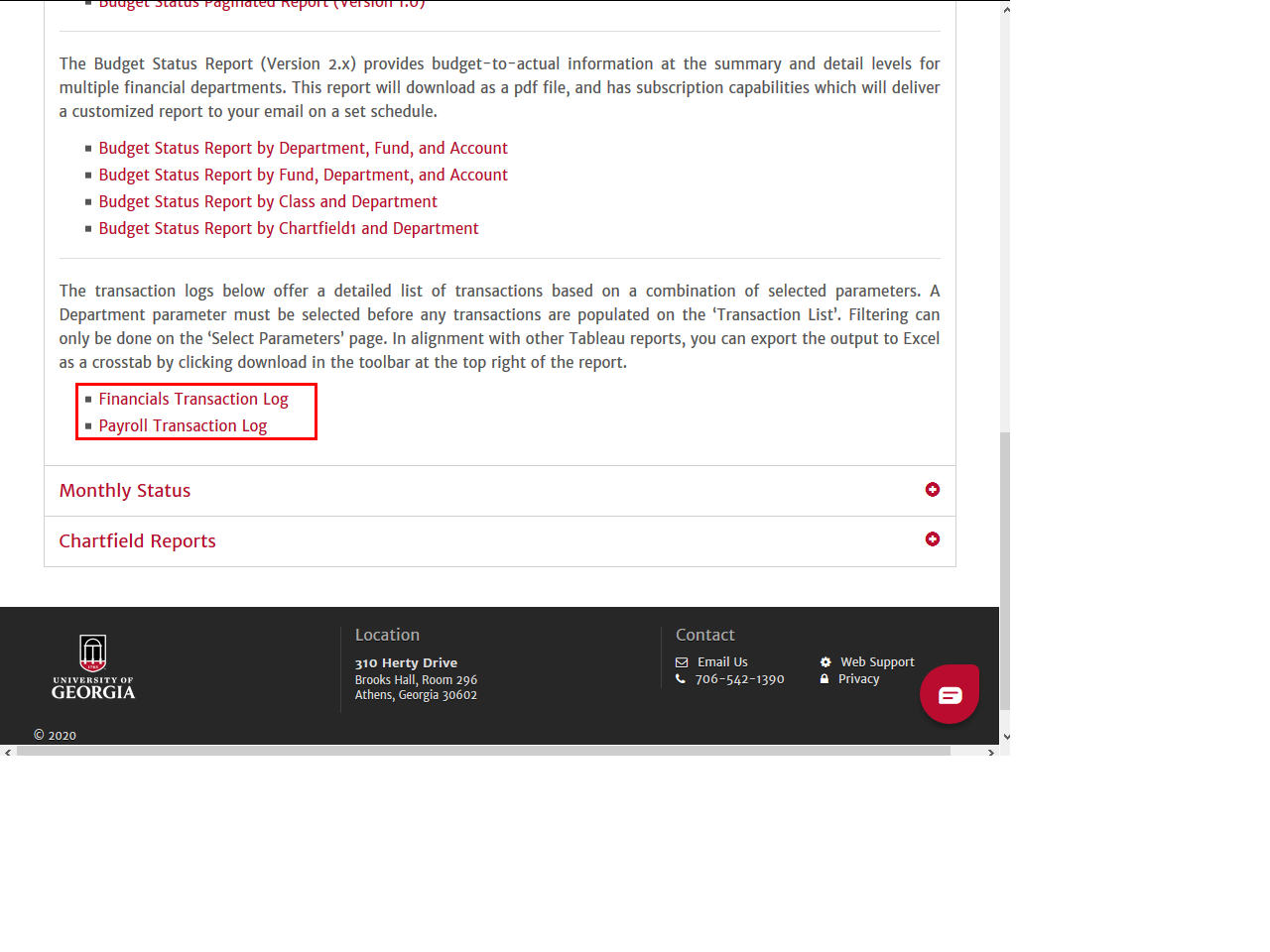 |
The Financials and Payroll Transaction Logs work as standalone transaction logs when accessing them via these links. The logs have two tabs: Select Parameters and Transaction List .
Note: The only required filter is department. These reports can be exported to Excel.
|
|
Details
Details
Article ID:
148525
Created
Sat 9/24/22 10:46 PM
Modified
Wed 3/18/26 1:13 PM